
Sync with other clients
TasksBoard does not keep your tasks itself: it reads and writes your Google Tasks lists. Anything you create, edit or complete in TasksBoard shows up in every other Google Tasks client, and the other way around.
Refresh
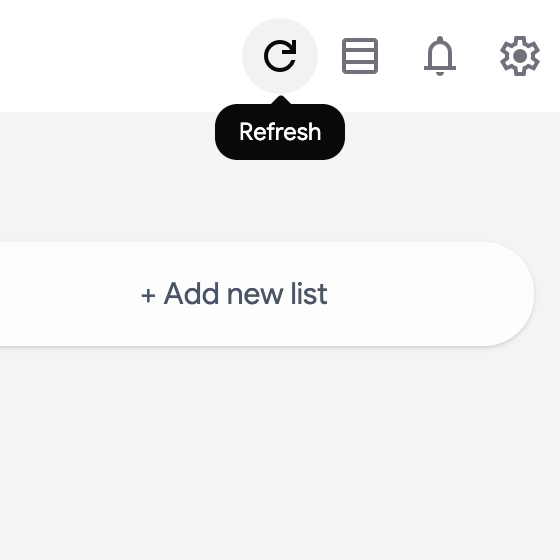
Section titled “Refresh”TasksBoard pulls your lists from Google when it opens and every time you come back to its tab or window. To fetch the latest changes right away, click the refresh icon in the header.
Where else your tasks appear
Section titled “Where else your tasks appear”- Google Calendar: tasks with a due date show on their day. Open the Tasks panel on the right of Google Calendar to add or complete tasks; the changes sync back to TasksBoard.
- Gmail, Google Drive and Google Docs: click the Tasks icon in the side panel of any Workspace app to see your lists.
- Google Tasks on Android and iOS: the official Google Tasks apps show the same lists. TasksBoard has no mobile app of its own, but you can install it on your phone as a web app.
- Google Docs and Google Chat: tasks assigned to you from a document or a space land in your lists too. See tasks assigned from Docs and Chat.
What only TasksBoard shows
Section titled “What only TasksBoard shows”Boards, list colors, labels, assignees, attached files and Gmail links are TasksBoard features built on top of Google Tasks. Labels and assignees are stored in the task notes, so other clients show them as the first lines of the notes; boards and colors are not visible elsewhere.
Changes from another client do not show up
Section titled “Changes from another client do not show up”- A due date or task edited in Gmail, Calendar or the mobile app is missing on the board. TasksBoard reads your lists when it opens and when you return to its tab. Click the refresh icon in the header, or reload the page. A pinned or installed app that stayed open for days needs a reload too.
- The mobile app shows other lists. The Google Tasks app is signed in with a different Google account than TasksBoard. Compare the address under the avatar in TasksBoard with the account selected in the app.
- Google Calendar shows every task of a shared list, not only mine. Calendar displays all the tasks of every list in your account, with no filter by assignee. Keep the tasks assigned to you in a list of their own, or use the Assigned to me smart board in TasksBoard: see multiple boards.
- “Quota exceeded” in a sync error. Google limits how many lists an account can hold (about 2,000, including completed and deleted ones) and how many list changes it accepts per day. Delete lists you no longer use and try again the next day; the limit is Google’s and resets daily.