
Install TasksBoard on Desktop
TasksBoard can be installed as a standalone app on Windows and Mac. It uses the browser’s built-in install feature (a Progressive Web App), so there is nothing to download: the app opens in its own window, with its own icon in the dock or Start menu, and stays signed in.
Install from the settings menu
Section titled “Install from the settings menu”- Open TasksBoard in Google Chrome or Microsoft Edge (any Chromium-based browser such as Brave works too).
- Click on the settings icon (gear) at the top right of the screen.
- Click on “Install Desktop App”.
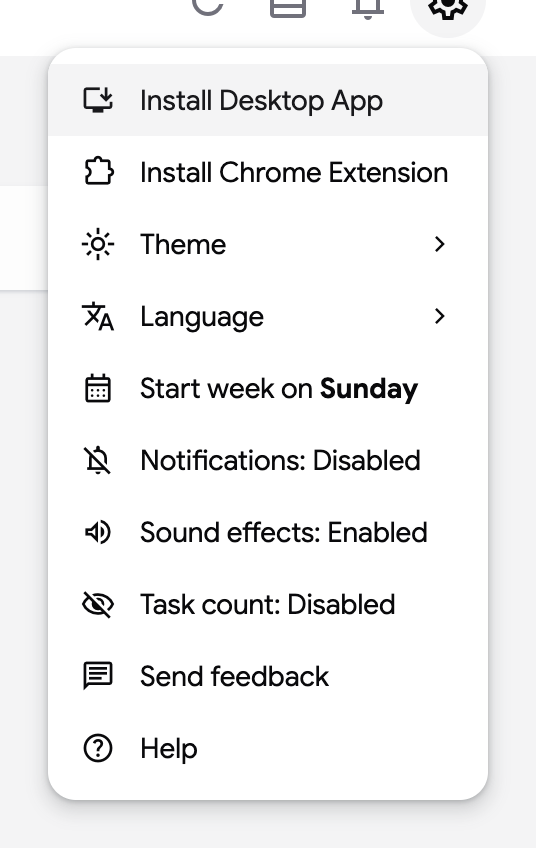
- Click on Install in the small dialog the browser shows.
TasksBoard opens in its own window and a shortcut is added to your dock (Mac) or Start menu (Windows). Once you use the installed app, the “Install Desktop App” item disappears from the menu.
Install on a phone or tablet
Section titled “Install on a phone or tablet”On Android, open TasksBoard in Chrome, open the browser menu and choose “Add to Home Screen”. On iPhone and iPad, open it in Safari, tap the share button and choose “Add to Home Screen”. See Use TasksBoard on mobile.
Uninstall
Section titled “Uninstall”Open the installed app, click on its three dots menu at the top of the window and choose “Uninstall TasksBoard”. Your tasks are not affected: they live in Google Tasks.