
Update profile picture
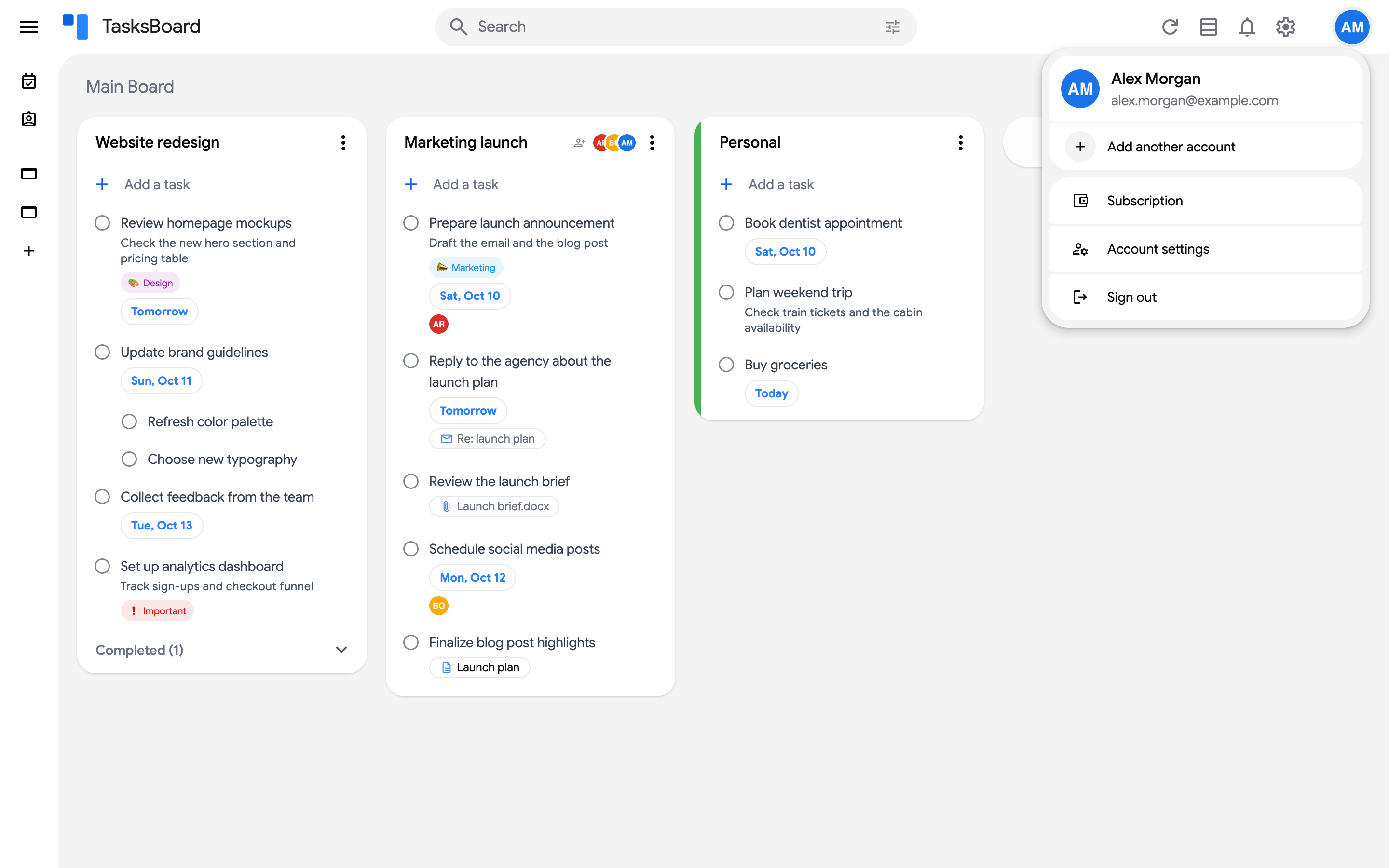
TasksBoard does not have its own profile pictures: the picture at the top right of the screen, and the ones your collaborators see next to assigned tasks, come from your Google account.

Change your picture
Section titled “Change your picture”- Go to your Google Account profile page and upload a new picture.
- Make sure the picture’s visibility is set to “Visible to anyone” (the option sits under the profile photo on that page). If it is visible to your organization only, other people will see your initials instead.
- In TasksBoard, click on your profile picture and choose “Sign out”, then sign in again. The new picture is loaded on sign-in.
If the old picture is still shown after signing in again, open tasksboard.com/resetLogin: it signs you out and asks Google again for your profile, which refreshes the picture.
Pictures missing in a Google Workspace organization
Section titled “Pictures missing in a Google Workspace organization”If nobody in your organization has a picture in TasksBoard, a Workspace setting is usually blocking them. Ask your administrator to:
- Enable contact sharing, so profile pictures are visible across the organization. See Google’s guide on contact sharing.
- Allow profile photo editing on the Admin console profile editing page, with the “Profile photo” toggle turned on.
Once the settings are changed and your teammates have uploaded their pictures, ask them to sign out and sign in again from TasksBoard.