
Use TasksBoard on mobile
Boards, list colors, labels and shared lists are TasksBoard features. The Google Tasks apps for iOS and Android only know Google’s own lists, so they show your tasks but not the way TasksBoard organizes them. To see your boards on a phone, open TasksBoard itself in the mobile browser, or add it to your home screen so it opens like an app.
What the Google Tasks app shows
Section titled “What the Google Tasks app shows”- Every list and task, including the ones created in TasksBoard, since they all live in Google Tasks.
- Due dates, notes and subtasks.
- Labels, attached files and assignees appear as text at the top of the task notes, because TasksBoard stores them there.
It does not show boards, list colors or who a list is shared with, and a list shared with you keeps syncing only while one of the collaborators uses TasksBoard. See Sync with other clients.
The phone layout
Section titled “The phone layout”Open tasksboard.com/app in Chrome or Safari on your phone and sign in with your Google account. On a phone screen the board turns into a layout made for one hand:
- One list per screen. Swipe left and right to move between the lists of the board. A card at the top shows the board name, the name of the list on screen and a dot per list; tap the list name to jump to any list of the board.
- Add a task from the field docked at the bottom of the screen (“Add a task to …”): type a title and tap + (or Enter). The task goes to the top of the list on screen; on “Due today” it gets today’s date.
- Open a task by tapping it: the editor opens full screen with the title, details, due date, labels, files and assignees stacked. Tap “Done” or the back arrow to save and close.
- Move a task to another list with “Move to another list” in the task’s menu (the three dots): a sheet lists the lists of every board.
- Bottom bar: “Boards” switches boards, “Search” opens the search with its filters, “Due today” and “Assigned to me” open the smart boards, and “Menu” holds Account settings, the subscription, “Add to home screen”, feedback, help and sign out.
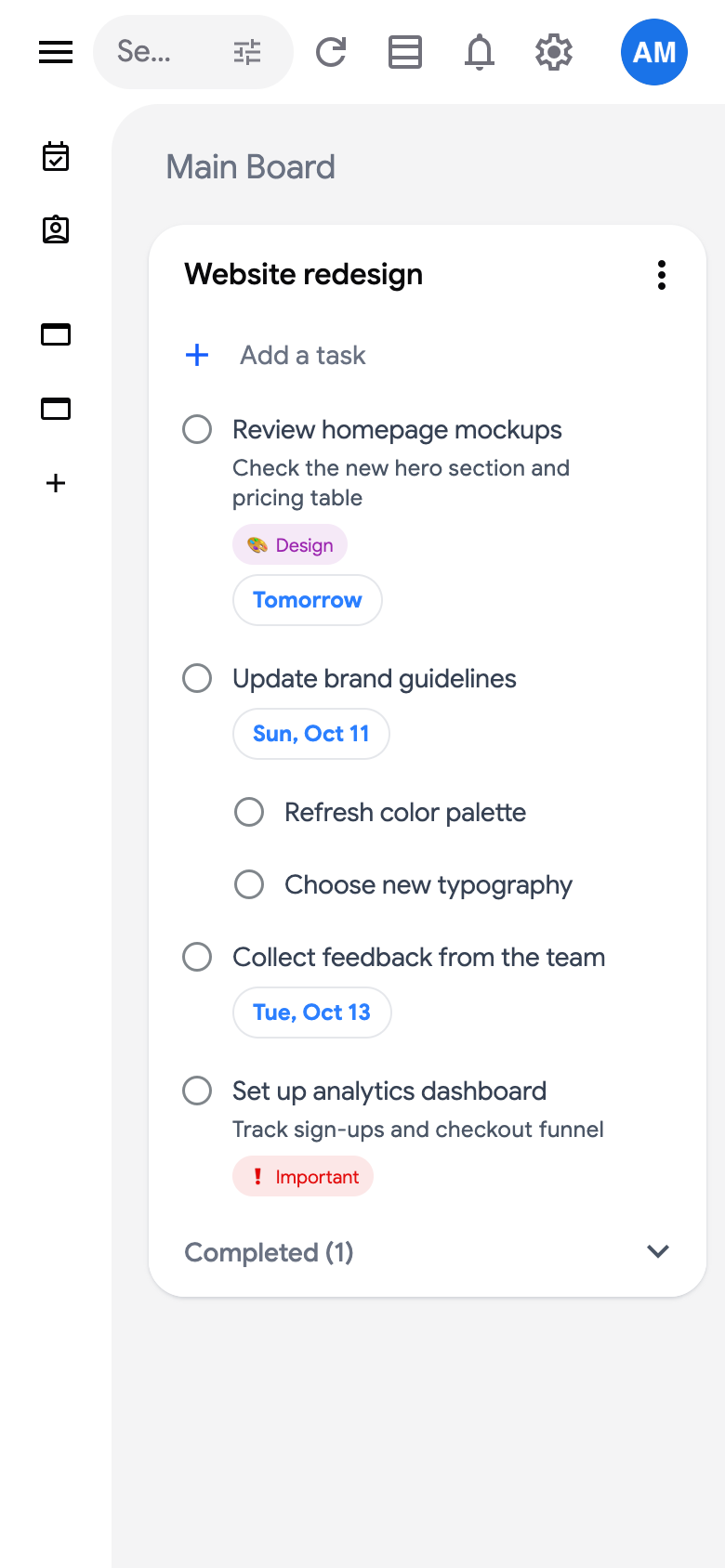
On a tablet, the board shows two lists per screen in the horizontal layout, with the board title and its controls above them, and otherwise works as on a computer.
Everything syncs with Google Tasks exactly as on the desktop: labels, due dates, subtasks, shared lists and boards.
Add TasksBoard to your home screen
Section titled “Add TasksBoard to your home screen”To open TasksBoard like an app, with its own icon and without the browser bars:
- Android: in Chrome, open the browser menu (three dots) and tap “Add to Home screen” (or “Install app”). Once installed, TasksBoard appears in the Android share sheet: share a link or some text from another app to TasksBoard and a new task opens with it, in the first list of the board on screen, ready to save.
- iPhone and iPad: in Safari, tap the share button and choose “Add to Home Screen”.
TasksBoard shows this hint once by itself, a little after you open the board on a phone. It is also in the “Menu” tab, under “Add to home screen”.