
Transfer tasks to another account
You can copy all your Google Tasks lists and tasks from the account you are signed in with to another Google account, for example from a personal Gmail account to a work account.
Transfer your tasks
Section titled “Transfer your tasks”- Sign in to TasksBoard with the account that currently holds your tasks.
- Click on your profile picture in the top right corner and select “Account settings”.
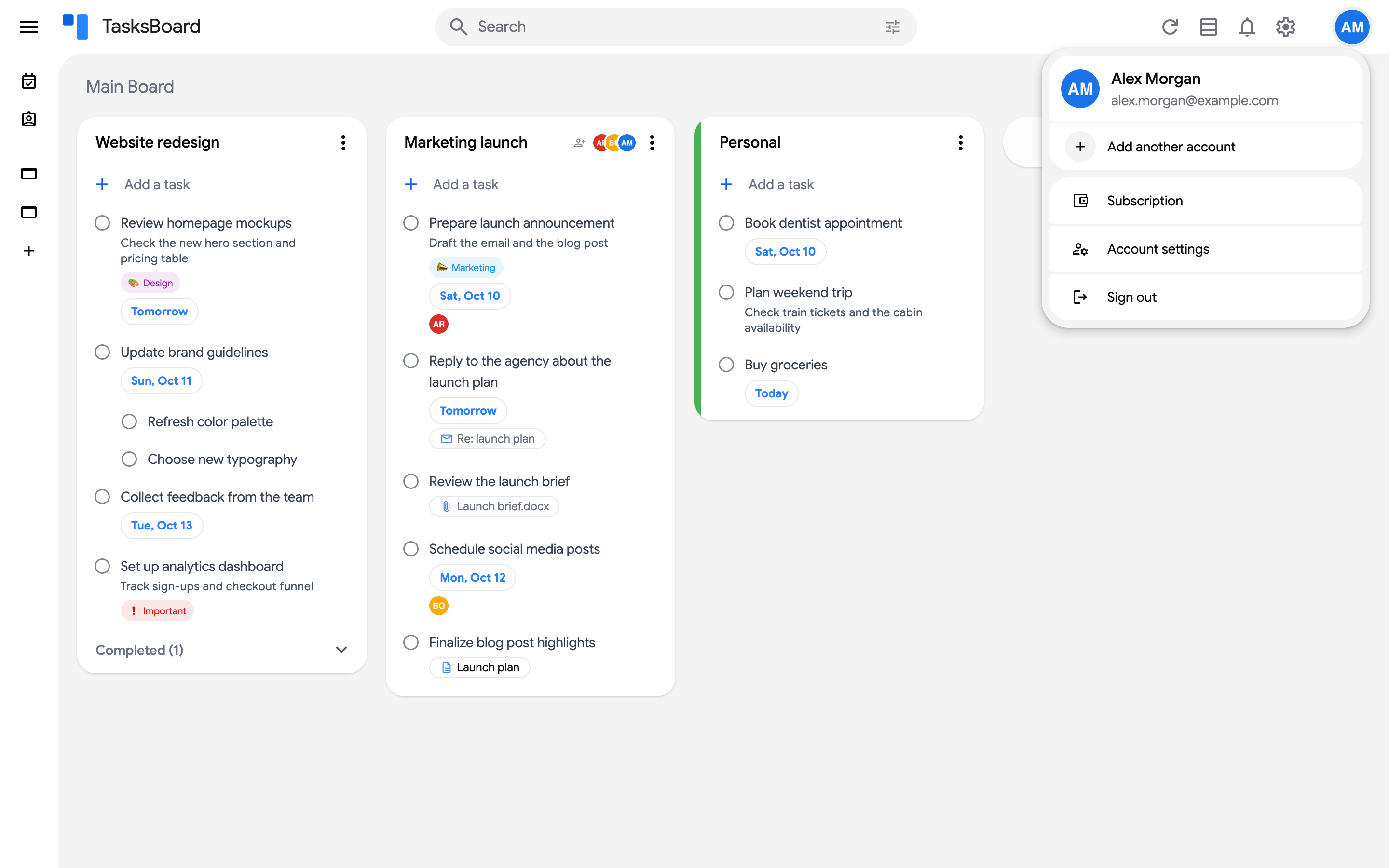
- Next to “Transfer tasks to another account”, click on “Transfer”.
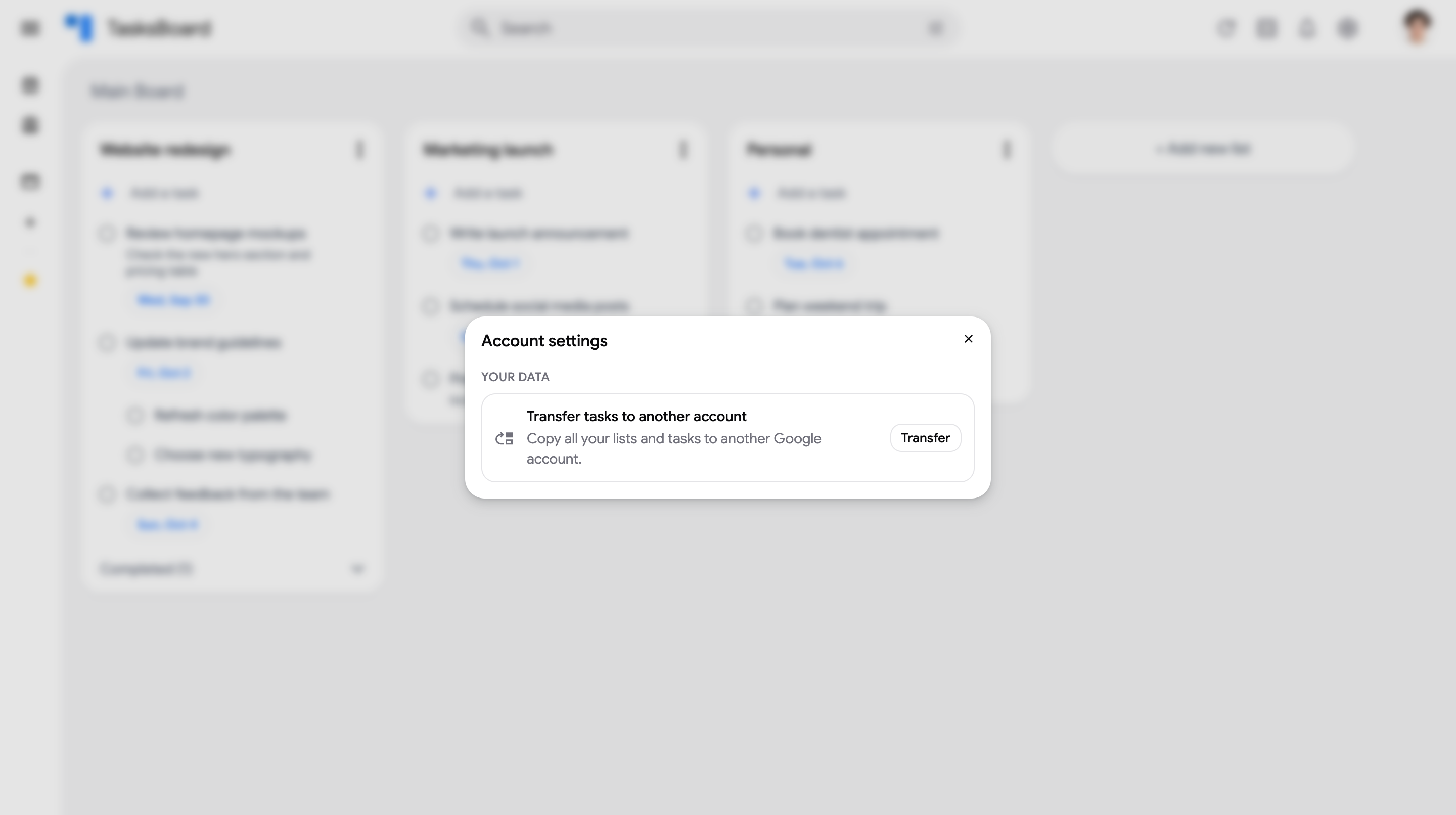
- Click on “Connect target account”. Google asks you to choose an account: select the account you want to copy your tasks to and allow TasksBoard to access its Google Tasks.
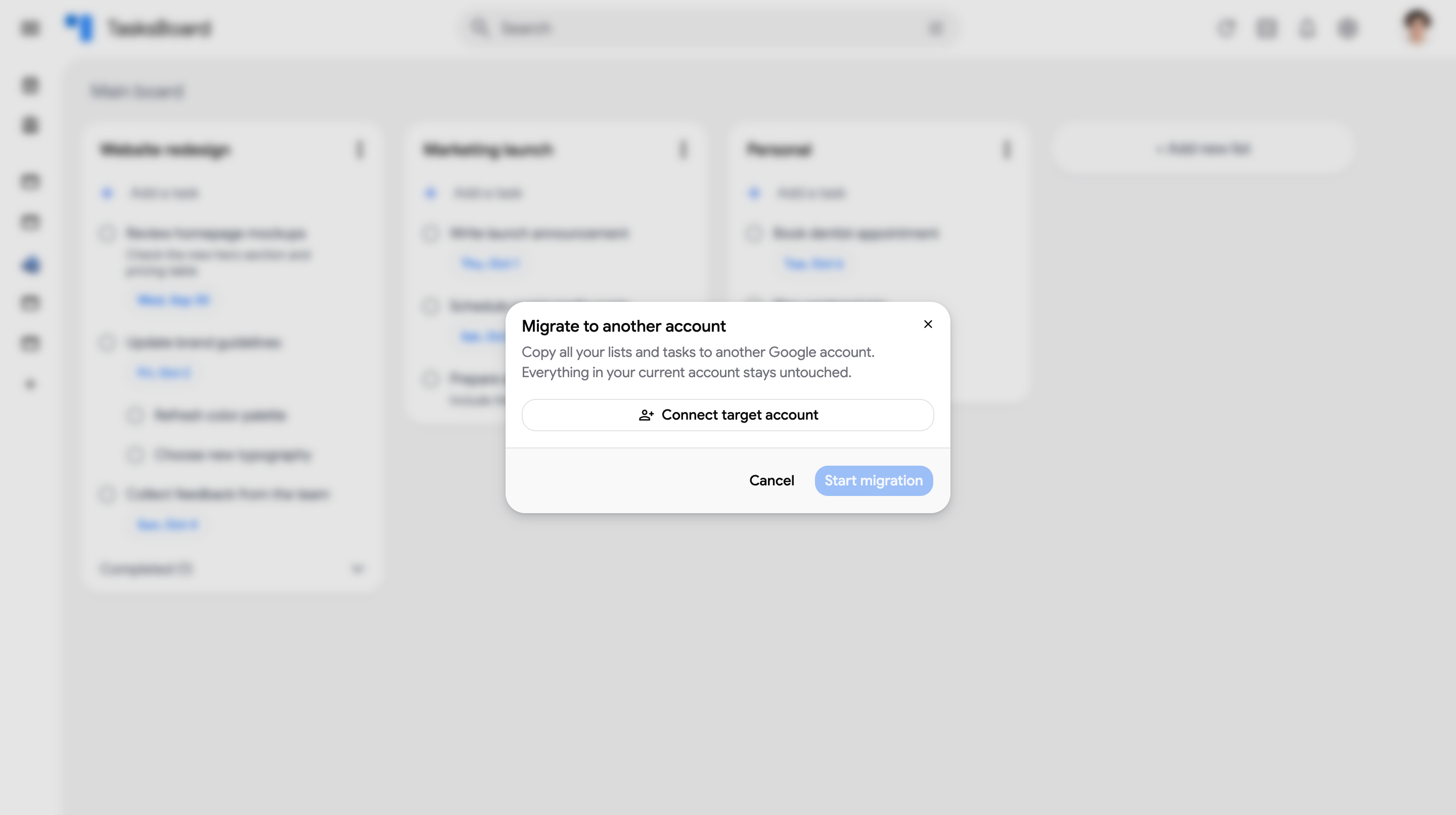
- Back in TasksBoard, check that the target account shown is the right one, then click on “Start migration”.
- Keep the tab open while the progress bar runs. When the migration is done, TasksBoard tells you how many lists and tasks were copied.
To see your tasks in the other account, click on your profile picture, select “Add another account” and sign in with the target account. See Use several Google accounts.
What is transferred
Section titled “What is transferred”Every task list of your account is copied to the target account, including:
- The list titles
- All tasks, including completed tasks
- Subtasks, under their parent task
- Task notes and due dates
- The order of your tasks
- Labels, assignees and attached files, which TasksBoard saves in the task notes
Your current account stays untouched: nothing is moved or deleted, the transfer only creates a copy.
The copied lists are added next to the lists that already exist in the target account. They are not merged, so if both accounts have a “My Tasks” list, the target account will show two “My Tasks” lists.
What is not transferred
Section titled “What is not transferred”- Deleted tasks
- Boards and list colors: they are saved in your TasksBoard account, not in Google Tasks. The copied lists appear on the Main Board of the target account.
- Sharing: the copies of your shared lists are not shared with anyone. Share them again from the target account.
If the migration is interrupted
Section titled “If the migration is interrupted”The connection to the target account is only valid for a limited time, and the migration stops if you close the tab. If it stops or fails, the lists that were already copied stay in the target account.
You can start the migration again, but lists that were already copied will be copied a second time. Delete the duplicate lists from the target account before or after retrying.
If TasksBoard tells you that the connection to the target account expired, click on “Connect target account” again and restart the migration.
Privacy
Section titled “Privacy”TasksBoard only uses the access to the target account to create your lists and tasks during the migration. The access is not stored: once the migration is over, TasksBoard can’t access the target account unless you sign in with it.