
Fix connection issues
TasksBoard syncs your board with Google Tasks every few seconds. When something goes wrong, the top bar or a dialog tells you what: start with the message you see, then follow the matching fix.
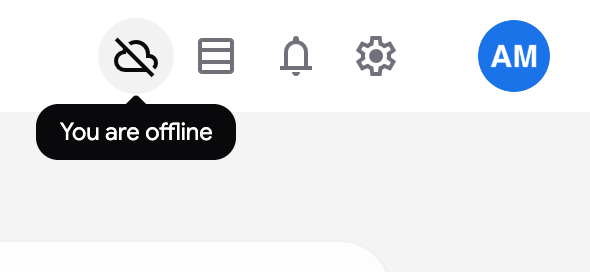
You are offline
Section titled “You are offline”A crossed cloud icon in the top bar means TasksBoard cannot reach the network. Your edits are kept on this device and sent to Google Tasks as soon as the connection is back; a click on the icon checks the connection again.
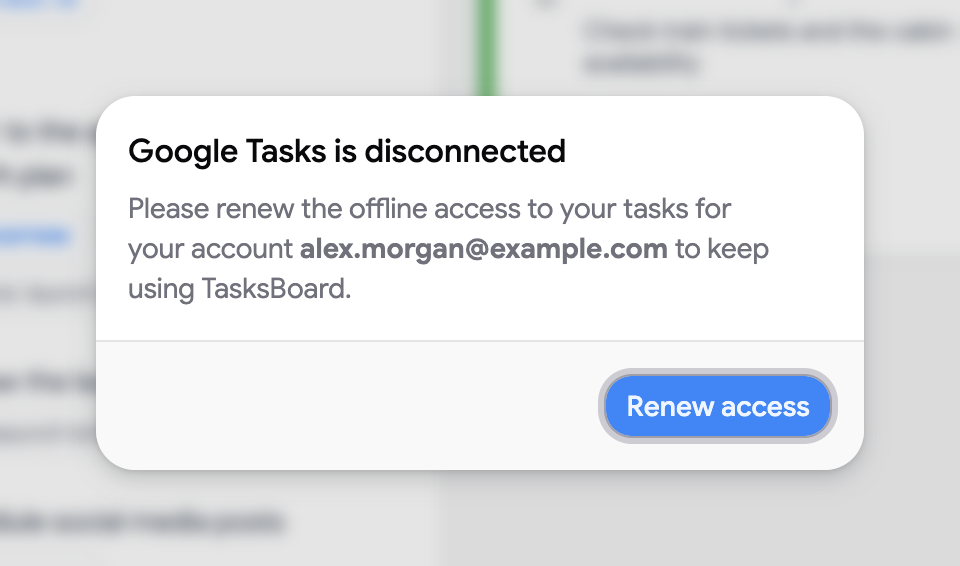
”Google Tasks is disconnected”
Section titled “”Google Tasks is disconnected””This dialog appears when Google stopped letting TasksBoard read your tasks in the background, for example after you changed your Google password or removed the app’s access. Click on “Renew access” and accept the Google screen: it only asks for the permissions you already granted.
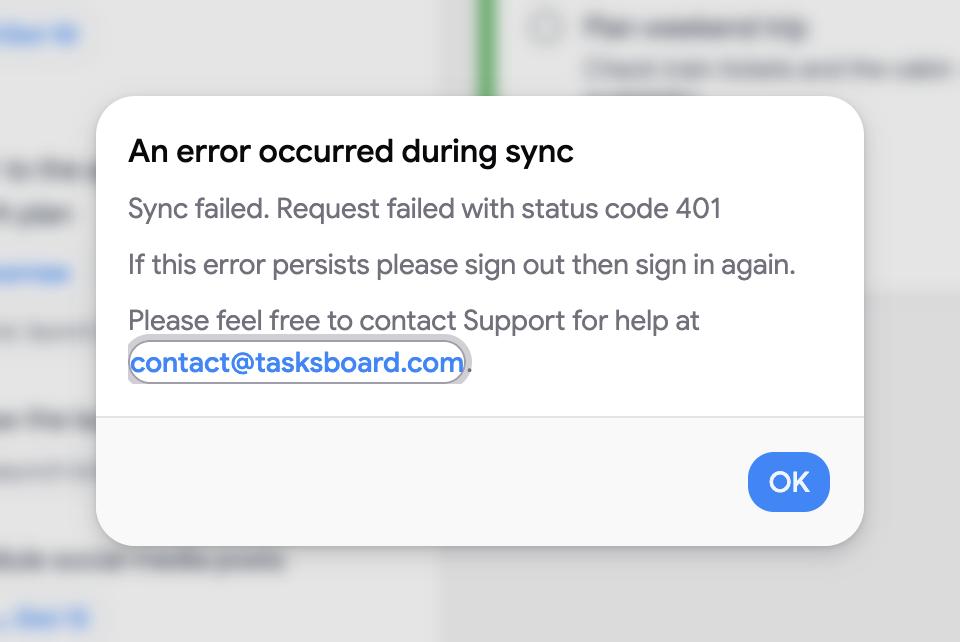
“An error occurred during sync”
Section titled ““An error occurred during sync””A sync error shows the message Google returned. Click on “OK” and refresh the board. If the error comes back, sign out from your profile picture and sign in again, then reset the access as described below if it persists.
I didn’t tick the tasks permission when signing in
Section titled “I didn’t tick the tasks permission when signing in”Google’s sign-in screen lists the permissions TasksBoard asks for, and the one for your tasks is a checkbox you can leave unticked. If you continue without it, TasksBoard cannot read your tasks at all: a message asks you to tick “See, edit, create and delete all your tasks”, and you are sent back to the Google screen to do so. Tick the box and continue; nothing else is needed.
If you skipped it a second time, you land on the troubleshooting page instead. Sign in again from there and tick the box. TasksBoard never stores an access that cannot read your tasks, so there is nothing to reset.
”Your organization needs to approve TasksBoard”
Section titled “”Your organization needs to approve TasksBoard””Google Workspace administrators control which apps can access the organization’s data. If you see this dialog, click on “Request access” to send the request to your administrator, or ask them to open Security > Access and data control > API controls > Manage Third-Party App Access in the Admin console, search for TasksBoard and set it to Trusted. Once approved, click on “Reconnect”.
Google answered “Insufficient Permission”
Section titled “Google answered “Insufficient Permission””This is a different case: the Tasks service itself is turned off for your account by your Google Workspace administrator, so Google refuses every request even though TasksBoard is approved. TasksBoard signs you out and sends you to the troubleshooting page, which explains it. Signing in again does not help until your administrator enables Tasks for your account on the Google Workspace apps settings page (Apps > Google Workspace > Tasks). Once it is on, sign in again.
Reset the access to your Google account
Section titled “Reset the access to your Google account”Automatic reset
Section titled “Automatic reset”Open tasksboard.com/resetLogin. It signs you out and takes you to Google to grant the access again, with your account pre-selected. Nothing is deleted. You can also use the troubleshooting page, which runs the same checks for you.
Manual reset
Section titled “Manual reset”- Go to your Google account permissions page.
- Select “TasksBoard” in the section named “Third-party apps with account access”.
- Click “Remove Access”.
- Come back to TasksBoard and sign in again by accepting all requested access, so TasksBoard can manage your tasks and link Google Drive files.
Sign-in sends you back to the sign-in page
Section titled “Sign-in sends you back to the sign-in page”You click “Sign in with Google”, pick your account, and land on the sign-in page again, sometimes with an “Authentication error” message. The Google sign-in itself succeeded; the browser then refused to keep the session.
- Try a private window. If the sign-in works there, the problem is in your usual browser profile: clear the site data for tasksboard.com (see below) and allow third-party cookies for
tasksboard.comandaccounts.google.com, or add tasksboard.com to the exceptions of your cookie blocker. - Disable extensions that touch cookies or privacy (ad blockers, tracker blockers, cookie managers) for tasksboard.com.
- If every browser loops, open tasksboard.com/resetLogin and grant the access again.
The desktop app uses the same browser profile it was installed from, so fixing the browser fixes the app.
The page is completely blank
Section titled “The page is completely blank”No dialog, no icon, just an empty page: see TasksBoard shows a blank page.
Still stuck?
Section titled “Still stuck?”- Clear the site data for tasksboard.com in your browser settings (Chrome: Settings > Privacy and security > Third-party cookies > See all site data and permissions, search “tasksboard”), then sign in again.
- Check your extensions: an ad blocker or a privacy extension can block the calls to Google. Allow tasksboard.com in the extension, or try a private window.
- Contact support at contact@tasksboard.com with the exact message of the dialog.