
Set due dates
You can add a due date to a task. It is stored in Google Tasks, so it shows everywhere your tasks do.
Add a due date
Section titled “Add a due date”- Click the title of the task to open it.
- Click the “Add date” button (calendar icon) under the details.
- Pick “Today”, “Tomorrow”, “Next week” (same weekday next week), or any day in the calendar.
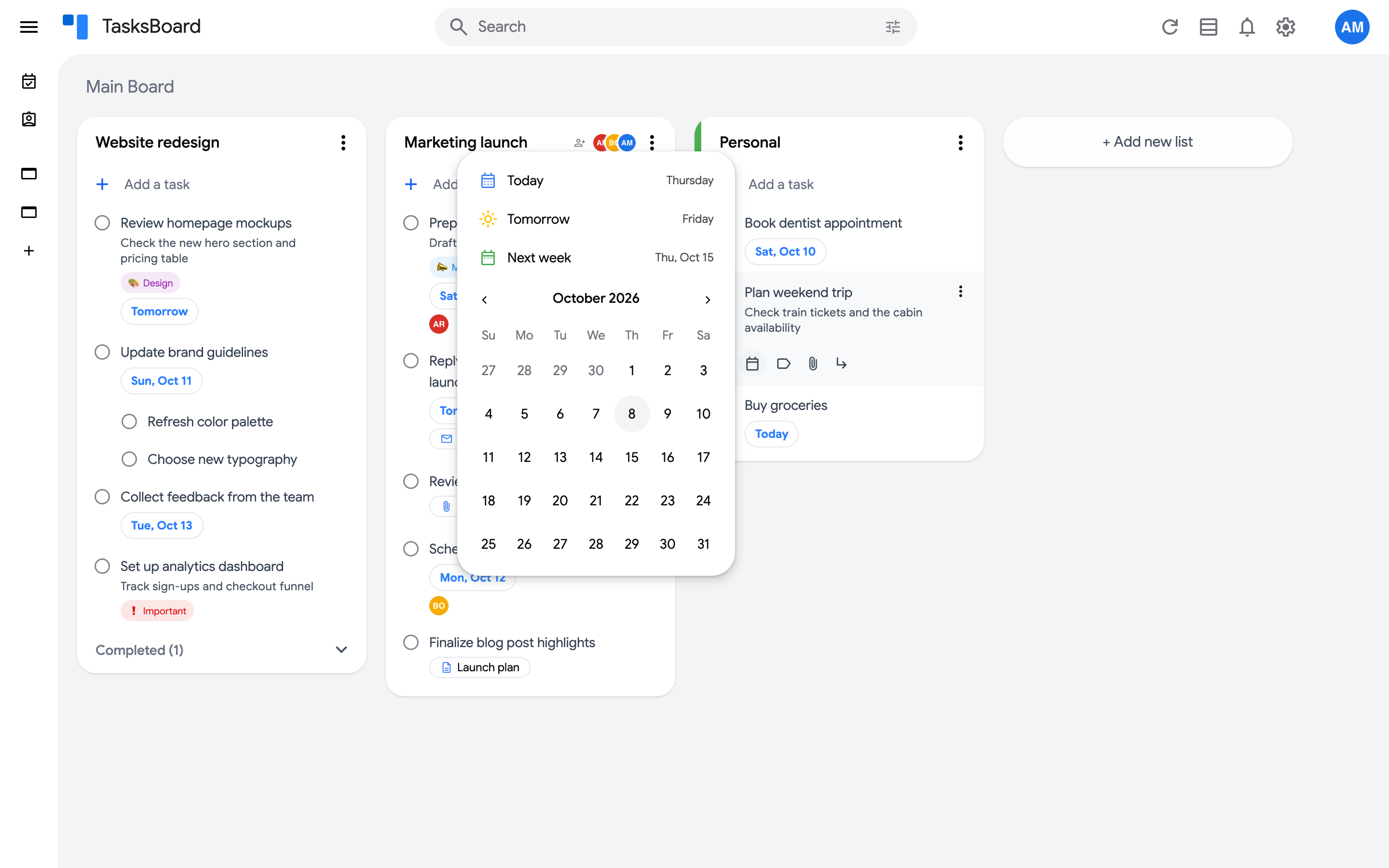
The date appears as a chip on the task, with “Today” and “Tomorrow” spelled out and past dates highlighted. To change it, click the chip; to remove it, open the task and click the x on the date chip, or pick “No Date” in the popover.
A due date set in Google Tasks doesn’t show up in TasksBoard
Section titled “A due date set in Google Tasks doesn’t show up in TasksBoard”TasksBoard displays due dates exactly as Google’s Tasks API provides them.
However, Google stores task dates in two separate places: one that Google’s own apps (the Gmail sidebar, Google Calendar) display, and one that the Tasks API exposes to third-party apps like TasksBoard. Google is known to leave these two out of sync. This affects in particular tasks created from an email in Gmail: a deadline set there can be visible in Google’s apps but never reach the API, so TasksBoard (or any other third-party app) cannot display it.
This can only be fixed by Google. You can star the issue on their API issue tracker here https://issuetracker.google.com/issues/277970542 to speed up the process.
As a workaround, a due date added or edited directly in TasksBoard always sticks and stays in sync everywhere.