
Attach a file to a task
You can attach files from your Google Drive, or any web link, to a task. The attachment shows as a chip on the task that opens it.
Attach a file
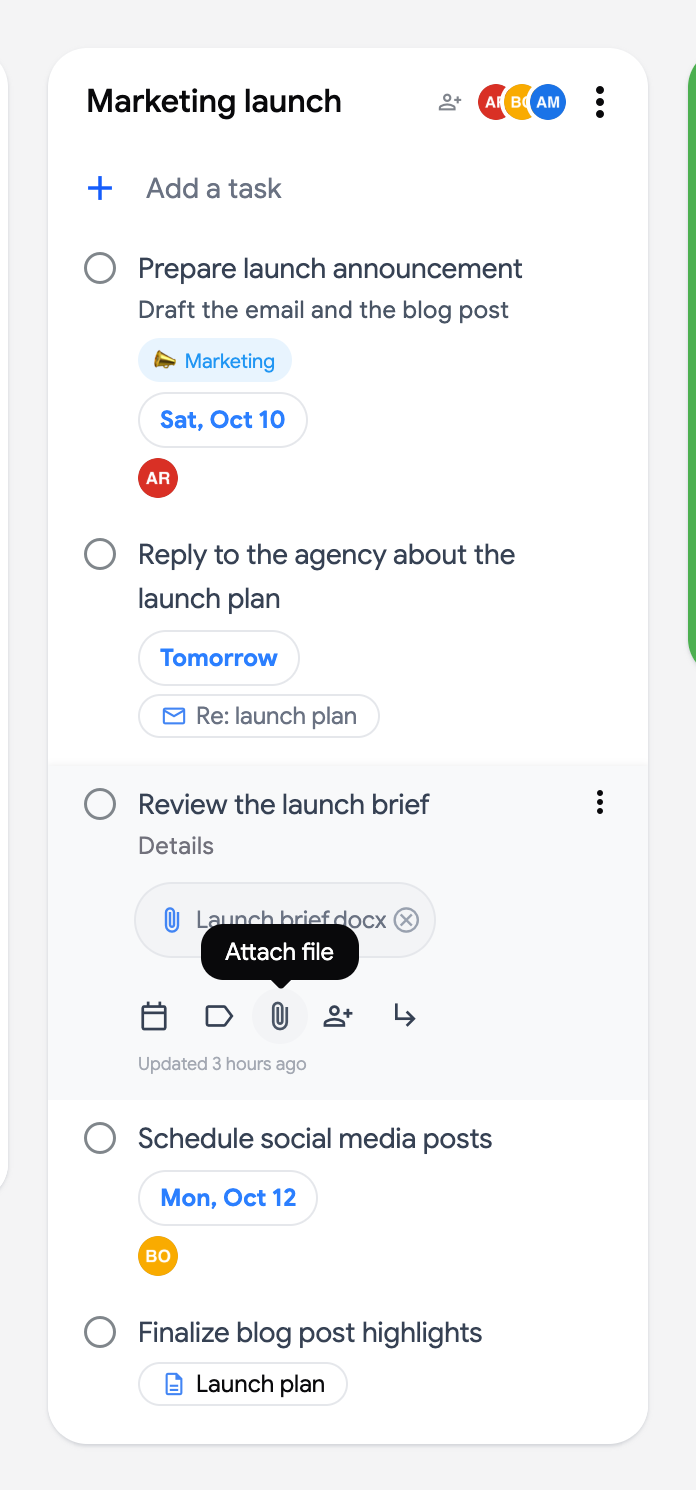
Section titled “Attach a file”- Click the title of the task to open it.
- Click the “Attach file” button (paper clip icon) and choose “Pick from Google Drive”.
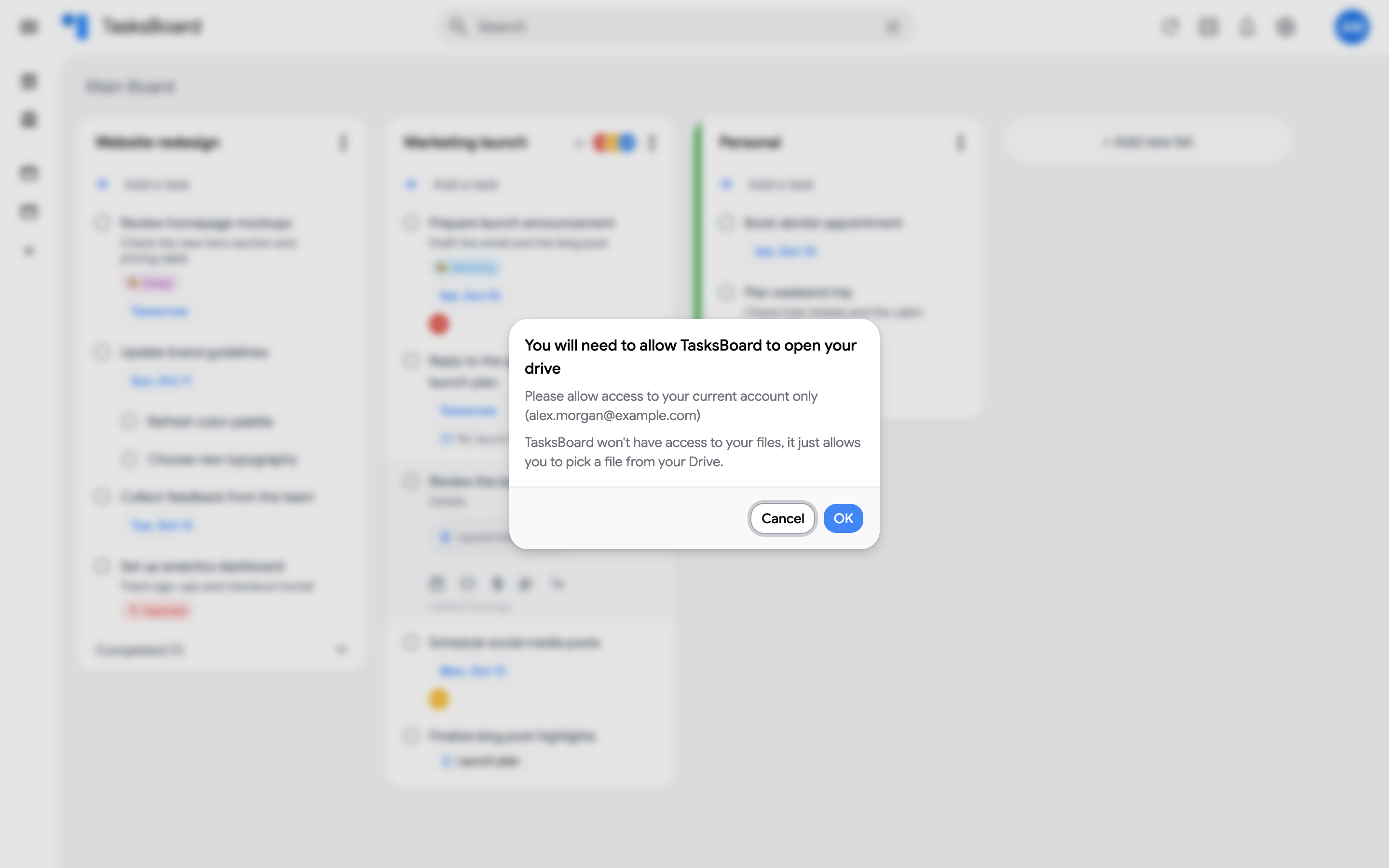
- The first time, TasksBoard asks you to allow access to your Google Drive. Click “OK” and approve the request on Google’s page, for the account you use in TasksBoard.
- Pick the file in the Google Drive picker that opens.
This access only lets you pick a file: TasksBoard never reads your Drive files and has no offline access to them.
Paste a link
Section titled “Paste a link”To attach a web page, a shared document from another service or a ticket:
- Open the task and click the “Attach file” button (paper clip icon).
- Choose “Paste a link”.
- Paste the link (it must start with
http://orhttps://), give it a title if you like, and click “Attach”.
The link shows as a chip like a Drive file. TasksBoard never opens the link itself.
Remove an attachment
Section titled “Remove an attachment”Open the task and click the x on the chip. A Drive file itself stays in your Drive.
Issues
Section titled “Issues”If the picker does not open, reset the Drive access with this link: https://tasksboard.com/resetlogin, then try again.
If that does not help, check that your browser allows third-party cookies: the Google Drive picker relies on them. In Chrome, look for the crossed eye icon in the address bar and allow cookies for TasksBoard. If it works in an incognito window but not normally, a browser extension is probably blocking those cookies; on Brave, lower the shield for TasksBoard.