Change the background of a board
Each board can have its own background: a photo, a color or an image hosted elsewhere. It helps to tell boards apart at a glance.
Open the Change background dialog
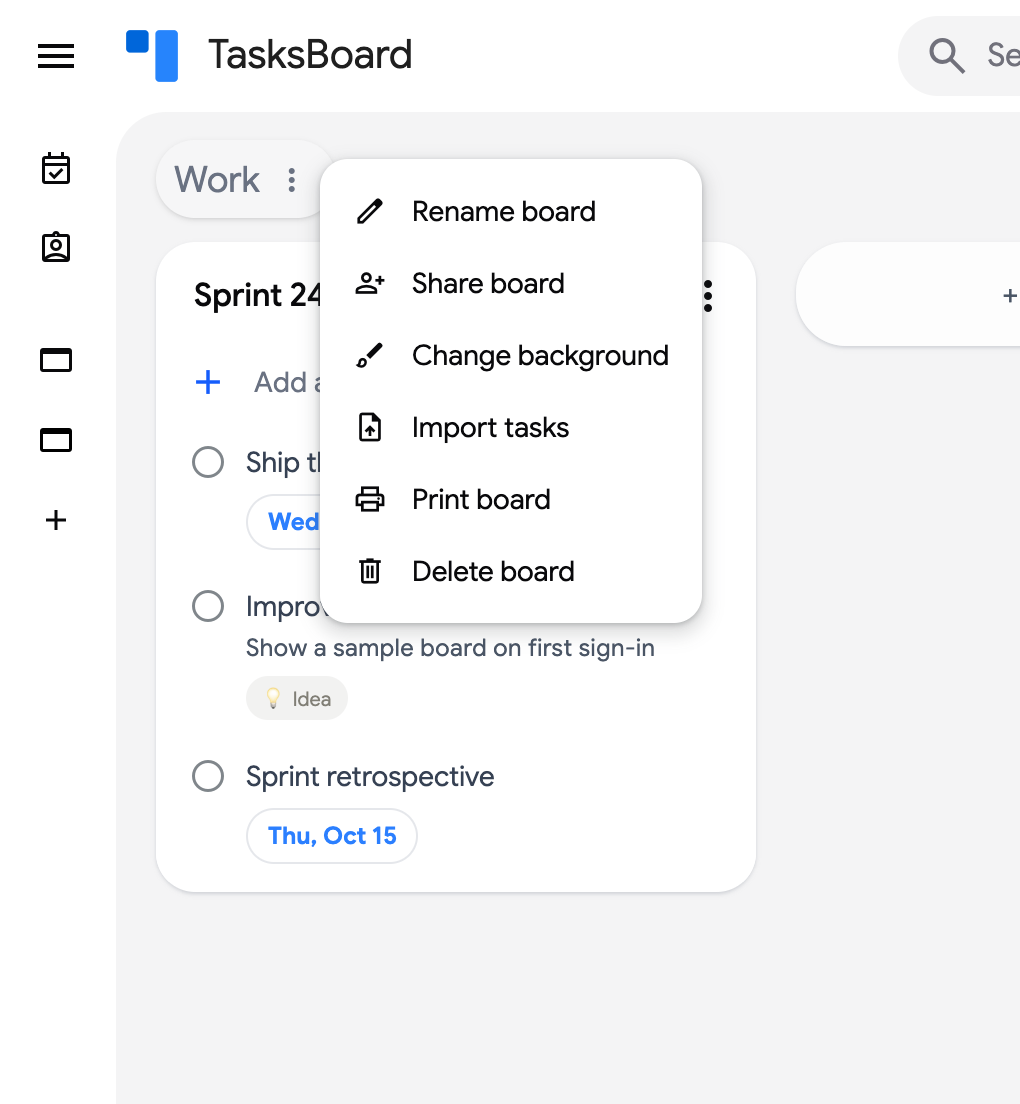
Section titled “Open the Change background dialog”- Open the three dots menu (⋮) next to the board title (or next to the board in the sidebar).
- Click “Change background”.
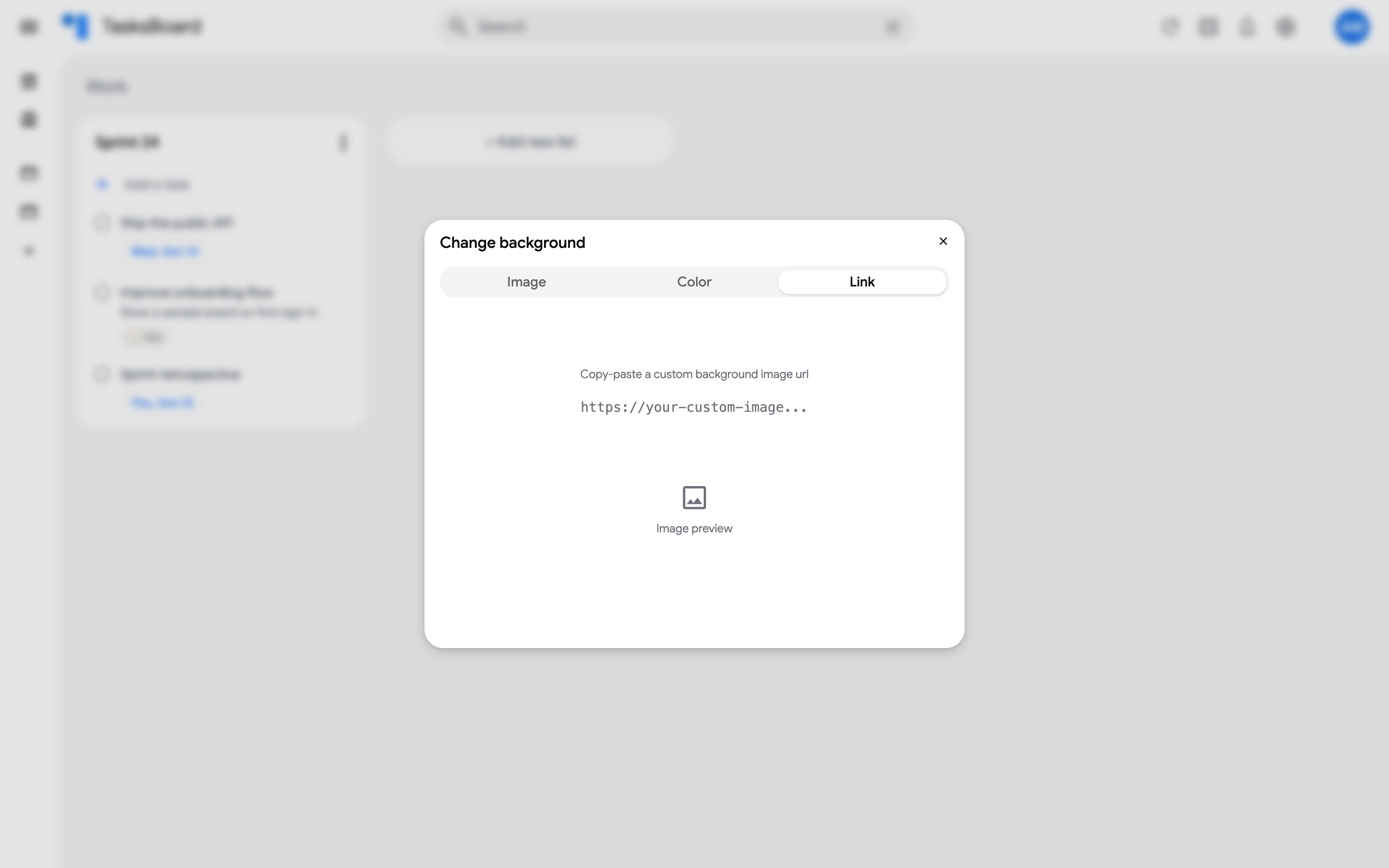
The dialog has three tabs: “Image”, “Color” and “Link”. Every choice is applied to the board immediately, as a live preview, and saved when you close the dialog.
Image: Unsplash photos or your own picture
Section titled “Image: Unsplash photos or your own picture”The “Image” tab shows a feed of photos from Unsplash. Type in “Search images…” to look for a theme (mountains, office, abstract…) and scroll down to load more. Click a photo to use it; the photographer’s name appears when you hover it.
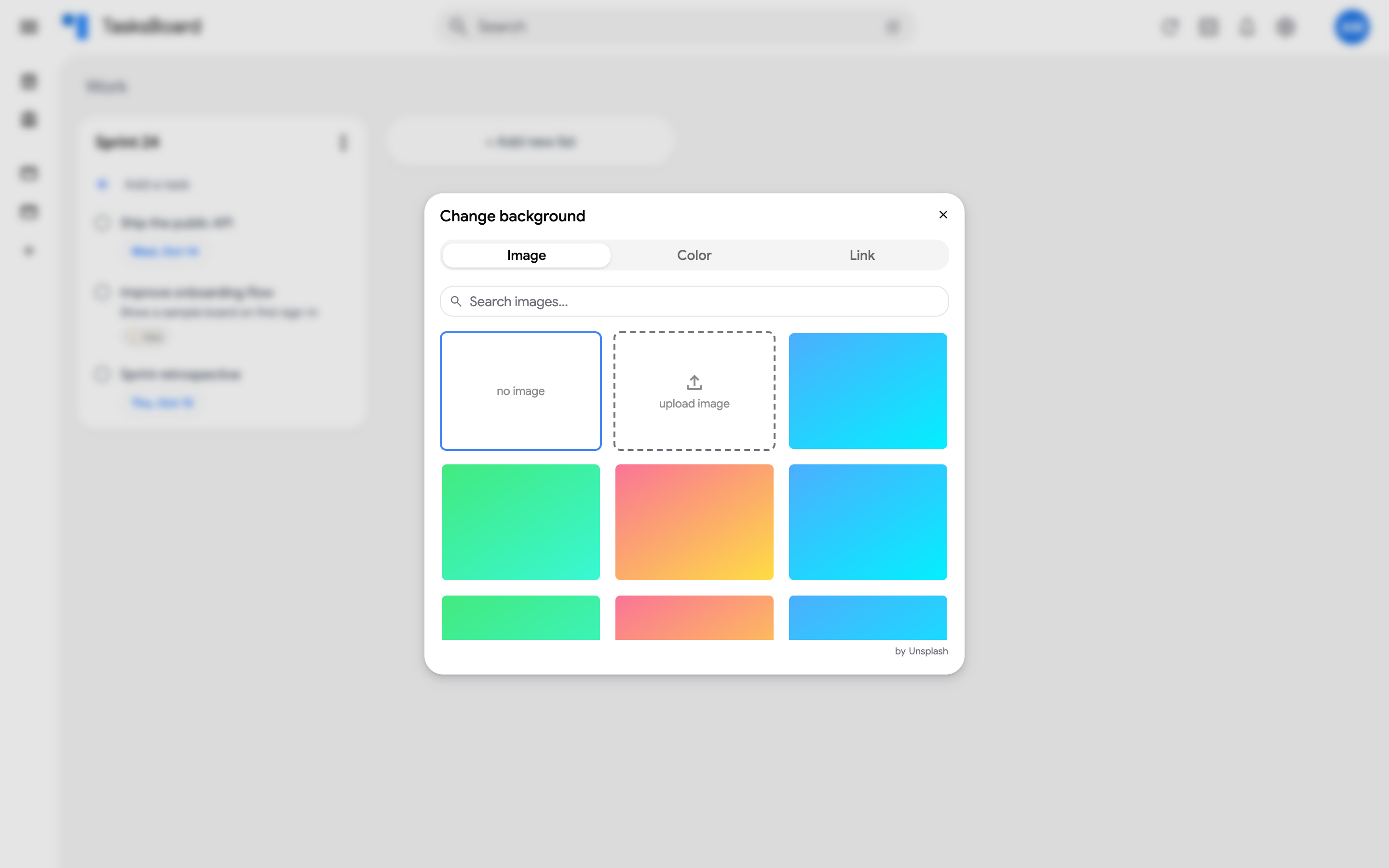
- “upload image”: pick a picture from your computer. It is uploaded to a “TasksBoard Uploaded Backgrounds” folder in your Google Drive and used as the background.
- “no image”: remove the picture and go back to a plain background.
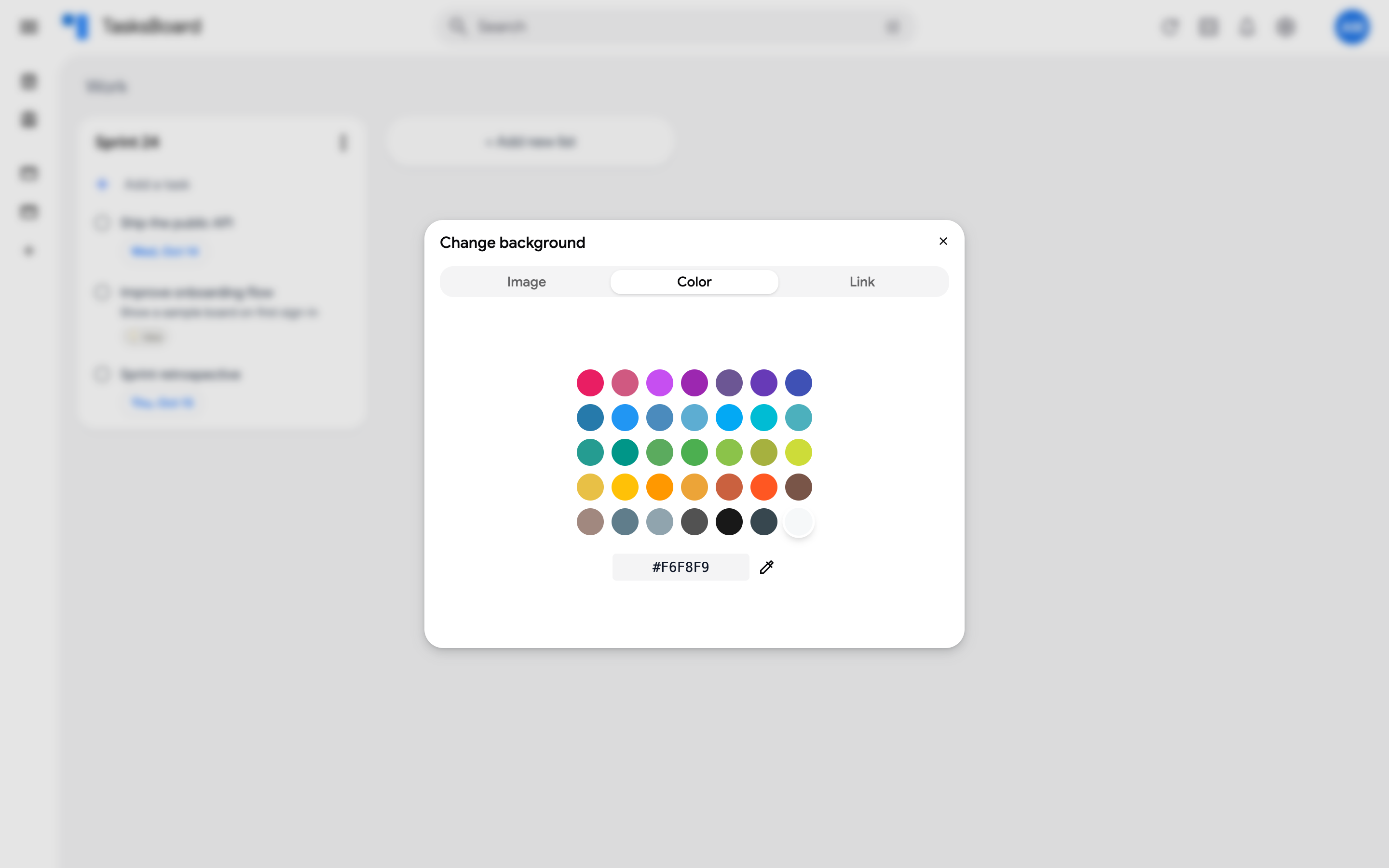
The “Color” tab shows a palette of solid colors. Click a swatch, type a hex code in the field below the palette, or use the eyedropper to open a full color picker. The last swatch (white) restores the default background.
On the “Link” tab, paste the URL of an image that is publicly accessible and click “Set as background”. TasksBoard checks that the image loads before applying it. If you see “This image doesn’t appear to be publicly accessible”, the link requires a sign-in or is not a direct link to the image file.