
Sort tasks in a list
Each list can be sorted independently, so you can keep your groceries alphabetical and your project list in your own custom order.
Change the sort order
Section titled “Change the sort order”- Open the three dots menu (⋮) at the top right of the list.
- Hover “Sort By” and pick an order:
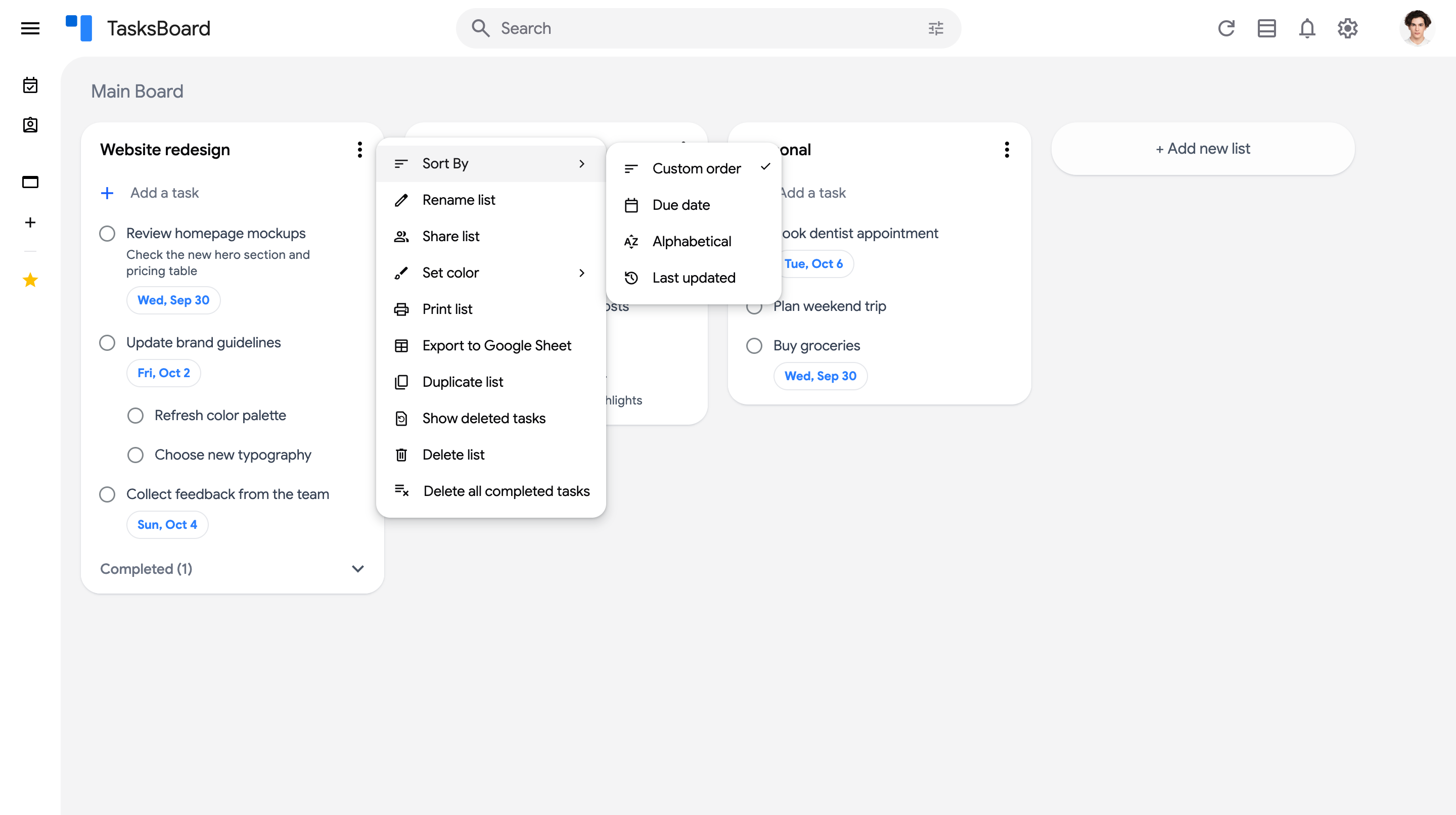
- “Custom order”: tasks stay where you put them. Drag and drop tasks to arrange them; in the other orders the list re-sorts itself after a drop.
- “Due date”: tasks are grouped under date headers (Past, Today, Tomorrow, In 3 days…), the nearest first. Tasks without a due date come last.
- “Alphabetical”: tasks are sorted by title, from A to Z.
- “Last updated”: the most recently edited tasks appear at the top.
- “Priority”: P1 tasks first, then P2, P3 and the tasks without a priority; tasks of the same priority keep your custom order.
The active order has a check mark in the submenu. It is saved per list and stays in place until you change it.
On a shared list, the Custom order is synced: when you drag a task to a new place, your collaborators’ copies follow at the next sync, and a collaborator’s copy that is synced for the first time takes your order. See the shared list FAQ.