
Print a board or a list
You can print a whole board, with all its lists one after another, or a single list. Both go through your browser’s print dialog, so you can also save the result as a PDF.
Print a board
Section titled “Print a board”- Open the three dots menu (⋮) next to the board title. You can also hover the board in the sidebar and open its three dots menu (⋮).
- Click “Print board”.
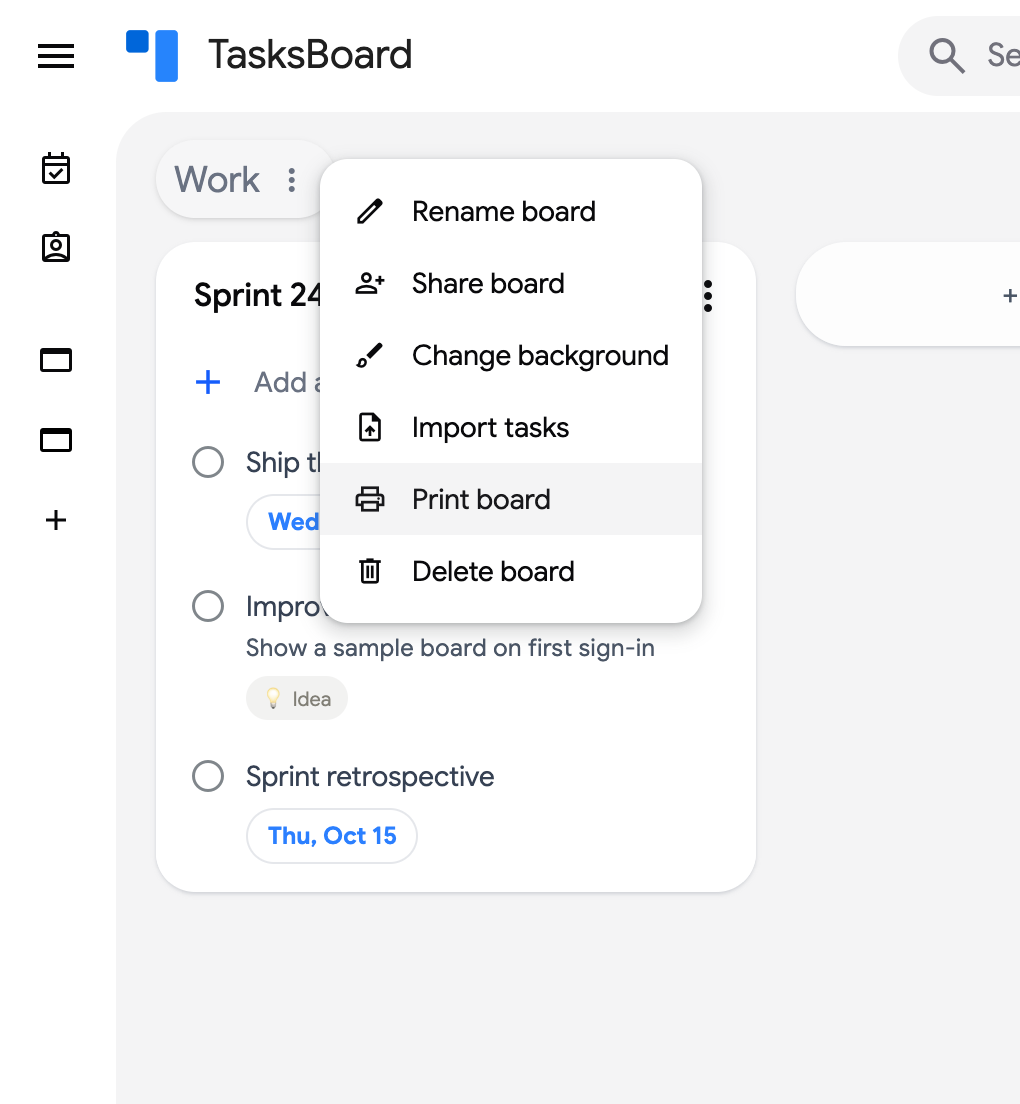
- Your browser’s print dialog opens. Choose a printer, or select “Save as PDF” as the destination to download a PDF.
What is printed
Section titled “What is printed”The printout starts with the board title, followed by every list of the board, stacked vertically. For each list you get its title, its open tasks, the subtasks indented under their parent, and the notes and due dates of the tasks. Completed tasks are not printed.
Choose which lists are printed together
Section titled “Choose which lists are printed together”“Print board” prints all the lists of the board. To print a specific set of lists together, put them on the same board with “Move to another board”. See move a list to another board.
Print a single list
Section titled “Print a single list”- Open the three dots menu (⋮) next to the list name.
- Click “Print list”.
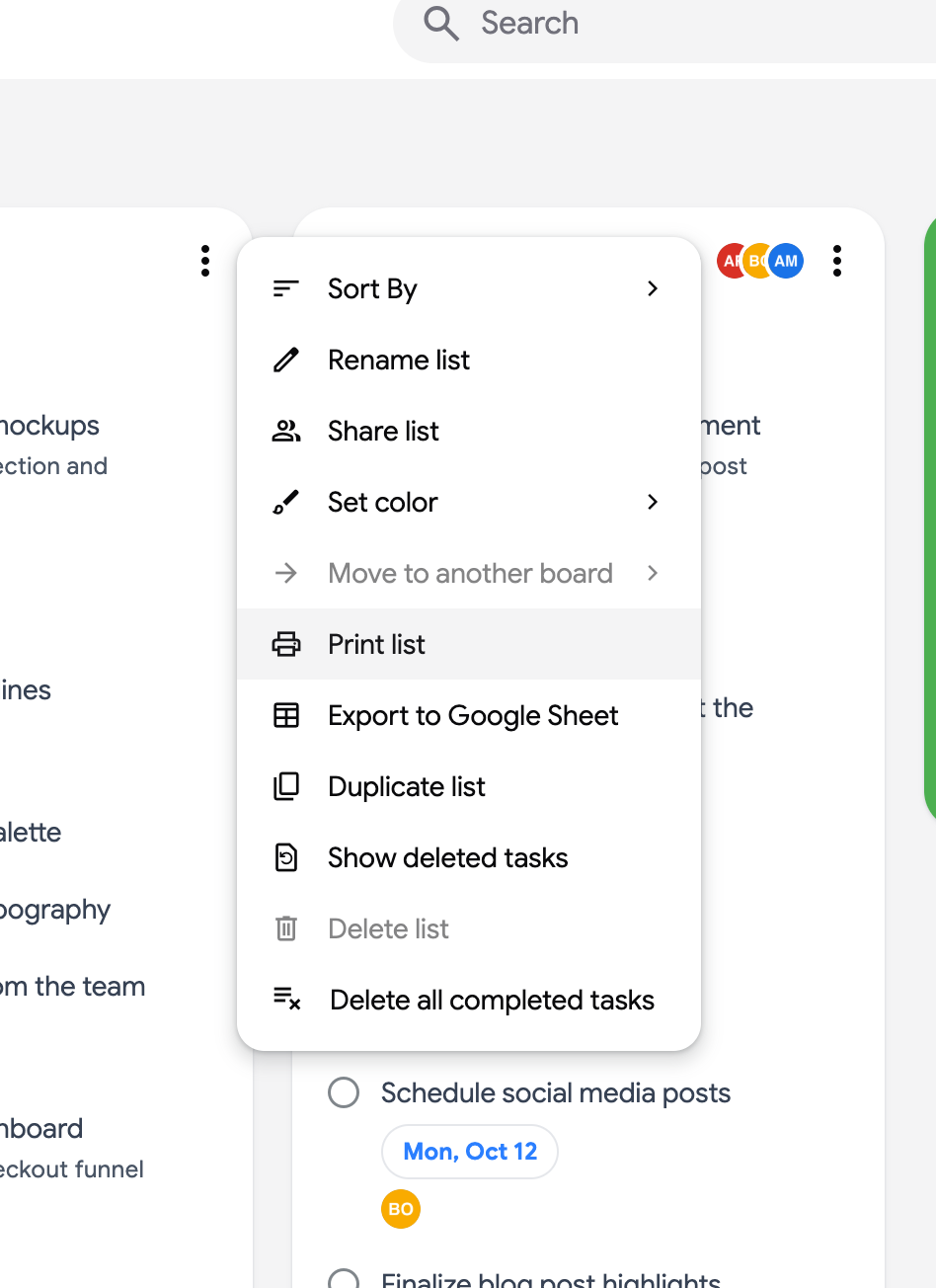
- Choose a printer or “Save as PDF” in the print dialog.
“Print list” is available on the free plan. It prints the list title and its open tasks, with subtasks, notes and due dates.