
Export a list to Google Sheets
You can export any of your lists to a Google Sheets spreadsheet in one click, for example to analyze your tasks, build reports or share a snapshot with someone who does not use TasksBoard.
Export a list
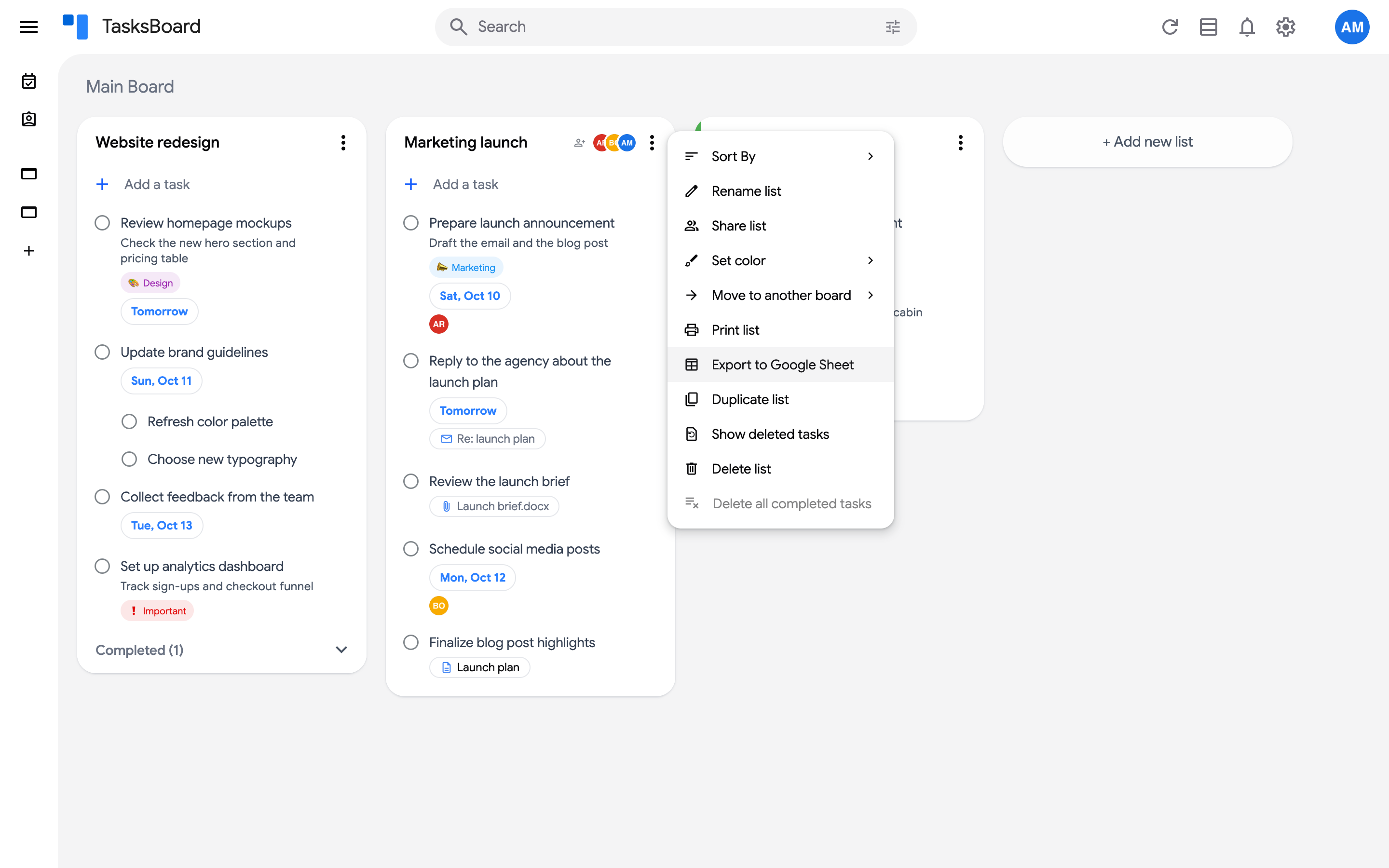
Section titled “Export a list”- Open the three dots menu (⋮) next to the list name.
- Click Export to Google Sheet.
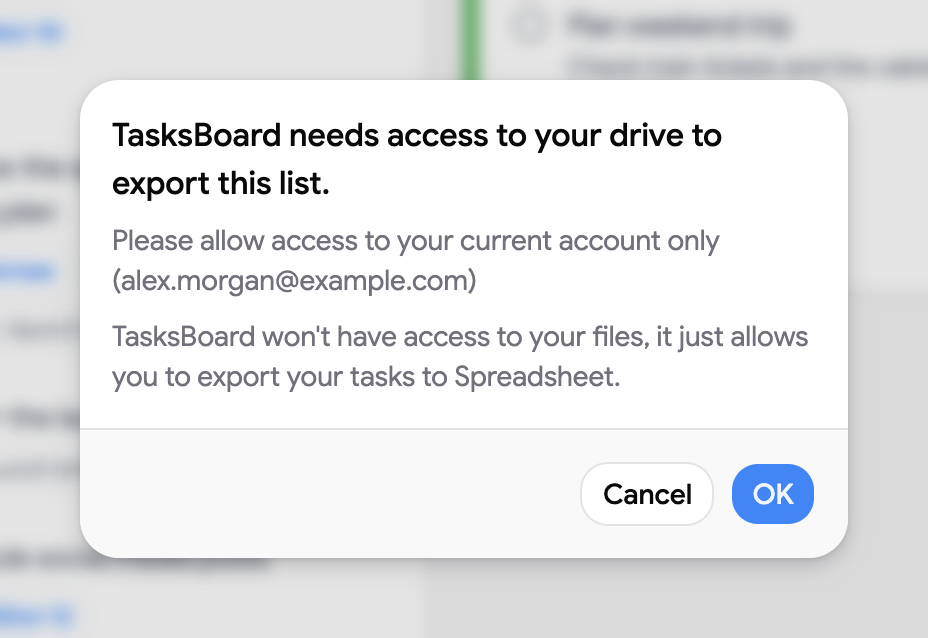
- The first time, TasksBoard asks for access to your Google Drive. Click OK and allow access with the same account you are signed in with. This access is only used to create the spreadsheet: TasksBoard cannot see or open your other files.
- Any unsaved change is synced first, then the spreadsheet opens in a new tab as soon as the export is done.
What the spreadsheet contains
Section titled “What the spreadsheet contains”Each task of the list becomes a row with five columns: Completed (a checkbox), Task, Subtask, Notes and Due date. A subtask has its title in the Subtask column, under its parent task’s row. Labels, assignees and links stay in the Notes column as they are stored in Google Tasks.
The export is a snapshot: changes you make in TasksBoard afterwards are not synced to the spreadsheet. Export the list again to get an up-to-date version.
Download a list as CSV
Section titled “Download a list as CSV”On any plan, the three dots menu (⋮) of a list also has “Download CSV”. It saves a file named after the list, with one row per task and the columns Title, Notes, Due, Status (open or completed), Completed date, Labels, Assignees and Parent task (for subtasks). Links and attachments stay in the Notes column. No Drive access is needed, and the file opens in Excel, Numbers or Google Sheets, or can be imported into another board.