Share boards
Sharing a board shares every list on it at once: each collaborator gets a copy of the lists in their Google Tasks account, and new lists you add to the board are shared with them too.
Share a board
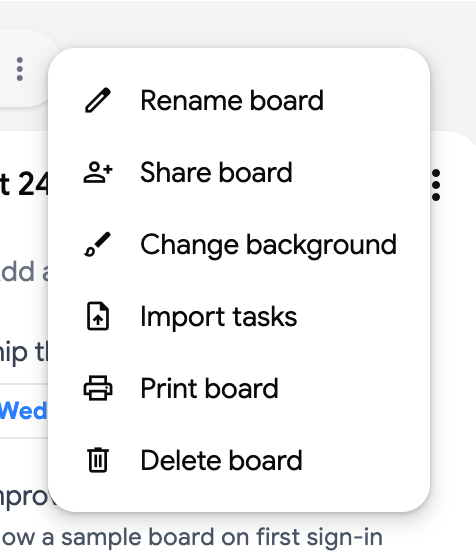
Section titled “Share a board”- Open the board you want to share, then click the three dots menu (⋮) next to the board name. The Main Board cannot be shared.
- Click “Share board”.
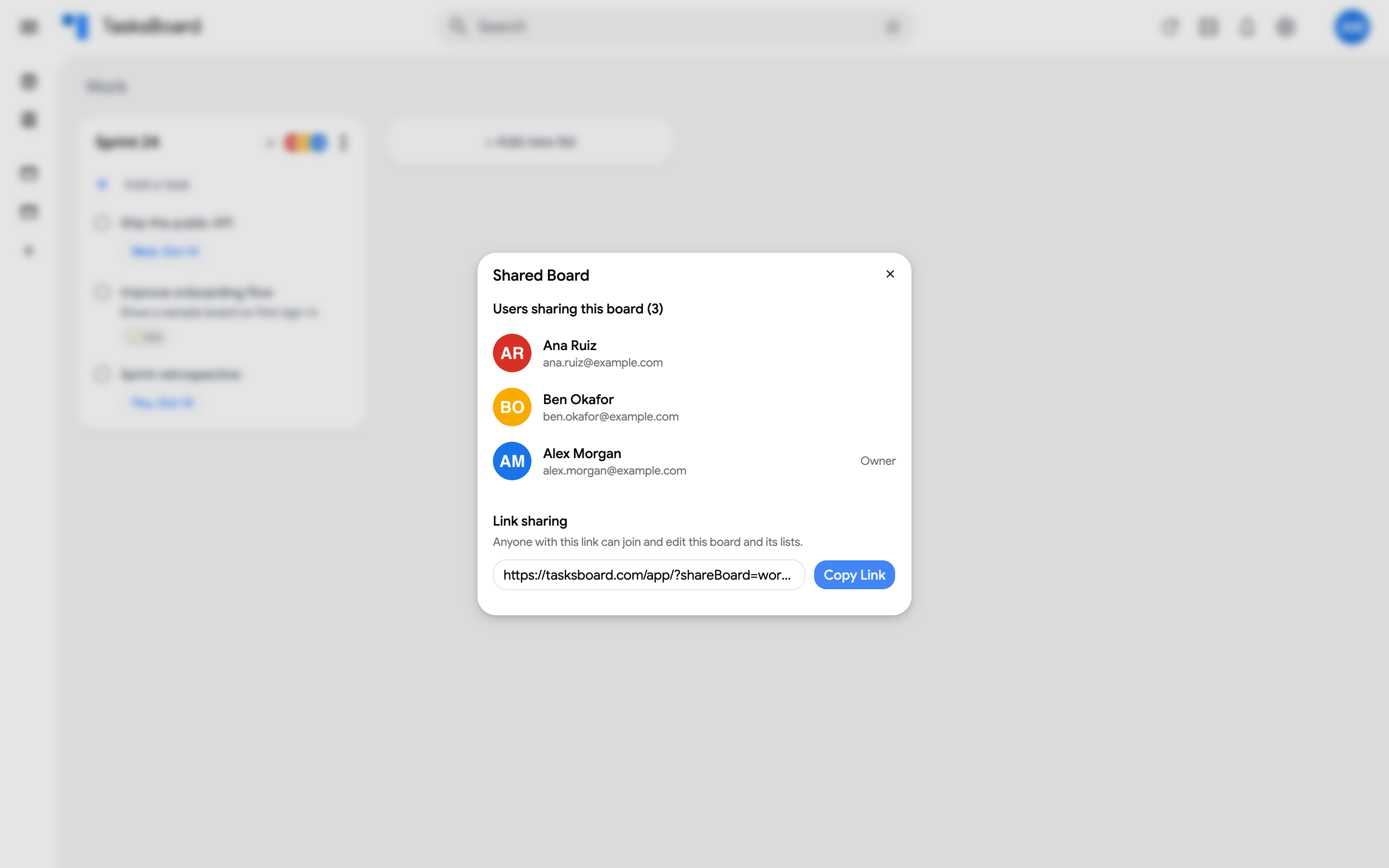
- The Shared Board dialog opens with a link under Link sharing. Click “Copy Link” and send it to your collaborators.
- Your collaborator opens the link while signed in to TasksBoard, then clicks “Join shared board”. The board and its lists appear in their sidebar.
Manage a shared board
Section titled “Manage a shared board”- The owner sees a delete icon next to each collaborator in the dialog to stop sharing with that person. They keep a copy of the lists as they were, but no longer receive changes.
- The owner picks Editor or Viewer next to each collaborator, and the role new members get from the link under “New members join as” (Team plan). A viewer sees every list of the board without being able to change them: see read-only access to shared tasks.
- The “Assignee” filter of the Display button (offered on any board that has a shared list) filters the board on one collaborator’s tasks (or on unassigned tasks); the link then carries
?assignee=…so you can send someone their own view. See assign tasks. - “Stop Sharing” ends the sharing for everyone. Every collaborator keeps a copy of the current lists.
- Lists on a shared board cannot be moved to another board. Deleting a list on a shared board deletes it for every collaborator of the board.
Once three people or more are on the board, the dialog suggests the Team plan.