
Shared lists FAQ
यह कंटेंट अभी तक आपकी भाषा में उपलब्ध नहीं है।
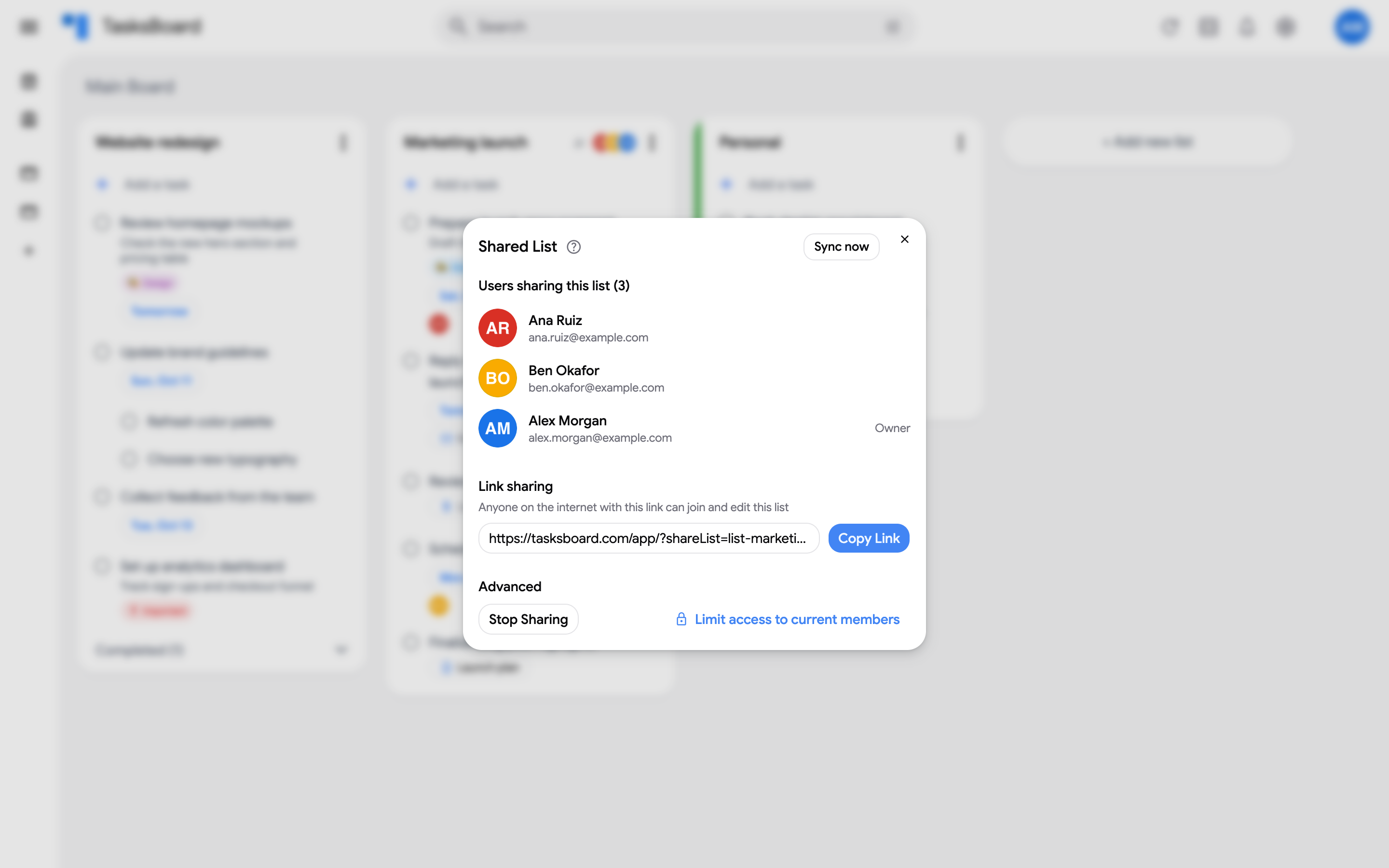
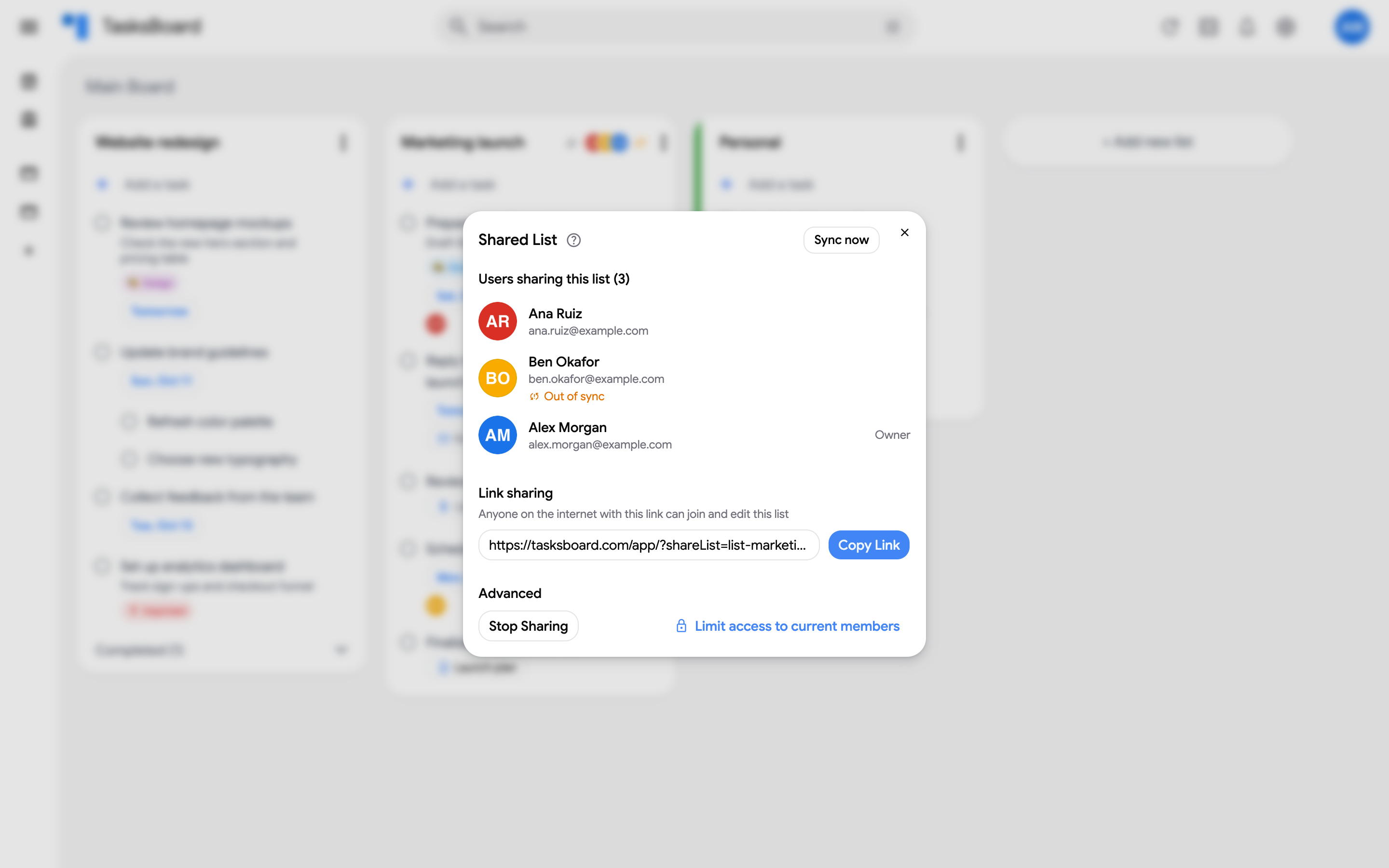
Answers to the questions we get most about shared lists. Everything below is managed from the Shared List dialog: open the three dots menu (⋮) of the list and click “Share list”.
Who is the owner?
Section titled “Who is the owner?”The person who shared the list first. The dialog marks them with Owner. Only the owner has the Advanced section: “Stop Sharing”, removing collaborators and limiting access. The owner also sets each collaborator’s role, Editor or Viewer (Team plan).
What happens in each person’s Google account?
Section titled “What happens in each person’s Google account?”Each collaborator gets their own copy of the list in Google Tasks, and TasksBoard keeps the copies in sync. The list looks the same in Gmail, Google Calendar and the Google Tasks app for everyone on it. Completed tasks, due dates and notes are synced; boards and list colors are personal.
What does the invite link do?
Section titled “What does the invite link do?”Anyone who opens it while signed in to TasksBoard can join and edit the list. The link does not expire. If it has leaked, limit access (below) or stop sharing and share again with a new link.
How do I stop new people from joining?
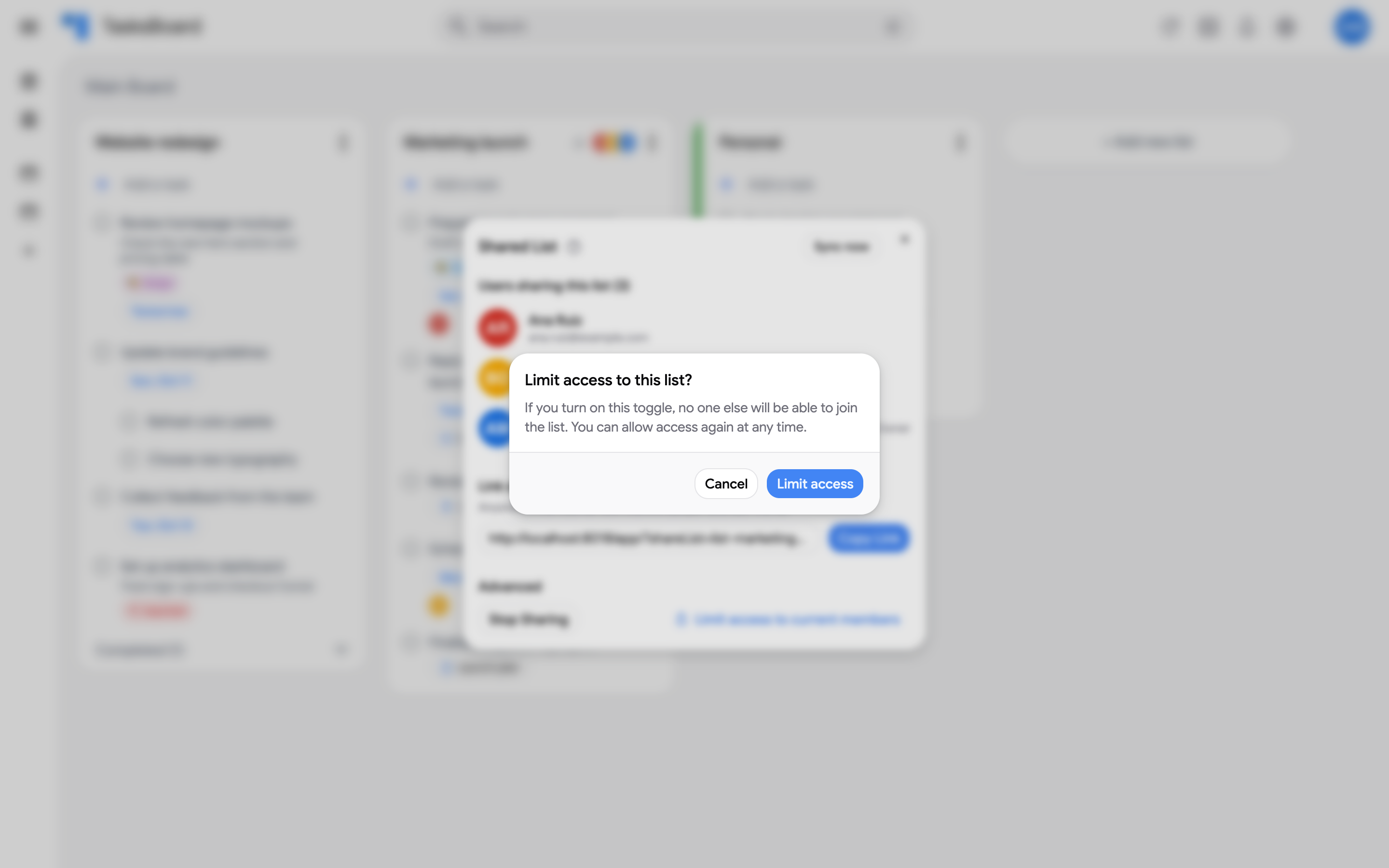
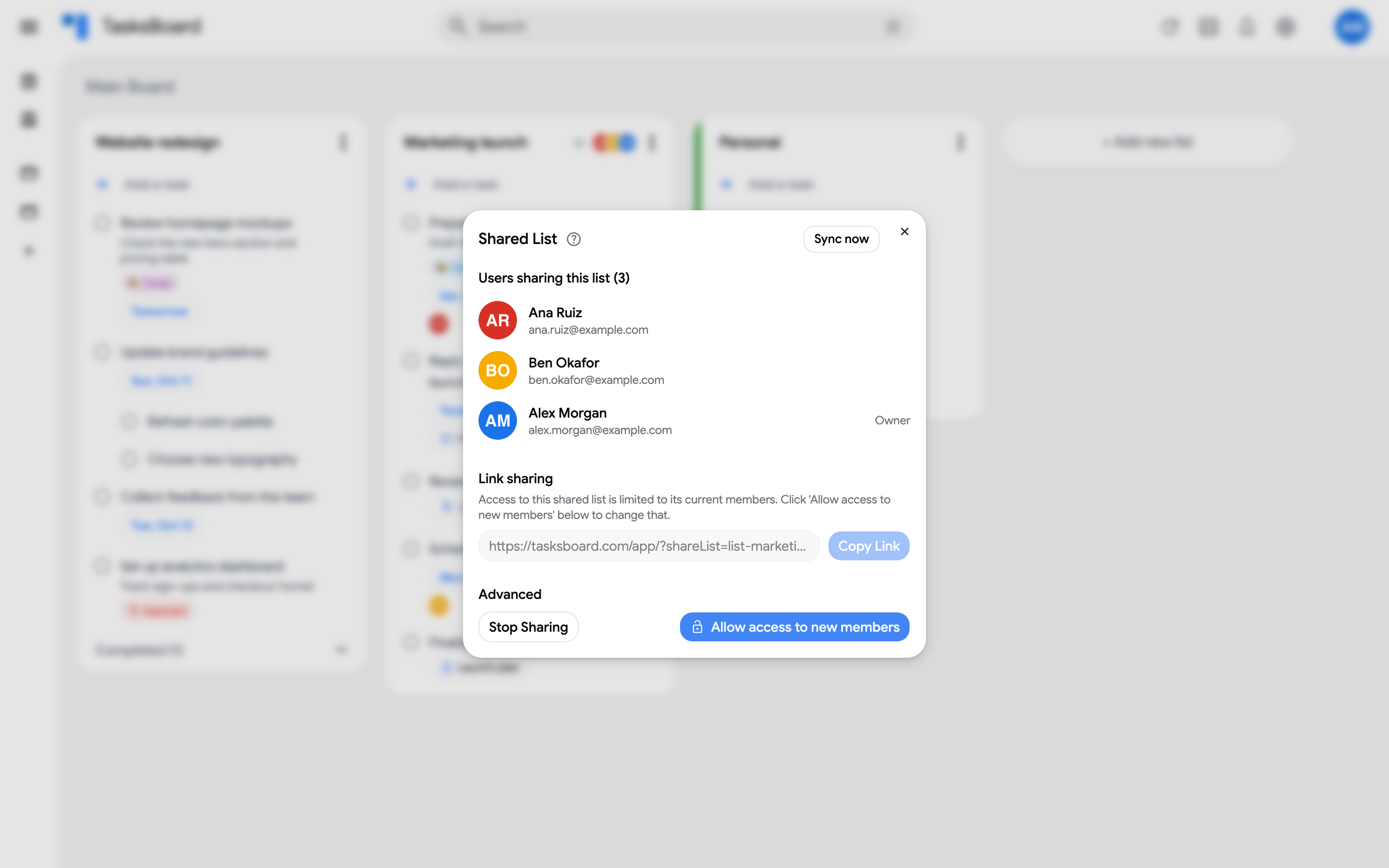
Section titled “How do I stop new people from joining?”Click “Limit access to current members” (Premium) and confirm. The link stops working, current collaborators stay. “Allow access to new members” turns the link back on.
How do I remove one collaborator?
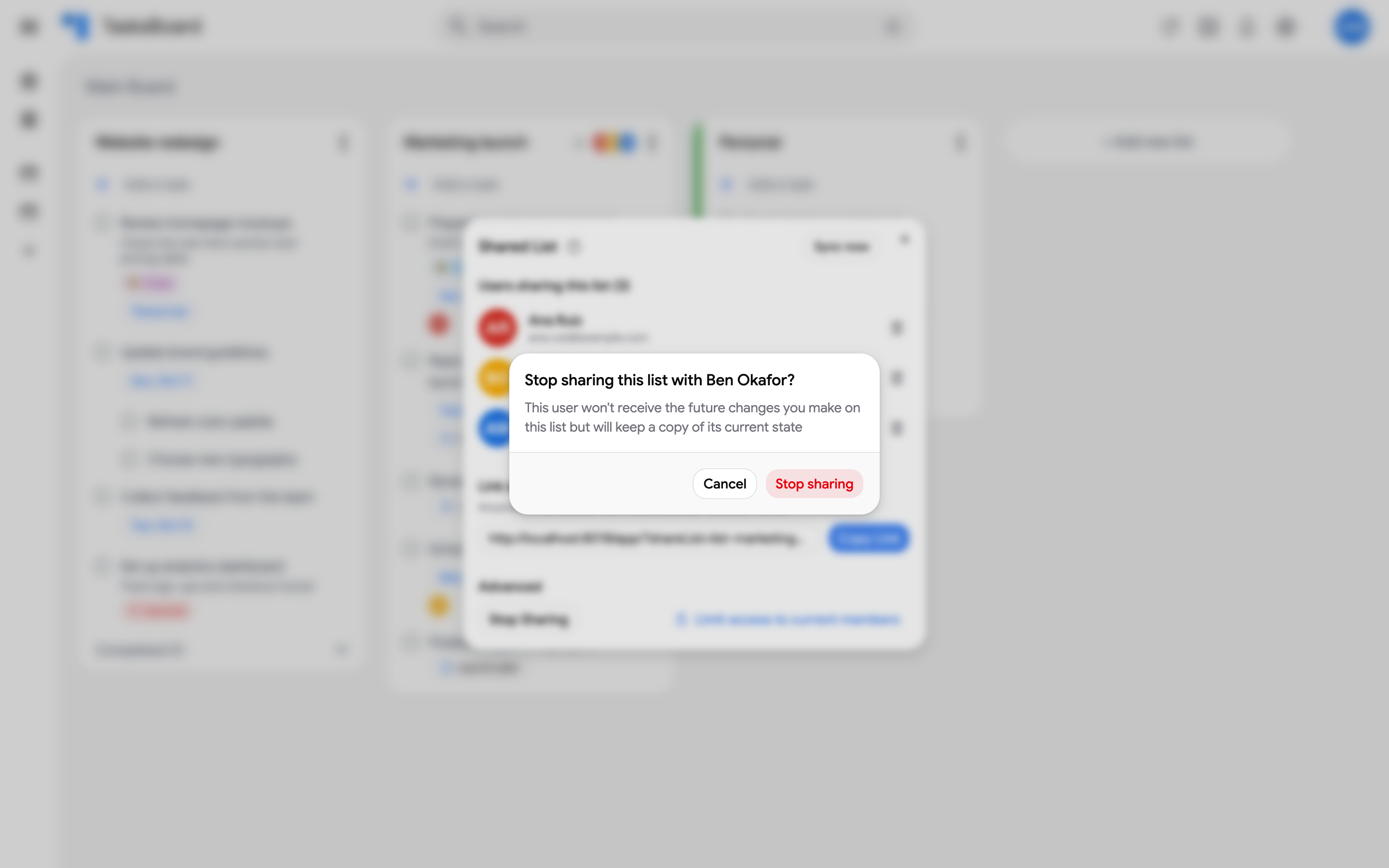
Section titled “How do I remove one collaborator?”The owner clicks the delete icon next to the collaborator (Premium) and confirms. That person keeps a copy of the list as it is now, but their changes no longer reach anyone and they no longer receive yours.
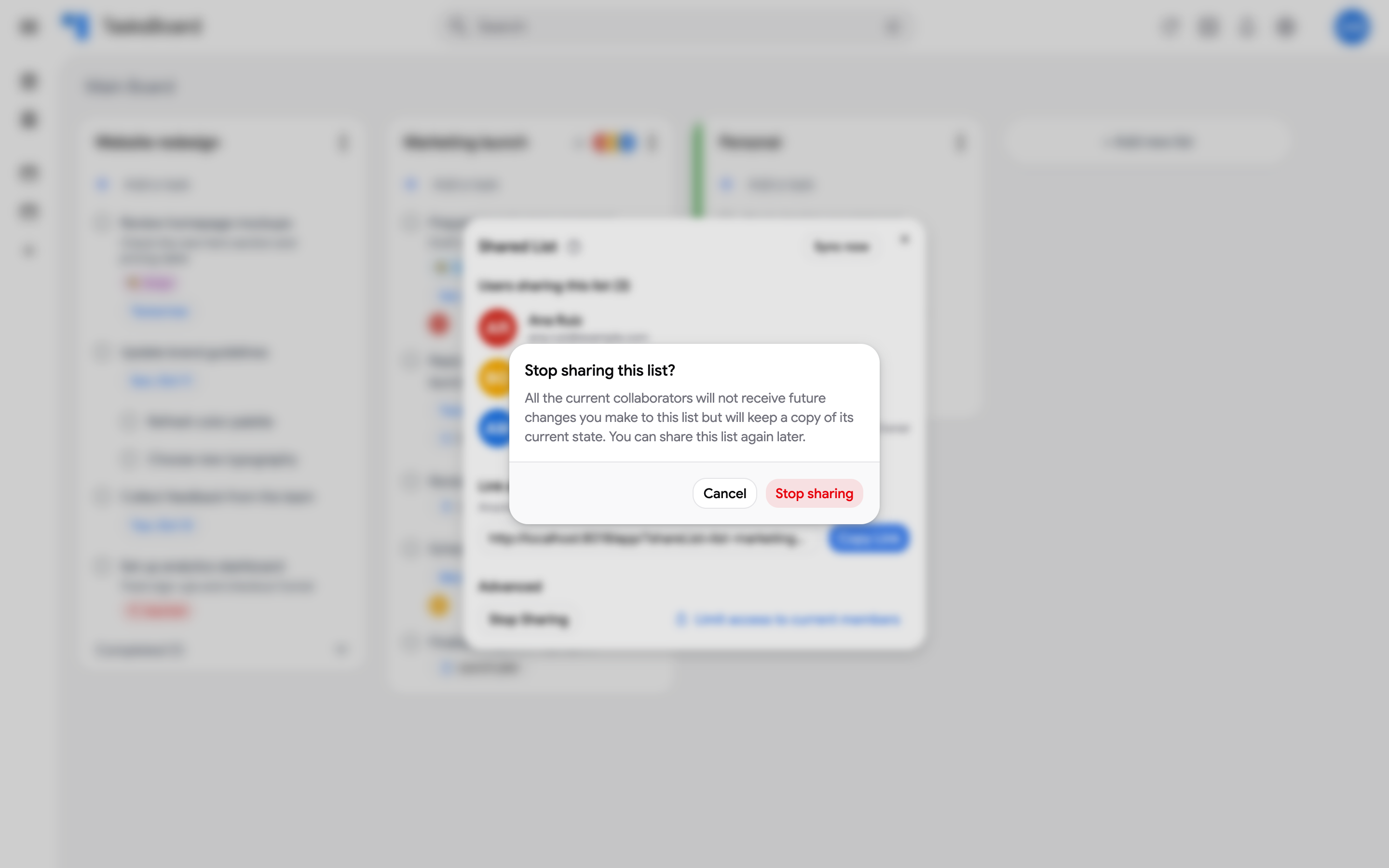
What does “Stop Sharing” do?
Section titled “What does “Stop Sharing” do?”It ends the sharing for everyone. Every collaborator keeps a copy of the current list in their Google account, and you can share the list again later.
A collaborator’s changes do not show up
Section titled “A collaborator’s changes do not show up”Shared lists sync while someone on the list has TasksBoard open. Click “Sync now” in the dialog to force it; see sync in the background.
What does “Out of sync” mean?
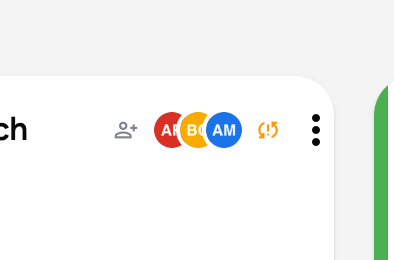
Section titled “What does “Out of sync” mean?”A collaborator disconnected TasksBoard from their Google account (or revoked its access). Their copy of the list is paused until they sign in to TasksBoard again. The dialog flags them, and the list header shows a warning icon next to the avatars.
How many lists can I share?
Section titled “How many lists can I share?”A free account can own up to 5 shared lists; joining lists shared by others does not count. Premium removes the limit and unlocks limiting access and removing collaborators.
Can I make a shared list read-only?
Section titled “Can I make a shared list read-only?”Yes, with the Team plan: the owner picks Viewer next to a collaborator in the dialog, or sets “New members join as” to Viewer so the invite link only gives view-only access. See read-only access to shared tasks.
Can a board show only one person’s tasks?
Section titled “Can a board show only one person’s tasks?”Yes. On a shared board, open the Display button at the top right and use the “Assignee” filter: pick a collaborator to see only the tasks assigned to them across the board’s lists, “Unassigned” for tasks nobody owns, or “Everyone” to clear. The choice is remembered per board on your device, and the page address gains ?assignee=…, so you can send a collaborator a link that opens the board filtered on them. See assign tasks.
We see the tasks in a different order
Section titled “We see the tasks in a different order”The Custom order of a shared list is synced: when a collaborator drags a task to a new place, the other copies follow at the next sync, and a copy that is synced for the first time takes the order of the copy that changed. A few cases keep their own order: tasks sorted by due date, title or last updated (switch everyone back to Custom order from the list menu), completed tasks, and open tasks that share the same title. If two people move the same task at the same time, the last sync wins. See sort tasks in a list.
The list appears, but with no tasks
Section titled “The list appears, but with no tasks”A newly joined collaborator sees the tasks after the first sync, which happens while someone on the list has TasksBoard open. Click “Sync now” in the Shared List dialog. A collaborator who joined with a different Google account than the one they use on their board sees an empty list on the wrong account: check the address under the avatar.
A task assigned from Google Docs or Chat loses its assignee
Section titled “A task assigned from Google Docs or Chat loses its assignee”Tasks created by assigning someone in a Google Doc or a Chat space are owned by Google’s assignment, which TasksBoard cannot change. Google also refuses notes on such tasks, and TasksBoard assignees are stored in the notes, so: a TasksBoard assignee set by a teammate on that task cannot be shown to the person it was assigned to in the Doc, and moving the task to another list may unassign it in the Doc. To work with it as a normal shared task, create a new task on the shared list and delete the Docs one. See tasks assigned from Docs and Chat. On the Team plan, these tasks can be routed into the shared list automatically with you shown as the assignee: see tasks assigned from Google Docs and Chat.
A collaborator’s Gmail links open the inbox, not the email
Section titled “A collaborator’s Gmail links open the inbox, not the email”A task created from an email links to that message in the mailbox of the person who created it. Collaborators who open the link land in their own Gmail, where the message exists only if they received it too. See tasks linked to Gmail, Docs, Chat and Drive.
A collaborator sees an upgrade dialog on a shared board
Section titled “A collaborator sees an upgrade dialog on a shared board”Shared boards need Premium on both sides, unlike shared lists. The collaborator needs a Pro plan or a seat on your Team plan; once they have it, send the board link again. See share boards and manage team seats.
Can I share a whole board?
Section titled “Can I share a whole board?”Yes, with Premium. See share boards.