
Account settings
यह कंटेंट अभी तक आपकी भाषा में उपलब्ध नहीं है।
Everything about your TasksBoard account lives behind your profile picture at the top right of the screen. The interface options (theme, language, sounds) are in the settings menu instead.
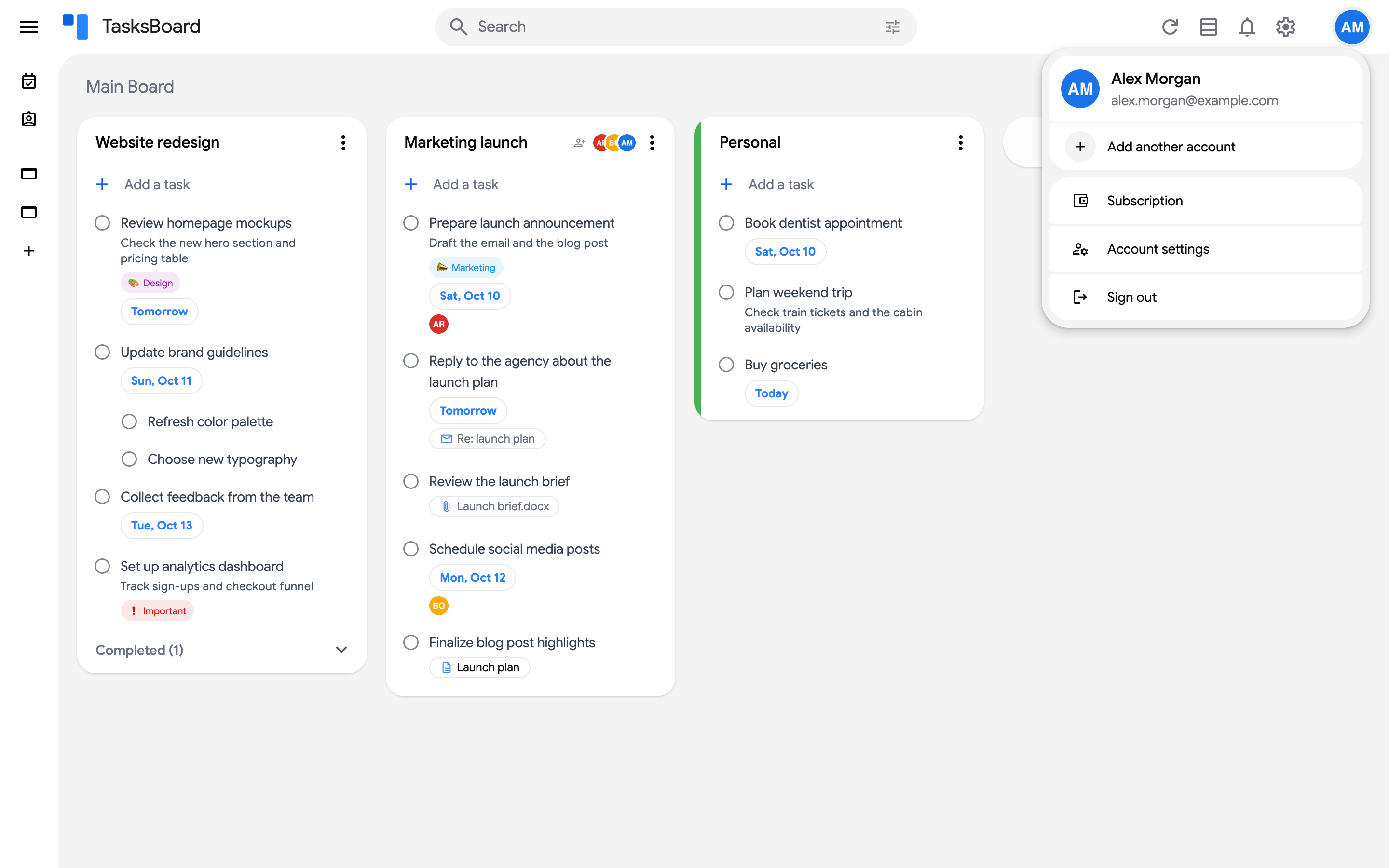
Open the Account settings dialog
Section titled “Open the Account settings dialog”- Click on your profile picture at the top right of the screen.
- Click on “Account settings”.
Notifications
Section titled “Notifications”Three switches send emails to the address shown in the dialog:
- “Completed tasks in shared lists”: an email when a collaborator completes a task in one of the lists you share. See Completion emails.
- “Task reminders by email”: an email when a reminder you set on a task is due.
- “Tasks assigned to me”: an email when a collaborator assigns a task to you.
Typing
Section titled “Typing”“Dates in task titles” (on by default) lets TasksBoard read dates, times, repeat rules, priorities and #labels typed in a task title, such as “Call Anna tomorrow 3pm”. Switch it off to keep titles exactly as typed. The choice is saved on this device. See dates in task titles.
Templates
Section titled “Templates”The “Templates” section lists the templates you saved and lets you use, rename, duplicate, schedule or delete them. See templates.
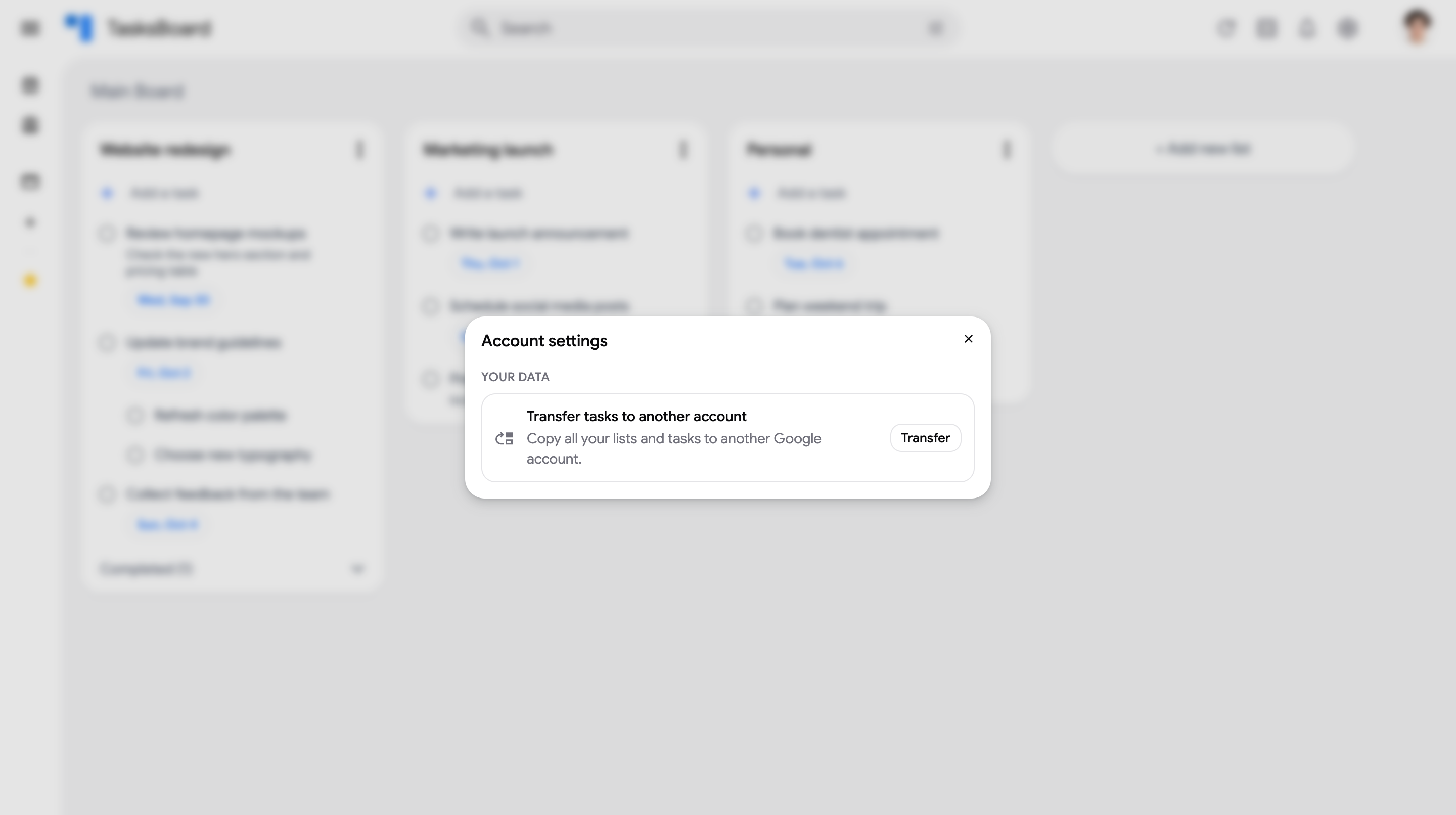
Transfer tasks to another account
Section titled “Transfer tasks to another account”“Transfer” copies every list and task of this account to another Google account, for example from a personal account to a work account. See Transfer tasks to another account.
Subscription
Section titled “Subscription”Subscribers see a “Subscription” entry in the profile menu that opens the billing page, and Team subscribers see “Team” to manage their seats. Free users see “Try Premium for free” or “Upgrade to Premium” instead. See Manage your subscription.
Sign out
Section titled “Sign out”Click on your profile picture, then “Sign out”. Unsynced changes are sent to Google Tasks first. If other Google accounts are signed in on this device, TasksBoard opens on the next one: see Use several Google accounts.
Reset the login
Section titled “Reset the login”If TasksBoard can no longer reach your tasks, open tasksboard.com/resetLogin. It signs you out and sends you straight to Google to grant TasksBoard access again, with your account pre-selected. Nothing is deleted. See Fix connection issues for the other cases.
Delete your account
Section titled “Delete your account”Open tasksboard.com/deleteAccount while signed in with the account to delete. Opened while signed out, the page sends you to the sign-in screen first: sign in with the account to delete, then open the link again. Each Google account is a separate TasksBoard account, so repeat for every account you used.
Before deleting:
- Cancel your subscription first. Deleting the account does not cancel a paid plan: see cancel your subscription. The owner of a Team plan removes the members and cancels the plan before deleting.
- Remove the saved card, if you want to: open “Manage billing & invoices” on the Subscription page once the subscription has ended. If the portal does not let you remove it, ask us by email and we delete the billing profile.
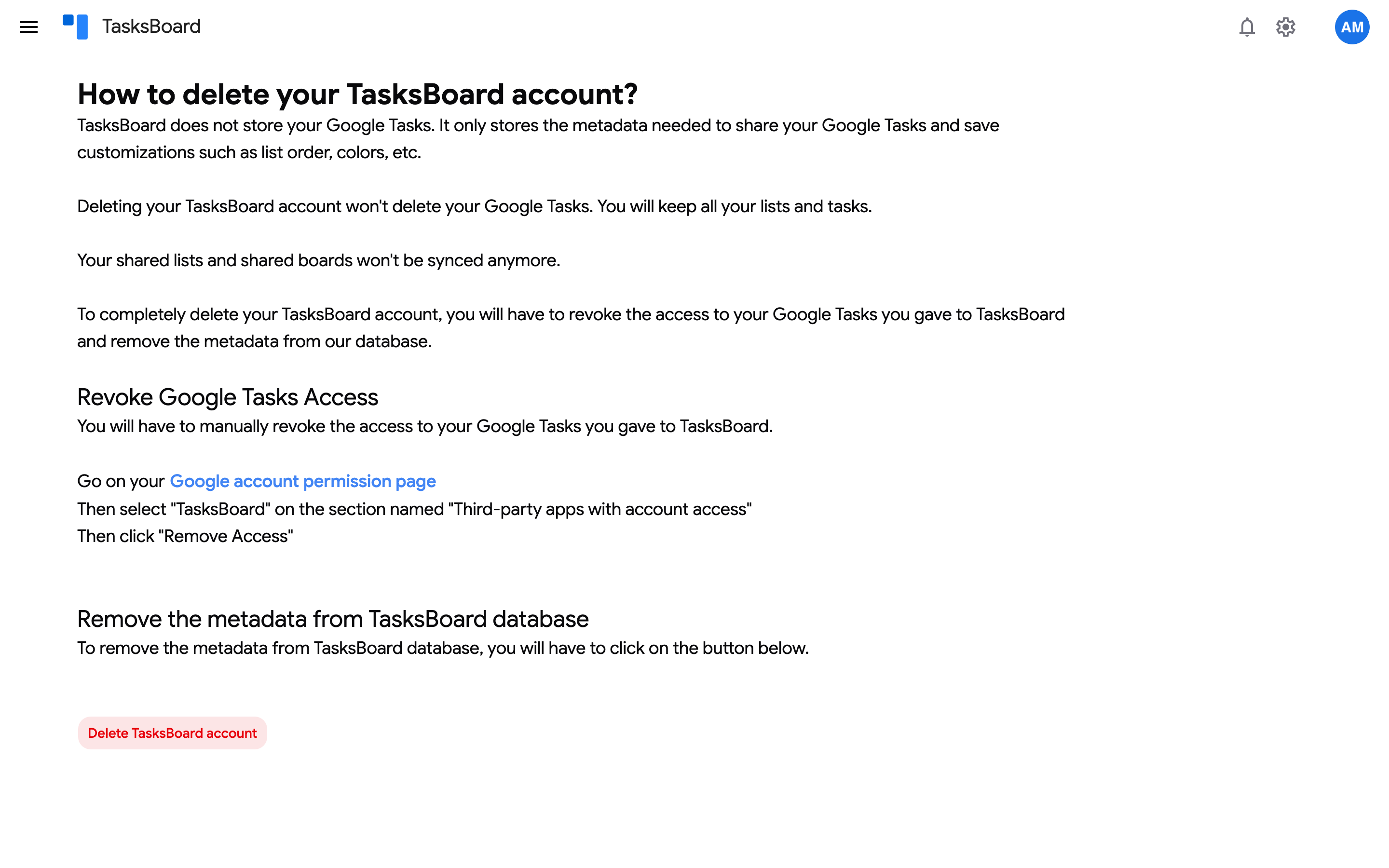
- Revoke TasksBoard’s access on your Google account permissions page: select TasksBoard under “Third-party apps with account access” and click Remove Access.
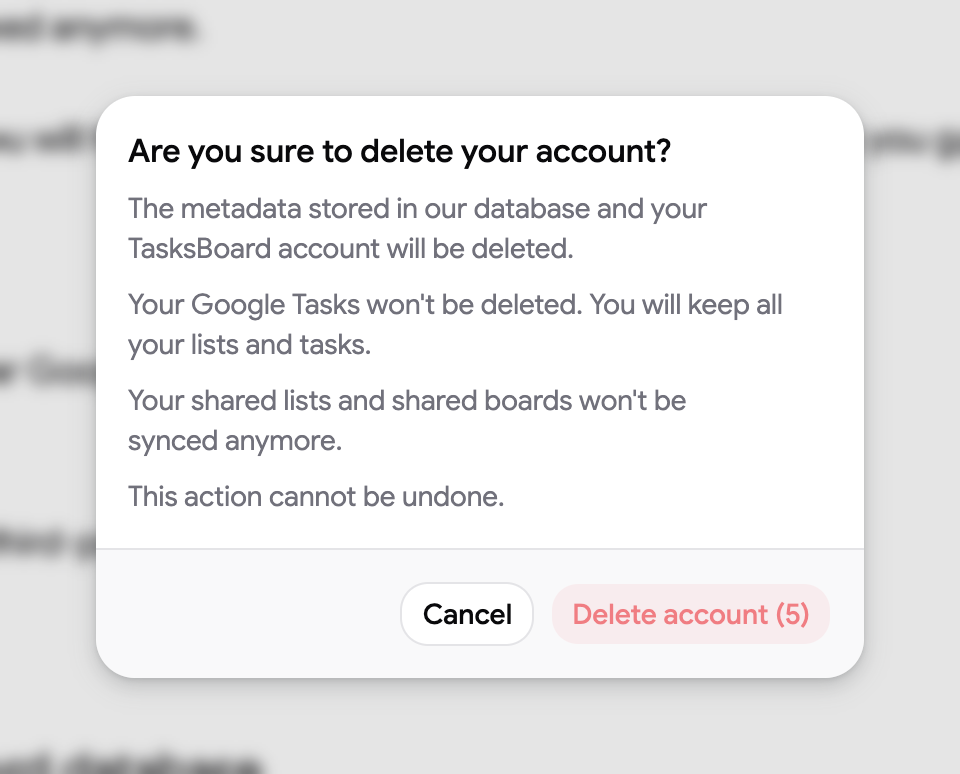
- Back on the page, click on “Delete TasksBoard account”, then confirm with “Delete account” once the 5 second countdown ends.
What deletion removes and keeps:
- Removed: the metadata TasksBoard stores for your account, such as boards, list order, list colors, labels and sharing information, together with your subscription data.
- Kept: your Google Tasks. TasksBoard never stores your tasks, so every list and task stays in your Google account.
- Stops: lists and boards you shared are no longer synced with your collaborators.
Deletion is immediate and complete on our side: the account document and its metadata are erased, not archived. Invoices stay with our payment processor for the legal retention period. If you want a written confirmation, or cannot sign in to the account any more, write to contact@tasksboard.com from that address or with the details of your last charge.