
The settings menu
यह कंटेंट अभी तक आपकी भाषा में उपलब्ध नहीं है।
The settings icon (gear) at the top right of the board opens a menu with everything that changes how TasksBoard looks and behaves. Most options apply right away, with no save button.
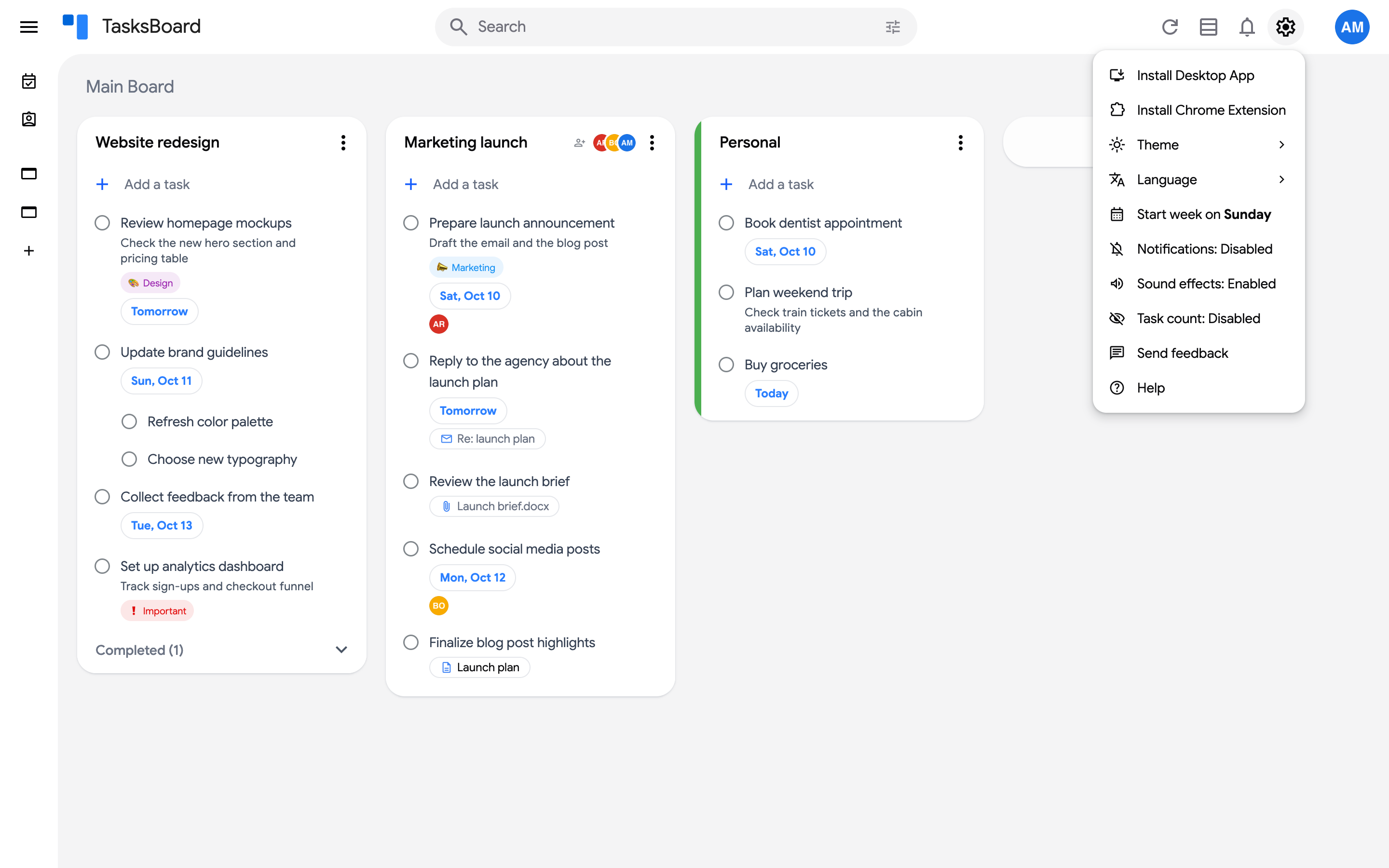
What each item does
Section titled “What each item does”- Click on the settings icon (gear) at the top right of the screen.
- Pick an item:
- “Install Desktop App”: installs TasksBoard as a standalone app on your computer. See Install TasksBoard on desktop. The item is hidden once you use the installed app.
- “Install Chrome Extension”: opens the Chrome Web Store page of the TasksBoard extension, which shows your lists in a popup next to the address bar. See Chrome extension.
- “Theme”: “System”, “Light” or “Dark”. See Change the theme.
- “Language”: one of 21 languages. See Change the language.
- “Start week on”: the first day of the week in date pickers. Each click cycles between Sunday, Monday and Saturday. See Week start, sounds and task count.
- “Notifications: Enabled / Disabled”: browser notifications when a collaborator adds a task to a shared list. See Notifications for shared lists.
- “Sound effects: Enabled / Disabled”: a short sound when you complete a task.
- “Task count: Enabled / Disabled”: shows the number of tasks next to each list name.
- “Send feedback”: opens the feedback form to write to the TasksBoard team.
- “Help”: opens this help center.
Where the other settings are
Section titled “Where the other settings are”Everything about your account rather than the interface lives behind your profile picture: switching between Google accounts, your subscription, the email notifications, “Dates in task titles”, templates, transferring tasks and signing out. See Account settings and Use several Google accounts.
The refresh icon (left of the bell) forces a sync with Google Tasks. The layout of a board (list, kanban or calendar) is chosen per board, with the Display button at the top right of the board.