
Tasks linked to Gmail, Docs, Chat and Drive
이 콘텐츠는 아직 번역되지 않았습니다.
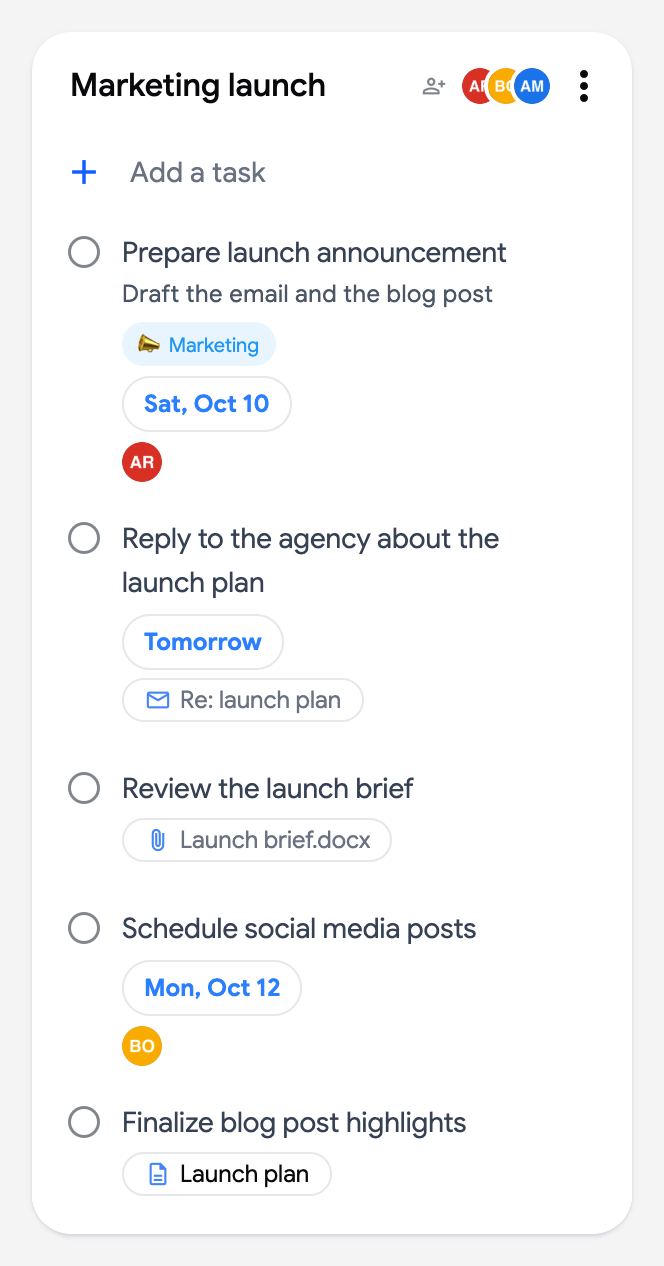
Google Tasks can be created from other Google apps: an email in Gmail, a checkbox assigned to you in a Google Doc, a message in a Chat space. TasksBoard shows where such a task comes from with a chip on the task card, and the chip takes you back to the original item.
Emails from Gmail
Section titled “Emails from Gmail”When you add an email to your tasks from Gmail (the Add to tasks button above a message), the task carries the email’s subject as a chip with an envelope icon. Clicking it opens the conversation in Gmail, in the account you are signed in with.
Tasks that were created from Gmail years ago, before Google exposed the link, are stored by TasksBoard as a ✉️ line in the task notes and get the same chip.
Tasks from Google Docs and Chat spaces
Section titled “Tasks from Google Docs and Chat spaces”A task assigned to you in a Google Doc or in a Google Chat space shows a chip with the document title or the space name (a document icon for Docs, a group icon for Chat). Clicking it opens the document or the space right where the task was assigned. In the task editor the same link appears under the task, with a reminder that others can see the changes you make.
Messages turned into tasks from Chat show a Chat Message chip that opens the message.
Drive attachments
Section titled “Drive attachments”A file attached to a task (see attach a file to a task) appears as a chip with a paper clip and the file name. Clicking it opens the file in Google Drive. When a task has more than three files, the card shows a single attachments chip with their count; open the task to see them all. In the editor, hover a file to reveal the button that removes it.
Where the chips come from
Section titled “Where the chips come from”Email links, Drive files and assignees are stored inside the task notes, each on its own line (✉️, 📎 and 👤), which is how they also reach the Google Tasks app. TasksBoard hides these lines from the notes you edit. The Docs and Chat origin is read-only information from Google: it cannot be edited or removed from TasksBoard.