Create and edit tasks
Это содержимое пока не доступно на вашем языке.
Every list on a board holds Google Tasks. Here is how to add a task, change it, complete it and use the task menu.
Add a task
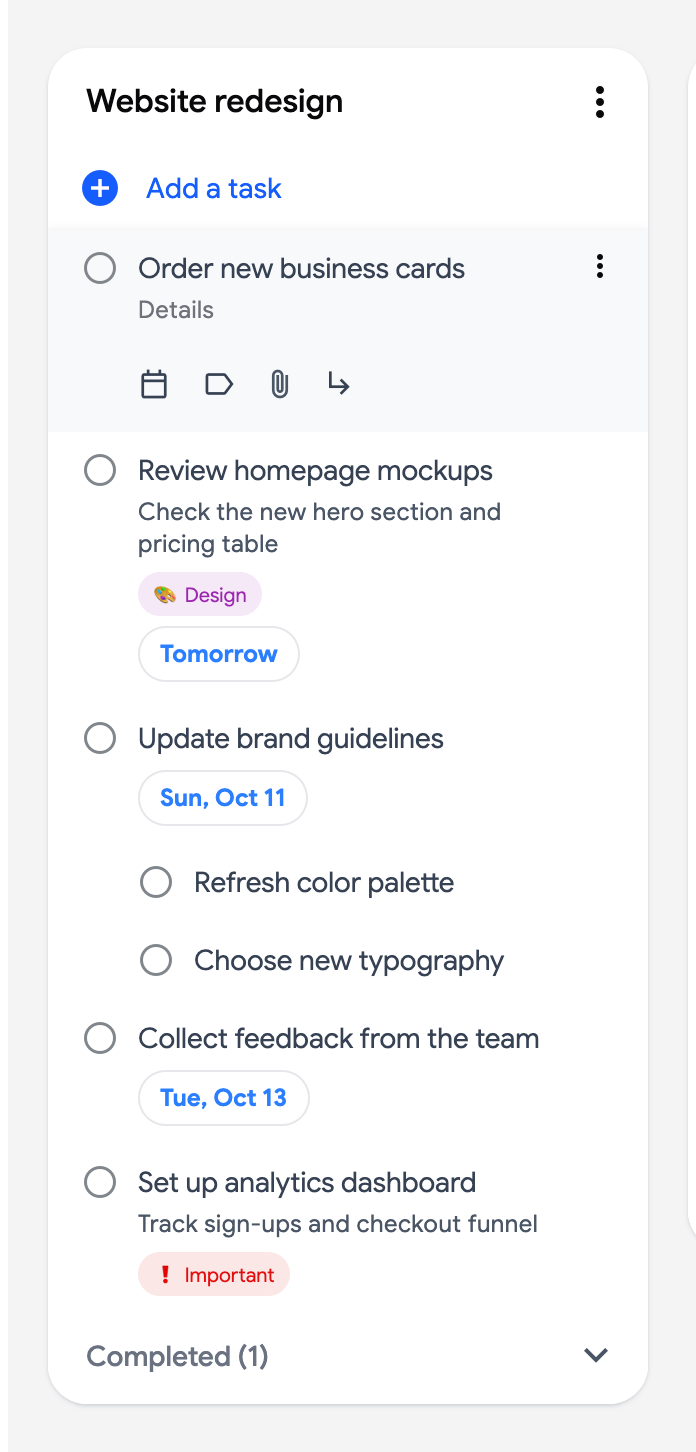
Section titled “Add a task”- Click “Add a task” at the top of the list. A new task opens in the editor with the cursor in its title.
- Type the title. Press Enter to save it and open another new task right below; press Esc when you are done.
From anywhere in the app, click “Create” at the top of the sidebar or press Q: a bar opens at the top of the screen. Type the task name and pick the list on the right. As soon as you type, the details field and the task’s buttons (date, labels, repeat, reminder, priority, blocked by, attachment) show up below the name, as in a list. Press Enter to add the task; the bar stays open for the next task, and Esc closes it. With Premium, click the microphone to say the task instead of typing it: its name fills in when you stop, ready for Enter. Its ✨ button turns the bar into Turn text into tasks (Premium).
Edit a task
Section titled “Edit a task”Click the title of a task to open the editor in place:
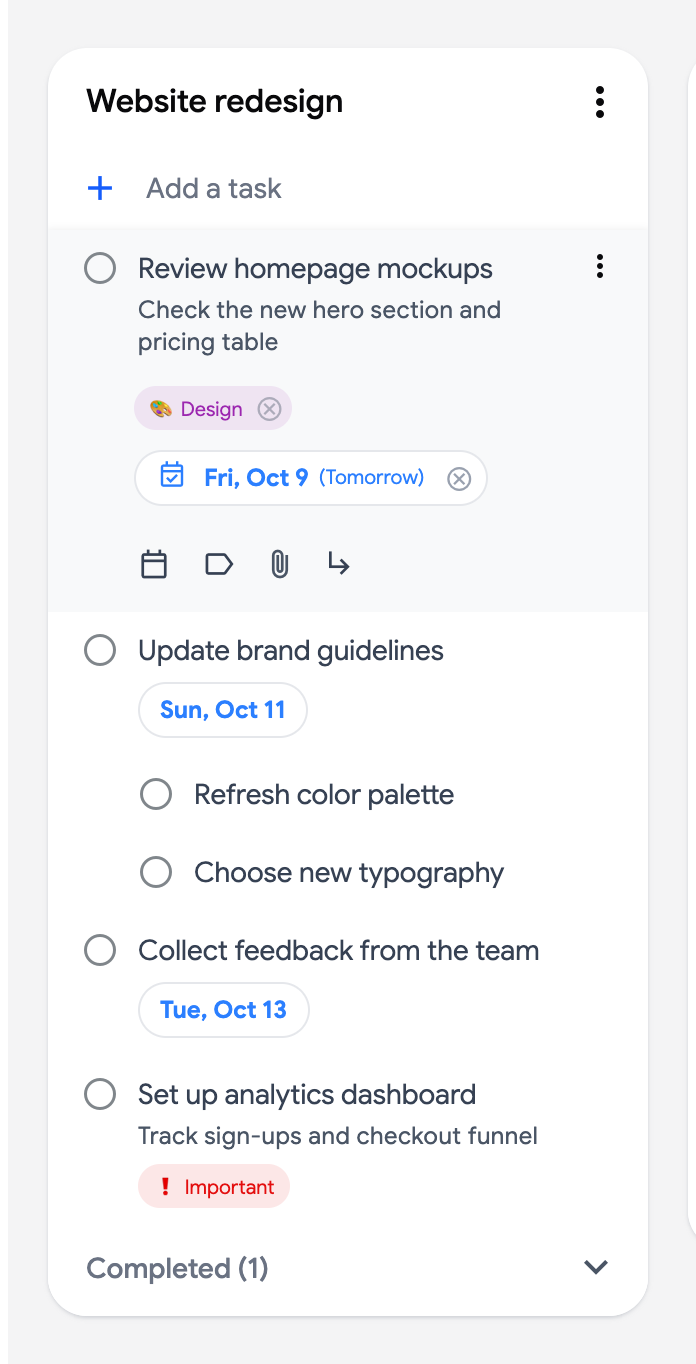
- Title and Details: type directly, the task is saved when you close the editor.
- The buttons under the details: “Add date” (see due dates), “Add label” (labels), “Repeat” and “Remind me” (repeating tasks and reminders, Premium), “Set priority” (priorities, Premium), “Attach file” (Drive files and links), “Add assignee” on shared lists (assign a task) and “Add subtask” (subtasks). “History” shows the task’s activity (Premium).
- Typing “Call Anna tomorrow 3pm” in the title sets the date and time: see dates in task titles.
- The “Updated … ago” line at the bottom tells you when the task was last changed; hover it for the exact time.
- Press Esc or click anywhere outside the task to close the editor.
Complete a task
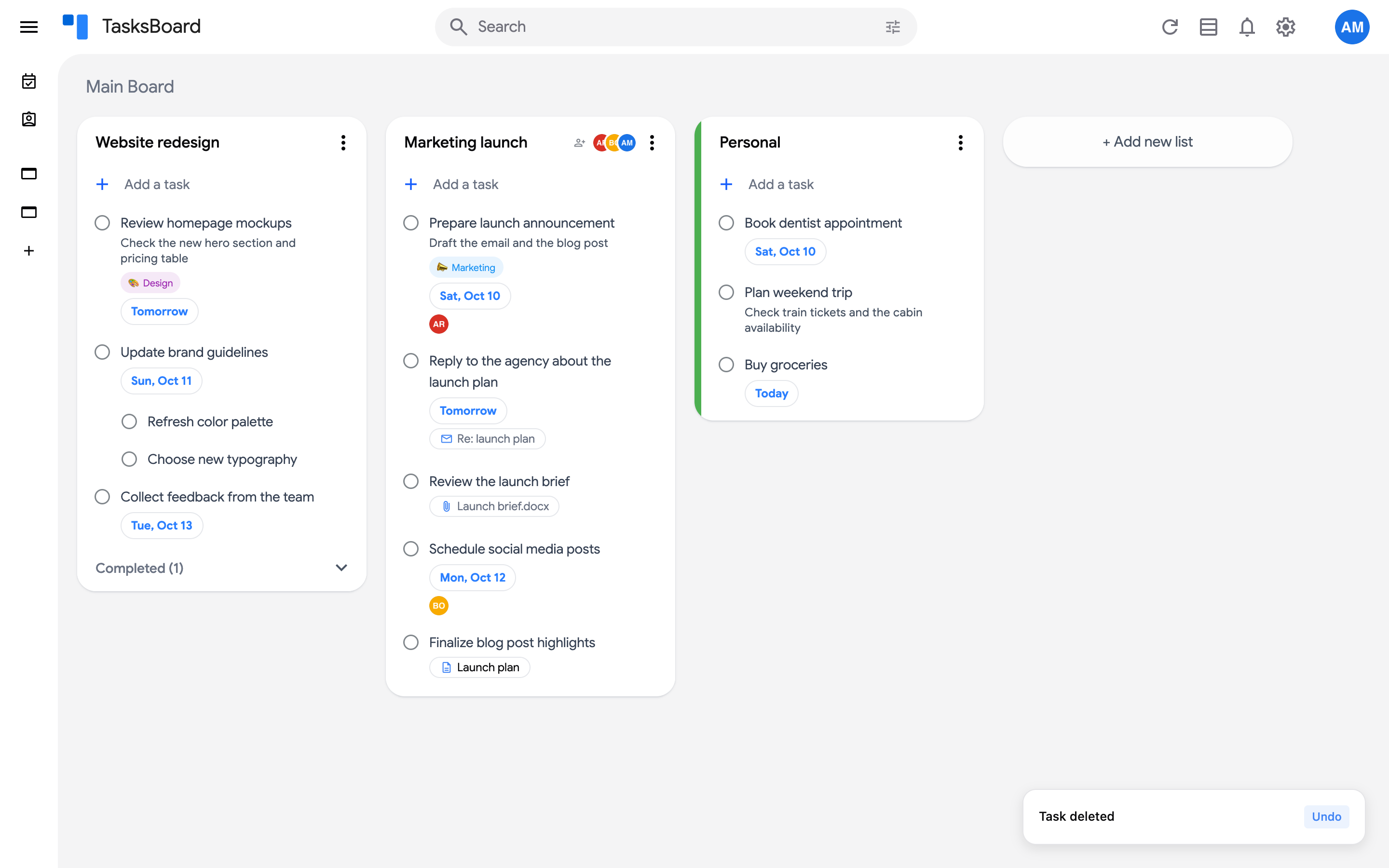
Section titled “Complete a task”Click the circle in front of the task. It moves to the “Completed” section at the bottom of the list, and a “Task completed” toast appears with an “Undo” button for a few seconds.
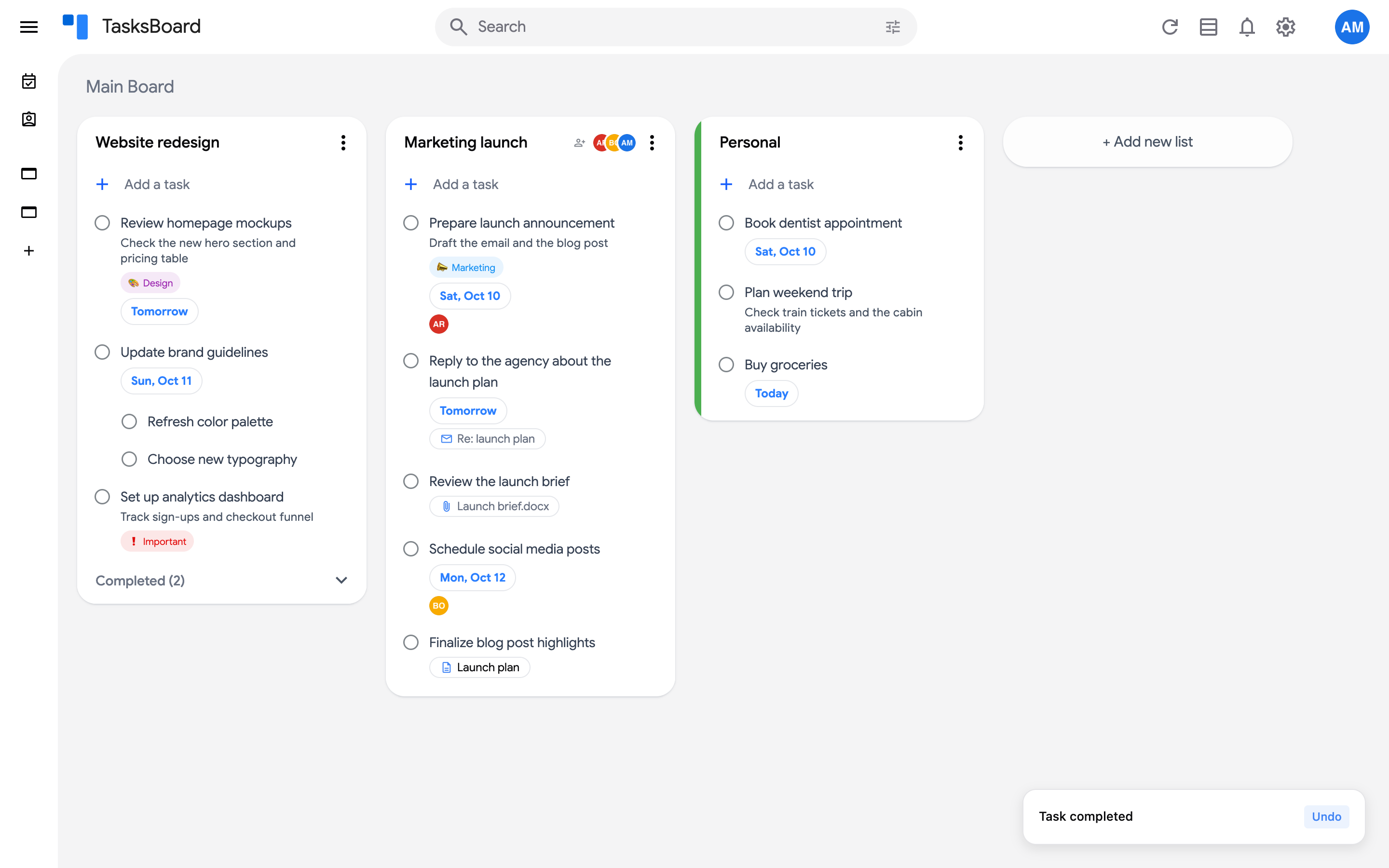
To bring a completed task back, open the “Completed” section and click its check mark.
The task menu
Section titled “The task menu”Click the three dots menu (⋮) that appears when you hover a task, or right-click anywhere on the task:
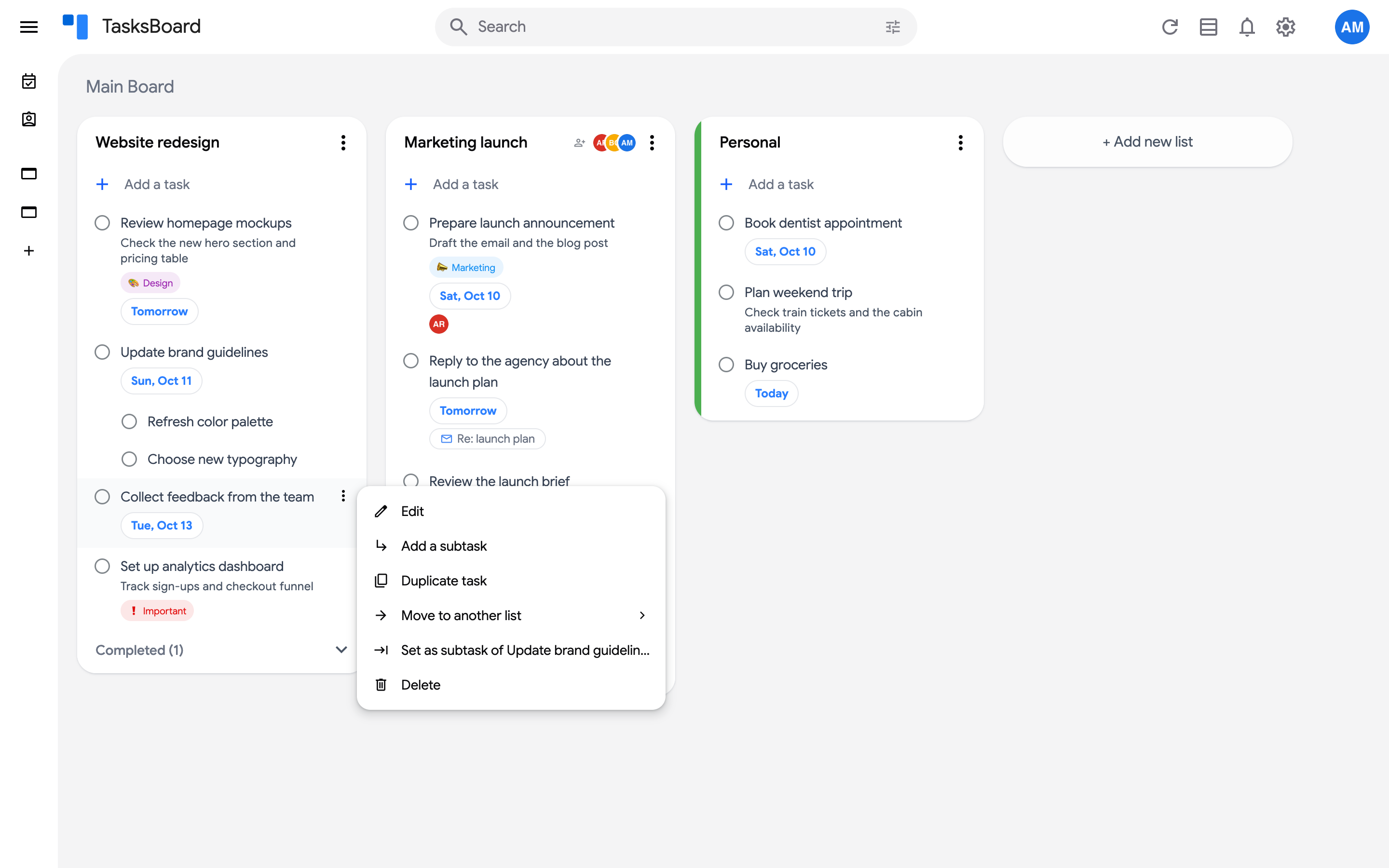
- “Edit”: opens the editor, like clicking the title.
- “Add a subtask” and “Set as subtask of …”: see subtasks.
- “Duplicate task”: creates a copy right below, with the same details, date and labels.
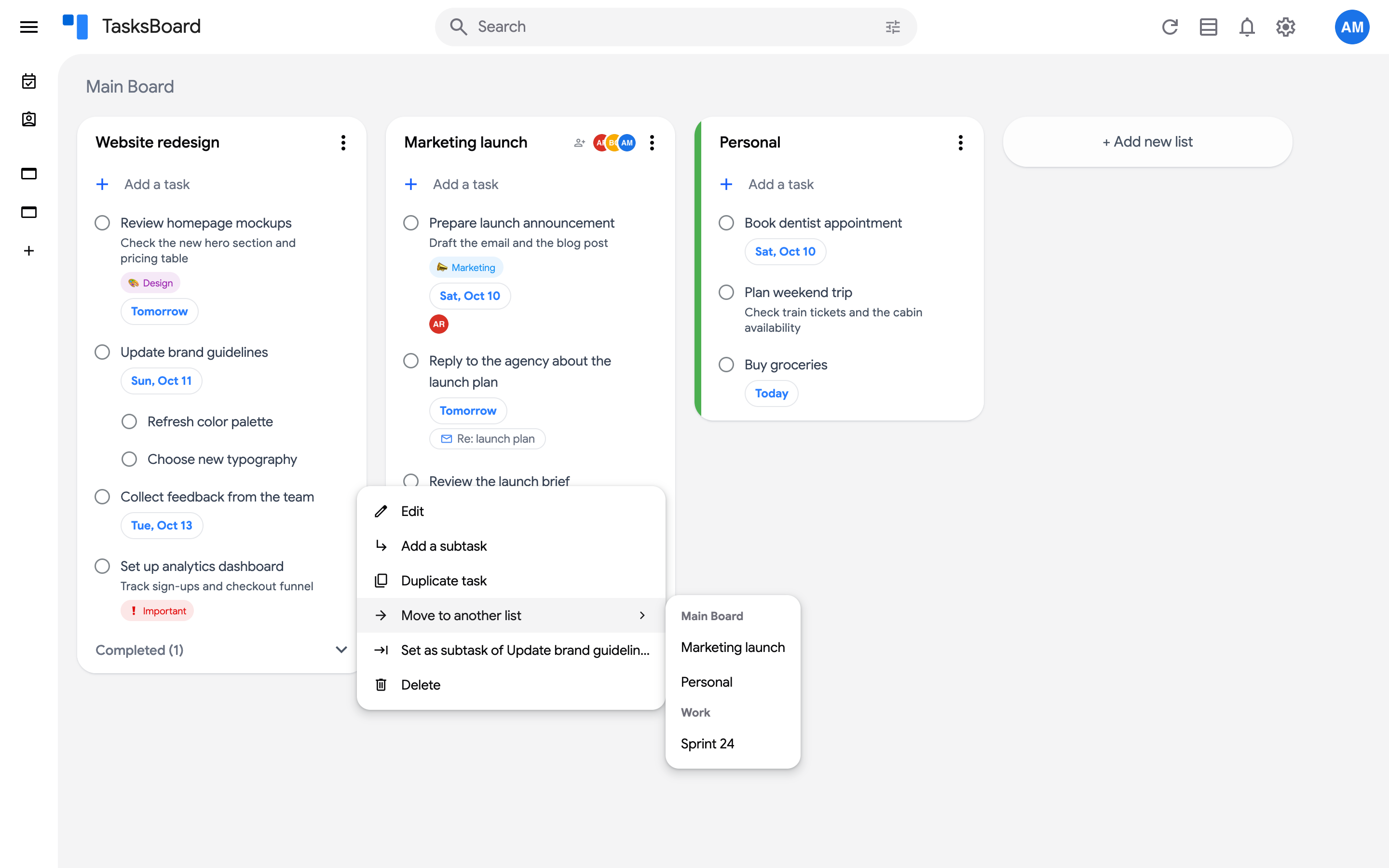
- “Move to another list”: pick any list of any board, including shared lists.
- “Delete”: removes the task. A “Task deleted” toast lets you “Undo” for a few seconds.