Create and manage lists
Αυτό το περιεχόμενο δεν είναι ακόμη διαθέσιμο στη γλώσσα σου.
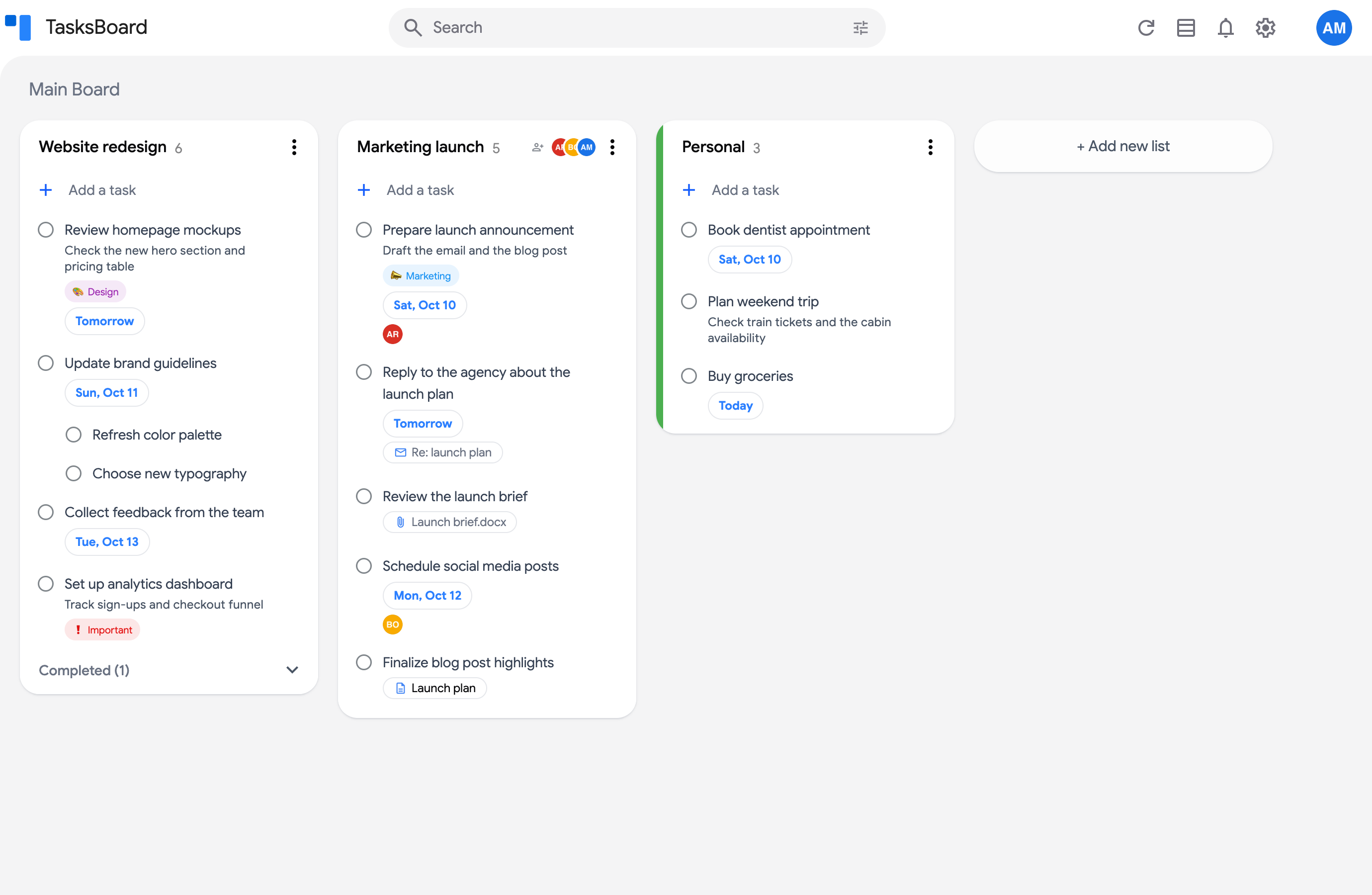
A list in TasksBoard is a Google Tasks list, displayed as a column on your board. Everything you do to a list is synced with Google Tasks.
Create a list
Section titled “Create a list”- Click ”+ Add new list” at the end of the board.
- Type the title of the list and press Enter (or click the + icon).
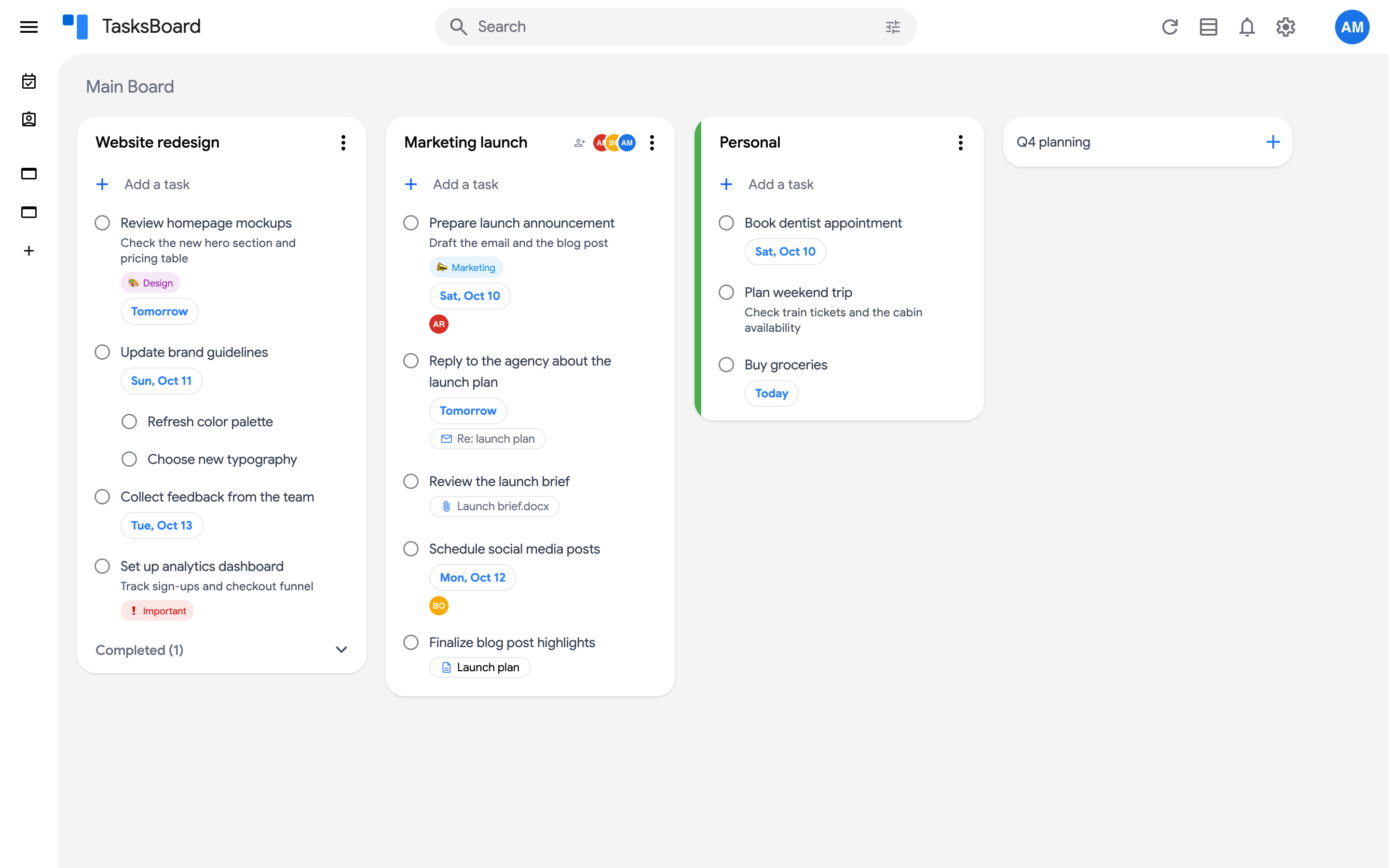
The list appears on the board and in Google Tasks within a few seconds.
Rename a list
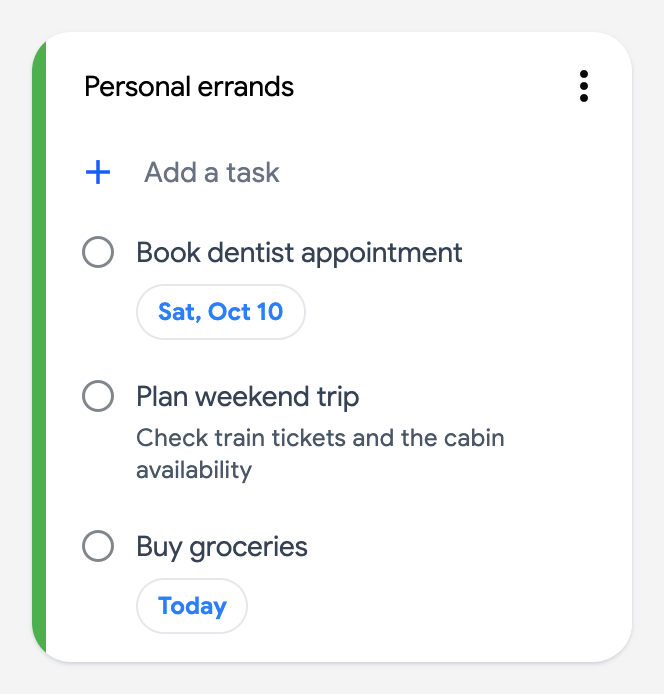
Section titled “Rename a list”Click the list title, type the new name and press Enter. You can also open the three dots menu (⋮) of the list and click “Rename list”.
The list menu
Section titled “The list menu”The three dots menu (⋮) at the top right of every list holds the list actions:
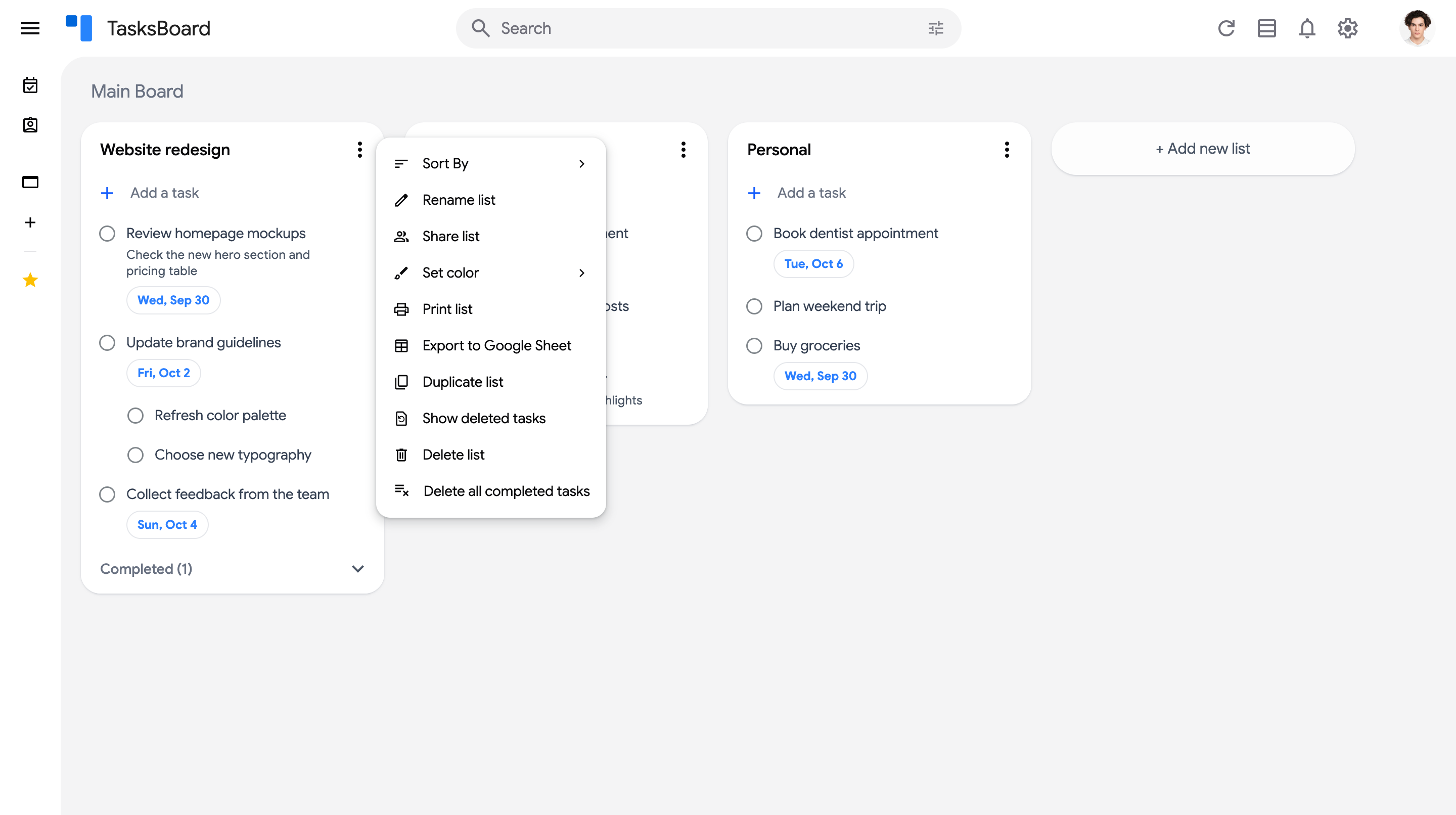
- “Sort By”: sort the tasks by due date, alphabetically or by last update.
- “Rename list” and “Set color” (change the list color).
- “Share list”: share the list with other people.
- “Move to another board”: move the list (Premium).
- “Print list” and “Export to Google Sheet” (export a list).
- “Duplicate list”: copy the list with its tasks.
- “Show deleted tasks”: recover deleted tasks.
- “Delete list” and “Delete all completed tasks”.
Reorder lists
Section titled “Reorder lists”Drag a list by its header and drop it where you want it on the board. The order is saved for your account; Google Tasks keeps its own order.
Delete a list
Section titled “Delete a list”- Open the three dots menu (⋮) of the list and click “Delete list”.
- Click “Delete List” to confirm.
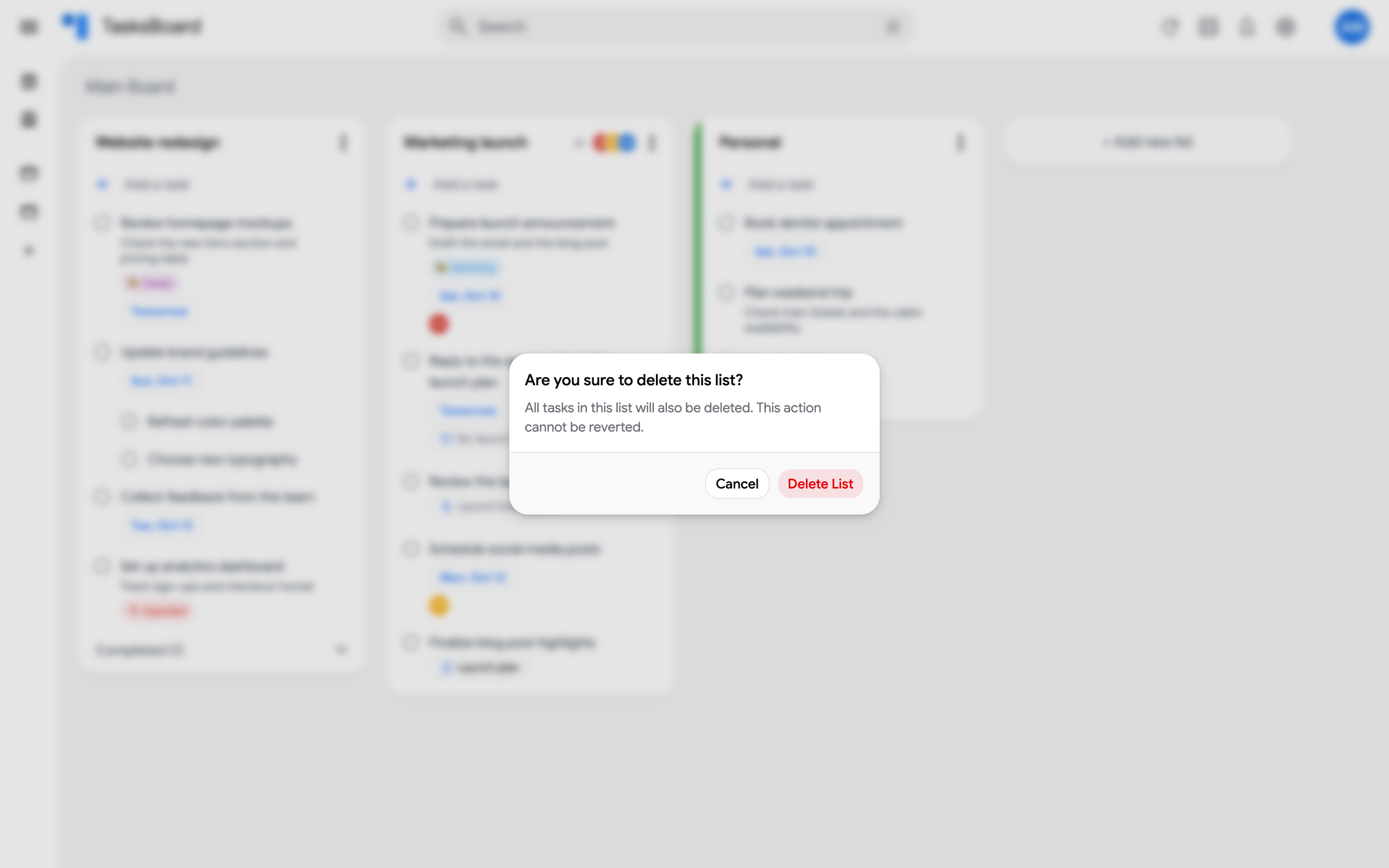
If the list belongs to a shared board, the dialog warns that the list is deleted for every collaborator of the board, and the confirm button unlocks after a 3-second countdown.
Completed tasks
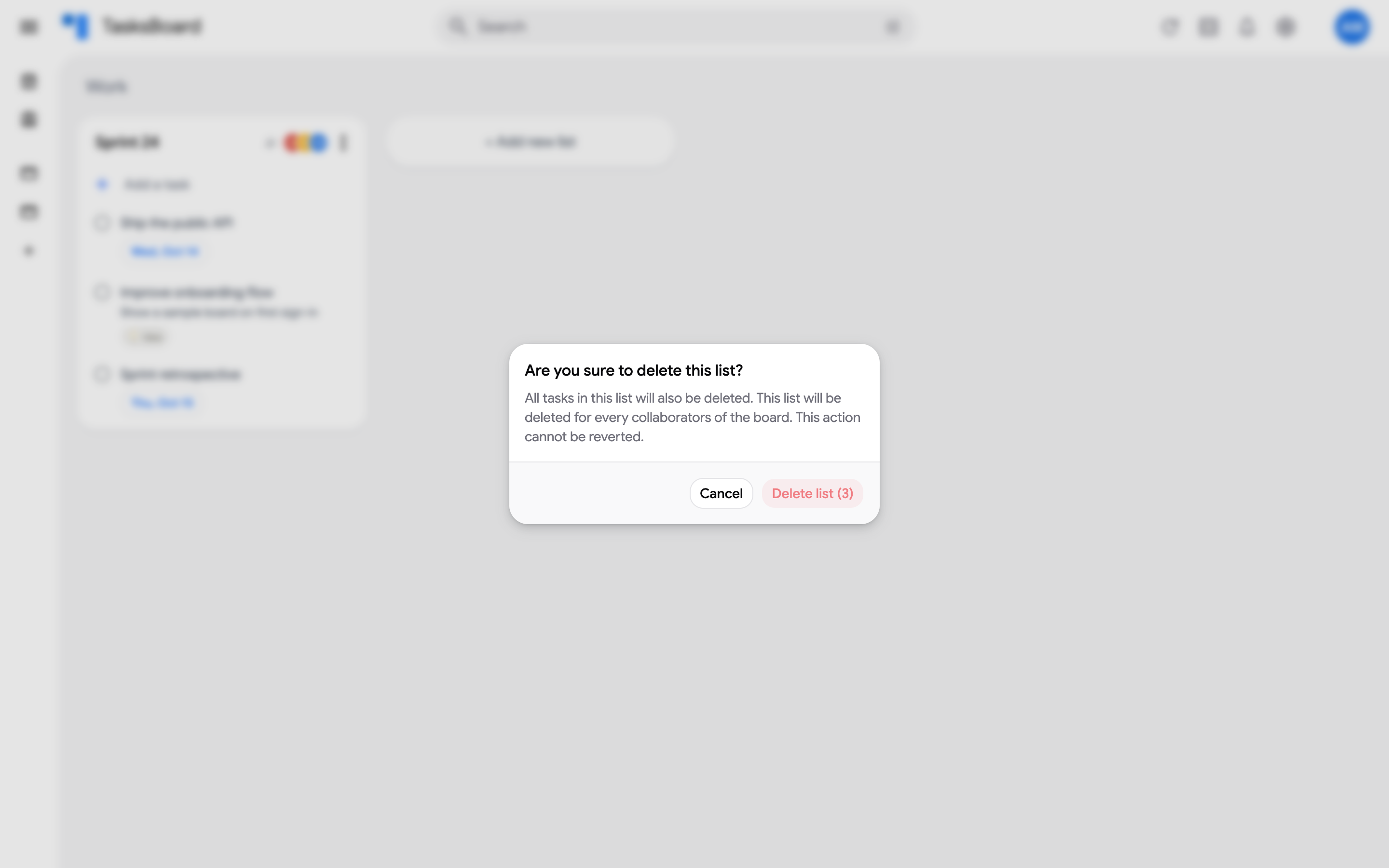
Section titled “Completed tasks”Completed tasks move to the “Completed” section at the bottom of the list. Click it to expand or collapse the section; click the check mark of a task to reopen it.
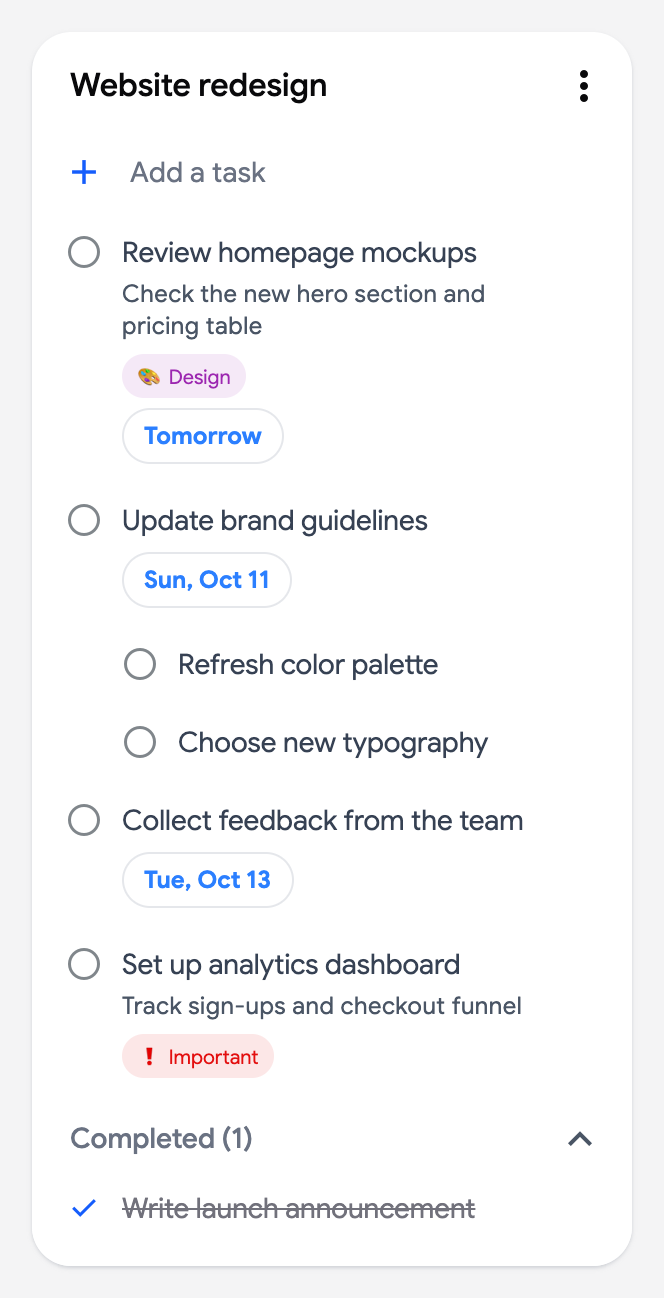
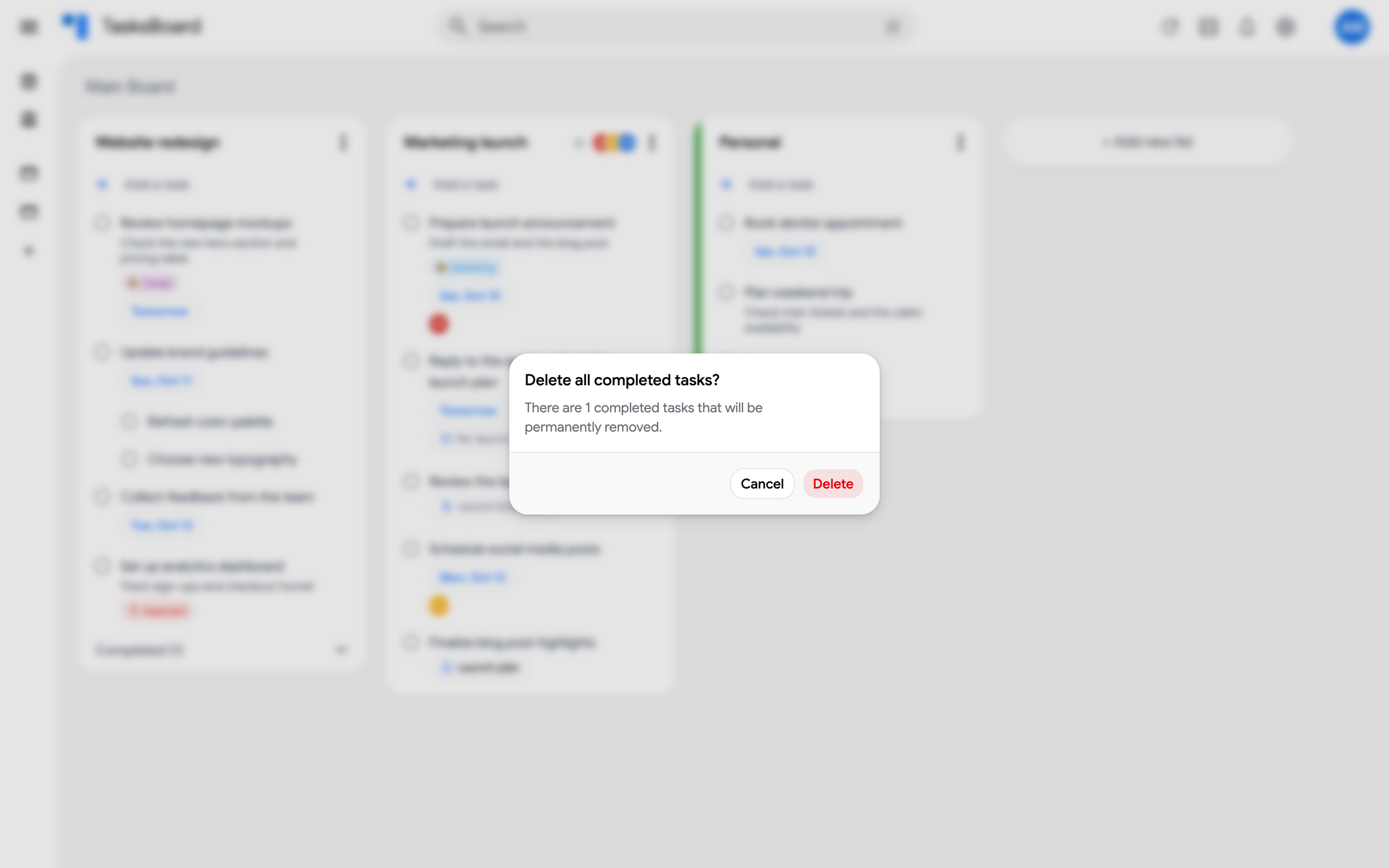
To remove them all at once, open the three dots menu (⋮) and click “Delete all completed tasks”, then confirm with “Delete”. The tasks are deleted permanently in Google Tasks as well.
List, kanban or calendar layout
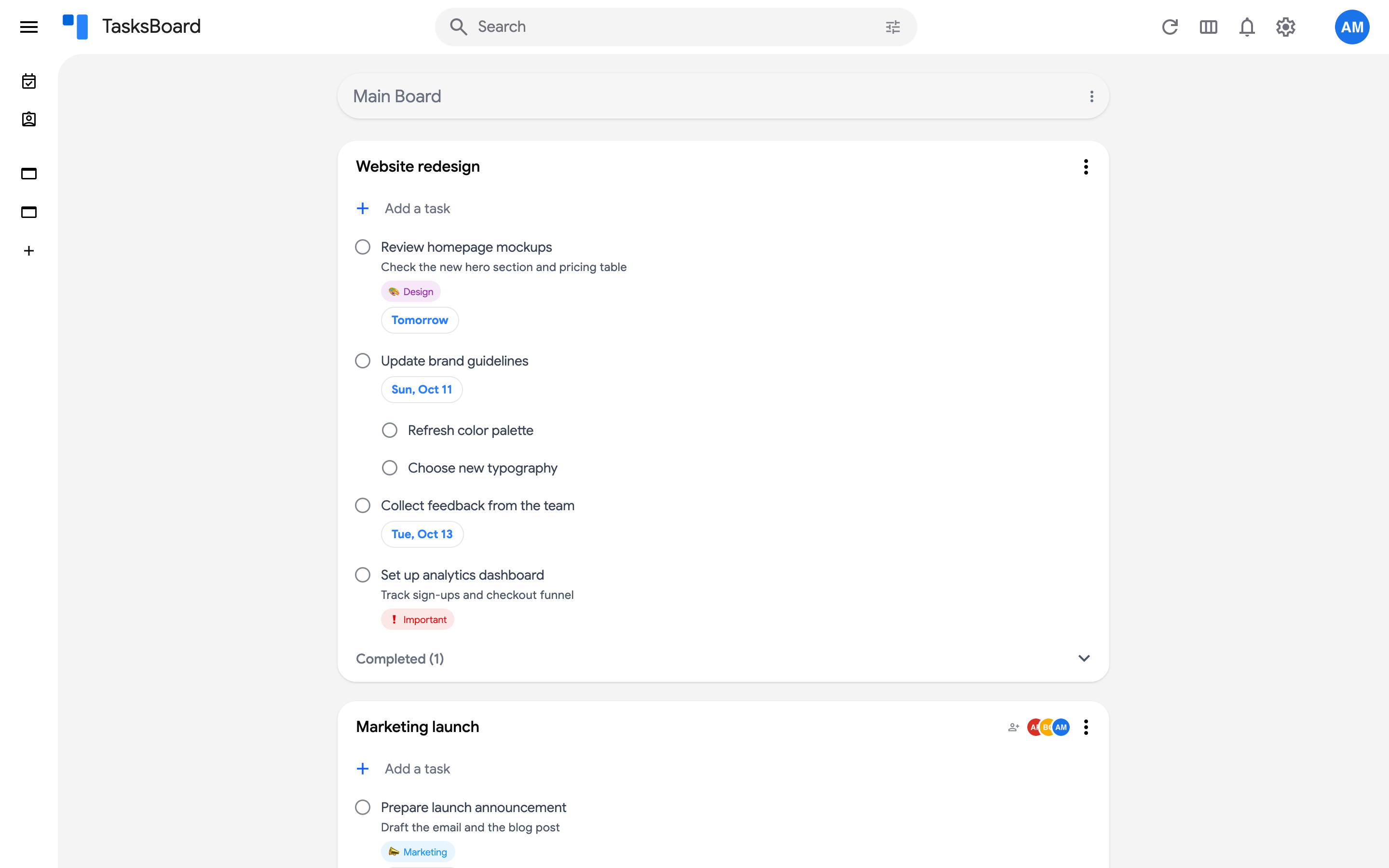
Section titled “List, kanban or calendar layout”Click the Display button at the top right of a board and pick a layout under “Layout”:
- “List”: the lists stacked under each other, handy on narrow windows.
- “Kanban”: the lists side by side as columns.
- “Calendar”: the tasks of the board that have a due date, on a month or week grid (Premium).
Each board remembers its own layout on this device, so a planning board can open as a calendar while another stays in kanban. The same menu holds the options of the layout (“Task count” for a list or a kanban, “Week” / “Month” and “Show completed tasks” for a calendar) and, on a shared board, the “Assignee” filter.
Show the number of tasks in each list
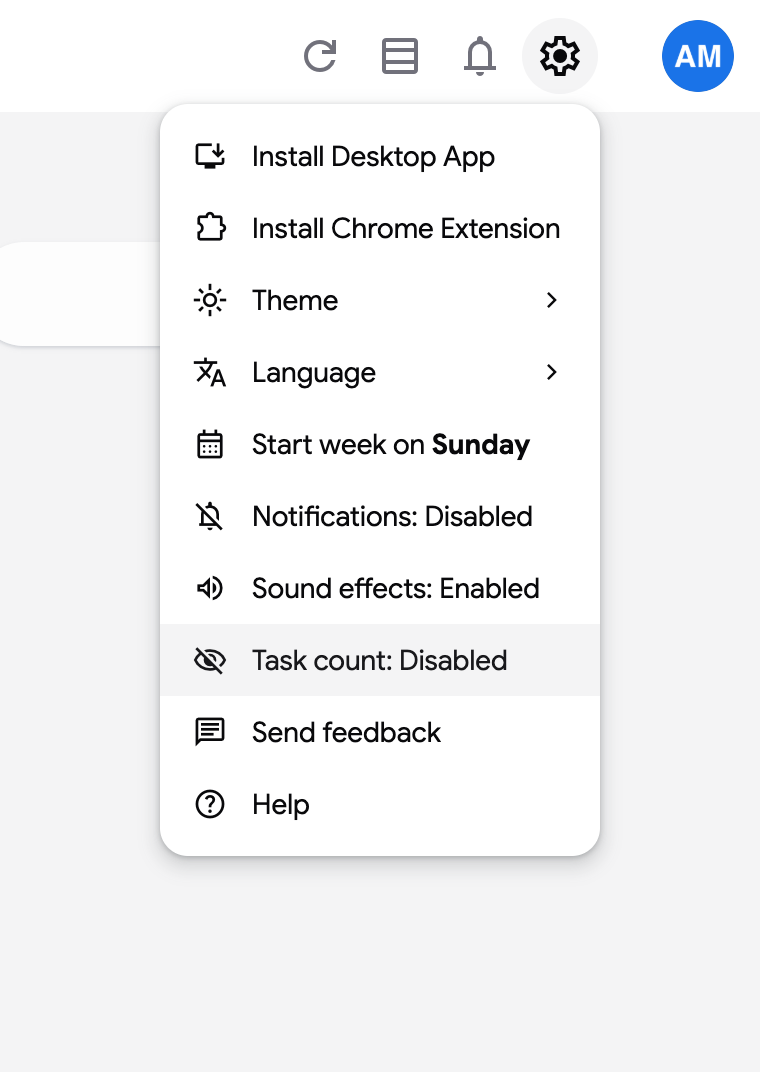
Section titled “Show the number of tasks in each list”Switch on “Task count” in the Display menu of a board, or open the settings gear at the top right and click “Task count: Disabled”. The number of open tasks then appears next to each list title.