
Promo codes
Αυτό το περιεχόμενο δεν είναι ακόμη διαθέσιμο στη γλώσσα σου.
A promotion code is entered in the payment dialog while you subscribe. It cannot be added to a subscription that already exists.
Enter a promo code
Section titled “Enter a promo code”- Open the pricing page and click “Get Pro” or “Get Team” (or “Start free trial” in the trial dialog).
- Once the card form has loaded, click “Have a promo code?” under it.
- Type the code in the Promo code field and click “Apply”.
The code appears as a tag under the form with the amount it takes off. With a trial, the discount applies to your first real invoice; the dialog shows what that invoice will be. Click the × on the tag to remove the code.
If the code is rejected, the dialog tells you why: “This promo code isn’t valid.”, “This promo code has expired.” or “This promo code is only valid for your first purchase.”
Links that apply a code for you
Section titled “Links that apply a code for you”Some TasksBoard emails link to the pricing page with the code already attached (for example tasksboard.com/pricing?coupon=YOURCODE). Open the link, sign in if asked, pick a plan, and the code is filled in and applied in the payment dialog. The code is remembered on this device for 14 days, so you can come back later.
Loyalty offer
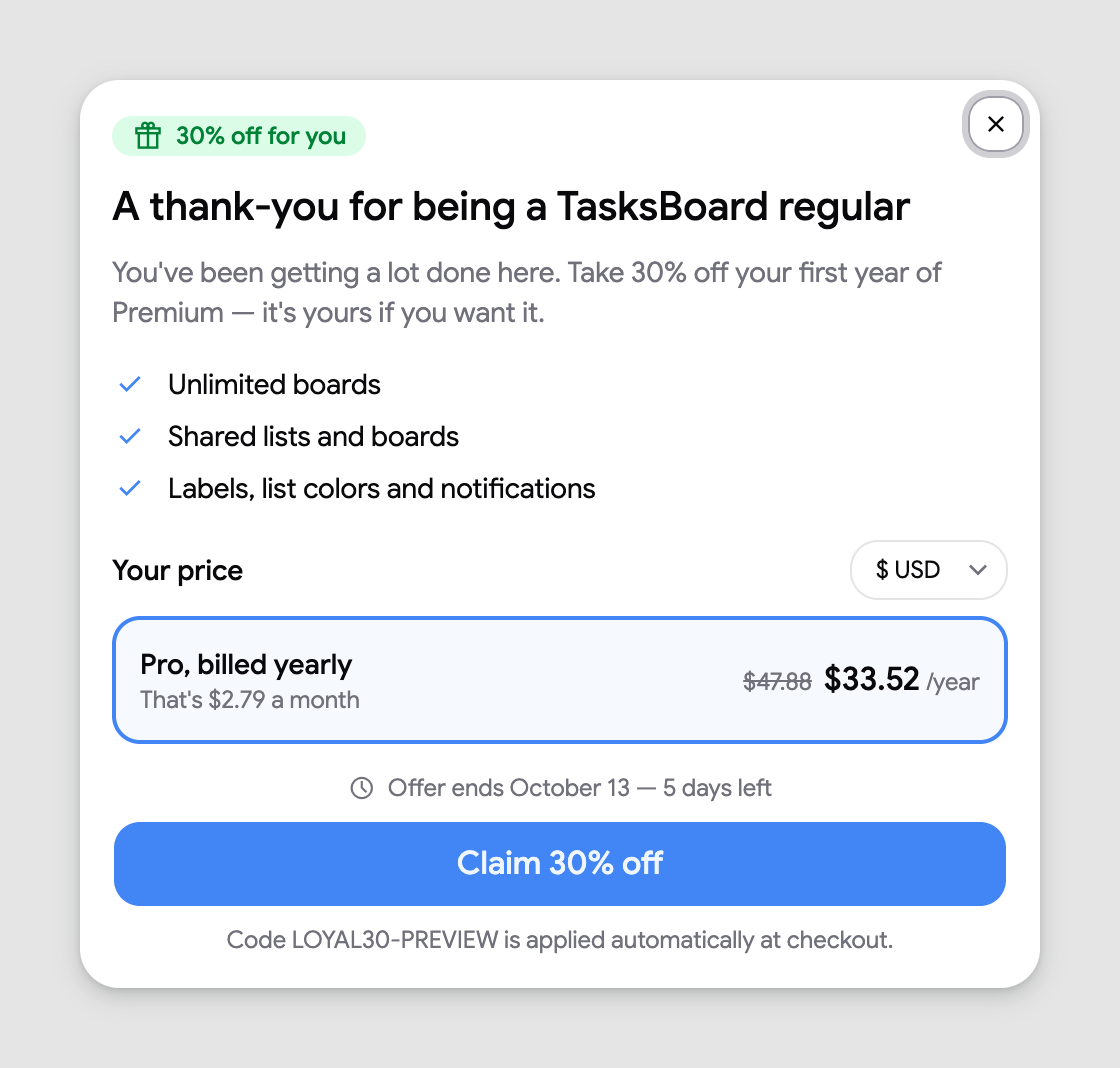
Section titled “Loyalty offer”Long-time free users may see a thank-you offer inside the app with a percentage off the first year of Pro. Click “Claim” and the code shown in the dialog is applied automatically at checkout. The offer has an end date, visible in the dialog.
Education discount
Section titled “Education discount”If you signed in with a school or university email, 50% off Pro is applied automatically at checkout and shown in the payment dialog. Stripe does not allow a promo code on top of that discount, so the “Have a promo code?” button is not shown in this case.