
Create and manage multiple boards
Αυτό το περιεχόμενο δεν είναι ακόμη διαθέσιμο στη γλώσσα σου.
A board is a group of lists. Every account has a Main Board; with Premium you can create as many boards as you need, for example one per project or one per area of your life.
The sidebar
Section titled “The sidebar”Click the menu icon (☰) at the top left to expand the sidebar. It shows the smart boards and, under “Boards”, your own boards. Click a board to open it.
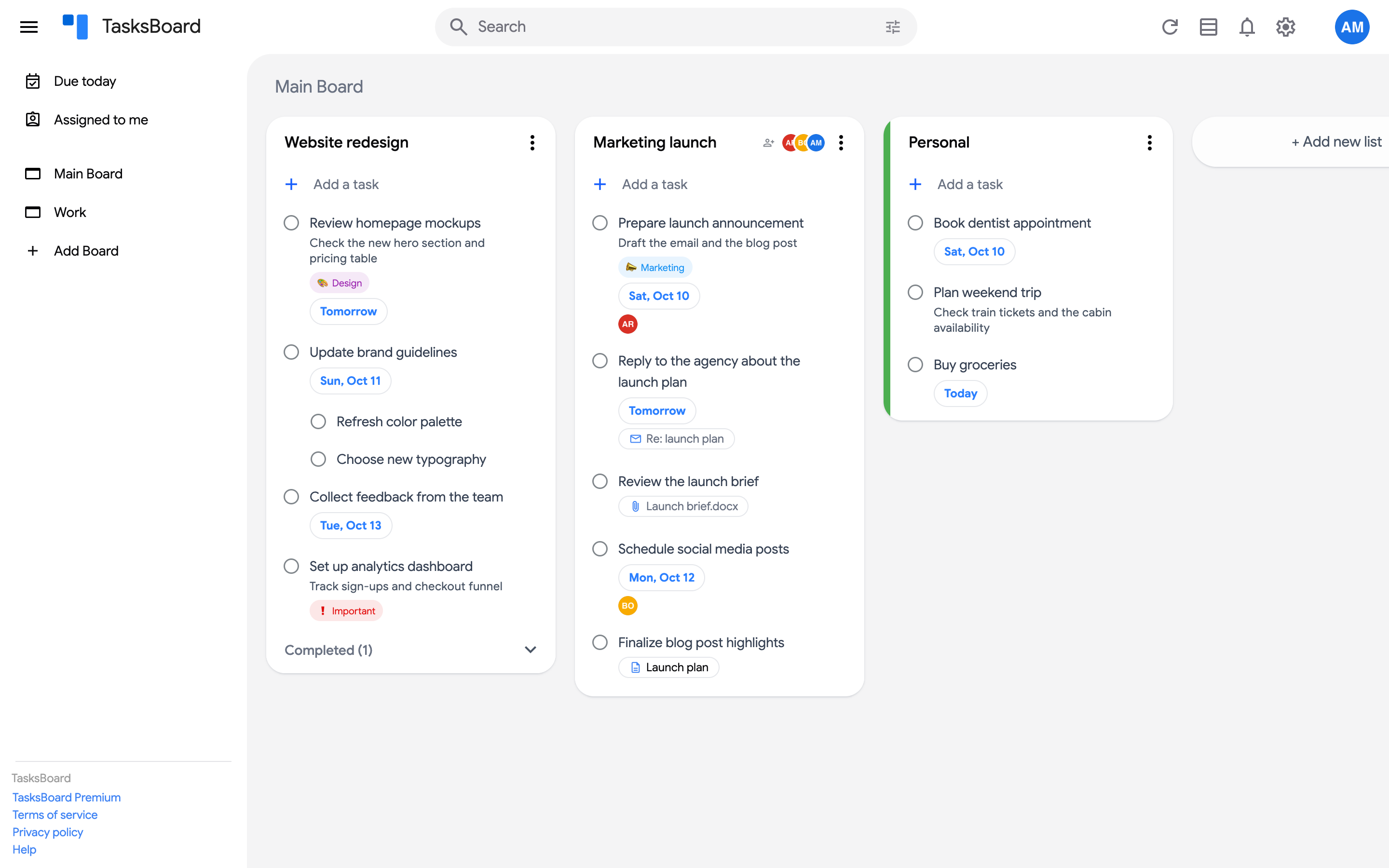
Add a board
Section titled “Add a board”- Expand the sidebar and click the + next to “Boards”. On a phone, open the boards menu and tap “Add Board”.
- Type the name of the board. Optionally, click the smiley to give it an emoji and choose a Background color or image.
- To start with ready-made lists, pick one of your templates or a gallery template under “Start from a template”. Leave “Blank board” for an empty board.
- Click “Create board” (or press Enter). The new board opens.
Then add lists to it with ”+ Add new list”, or move existing lists to it from their menu.
Reorder boards
Section titled “Reorder boards”In the expanded sidebar, drag a board up or down to change its position. The order is saved for your account.
The board menu
Section titled “The board menu”Open the three dots menu (⋮) next to the board title, or hover a board in the sidebar and click its three dots menu (⋮).
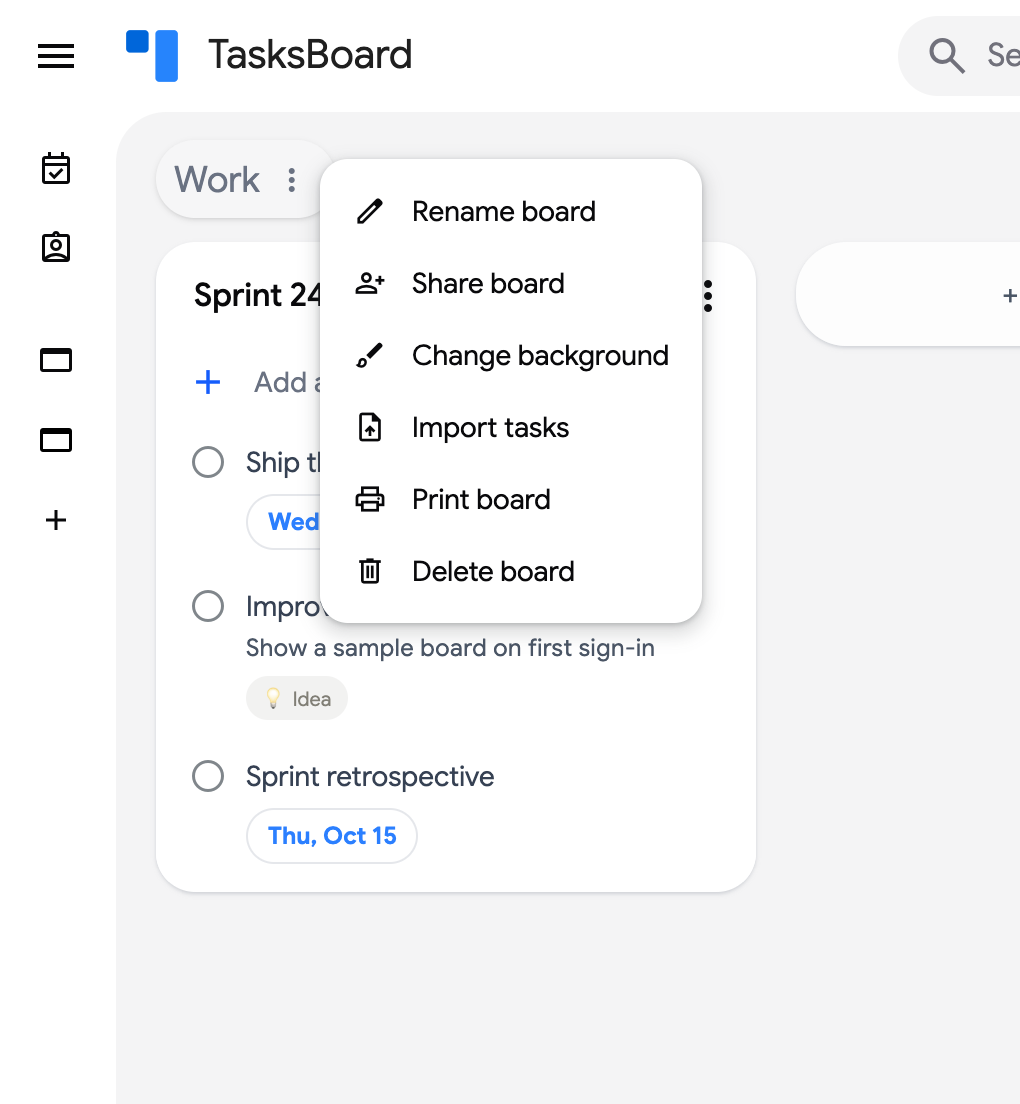
- “Rename board”: edit the title inline. You can also click the title directly.
- “Share board”: share every list of the board with your team. See share boards.
- “Change background”: pick an image or a color. See board background.
- “Open this board on start”: make this board the one TasksBoard opens on. See below.
- “Save board as template”: see templates.
- “Turn text into tasks”: paste notes or an email and get tasks (Premium). See Turn text into tasks.
- “Completed tasks”: browse everything completed on the board (Premium). See activity log.
- “Import tasks”: create lists from a spreadsheet or a text file. See import tasks.
- “Print board”: print every list of the board. See print a board.
- “Delete board”: delete the board and its lists.
Open a board on start
Section titled “Open a board on start”TasksBoard opens on the Main Board. To start on another board, open its three dots menu (⋮) and click “Open this board on start”. The entry then reads “Opens on start” with a filled home icon; click it again to go back to the Main Board. The choice is saved on this device, for this account: it applies when you open tasksboard.com/app, and you can still open any board from the sidebar afterwards. If the board is deleted, TasksBoard opens on the Main Board again.
Rename a board
Section titled “Rename a board”Click the board title (or choose “Rename board” in the menu), type the new name and press Enter. Press Escape to cancel.
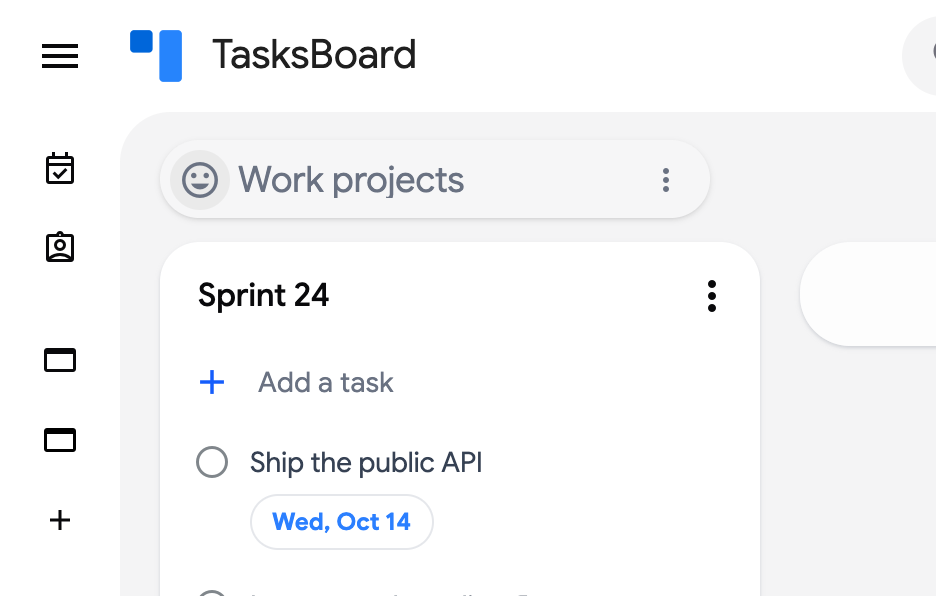
Add an emoji to a board
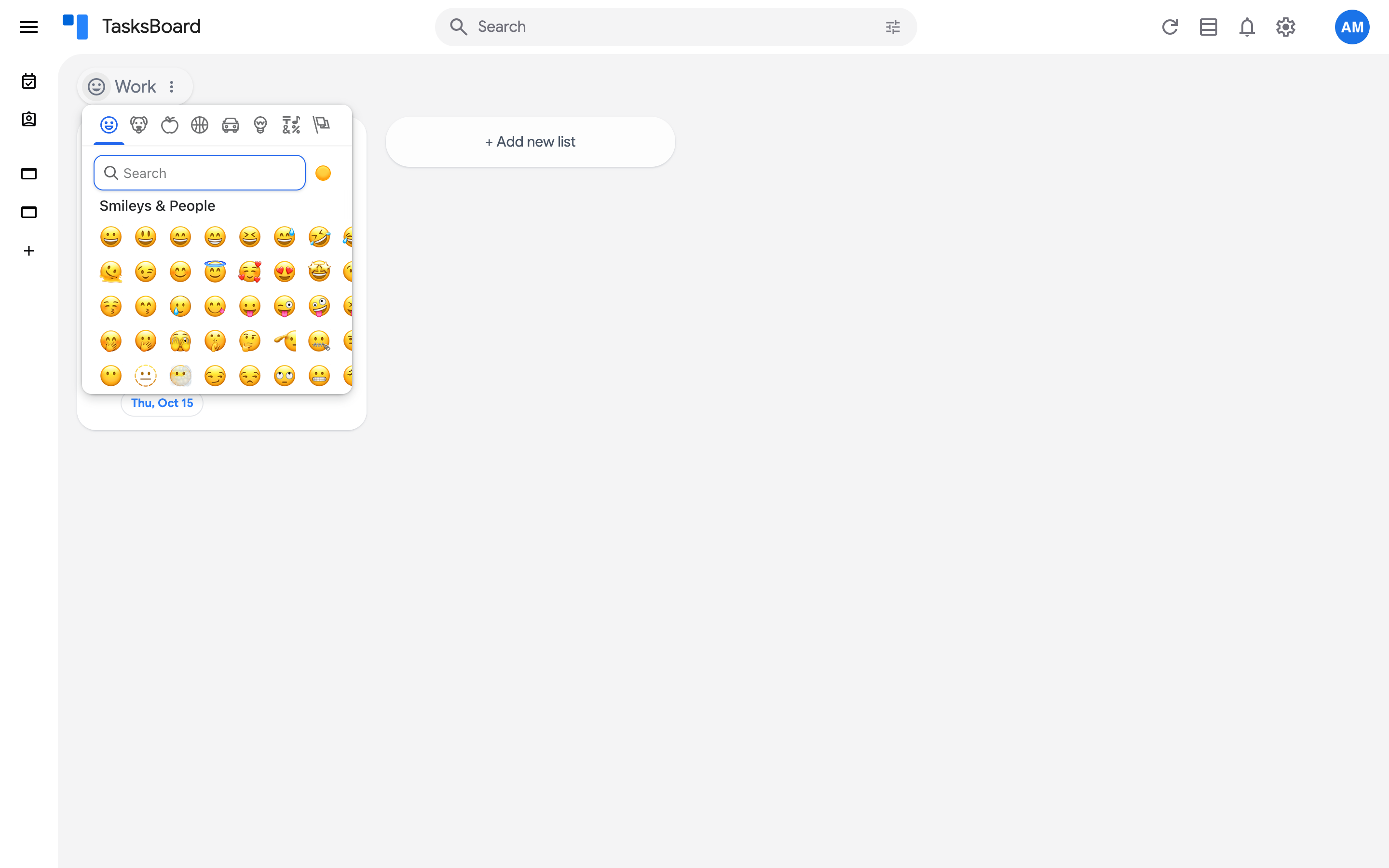
Section titled “Add an emoji to a board”Hover the board title and click the smiley that appears in front of it to open the emoji picker. Pick an emoji: it shows in front of the title and as the board’s icon in the sidebar. To remove it, open the picker again and click “Remove”.
Delete a board
Section titled “Delete a board”- Open the three dots menu (⋮) of the board and click “Delete board”.
- If the board still holds lists, the “Delete board and lists” button unlocks after a 3-second countdown. Click it to confirm.
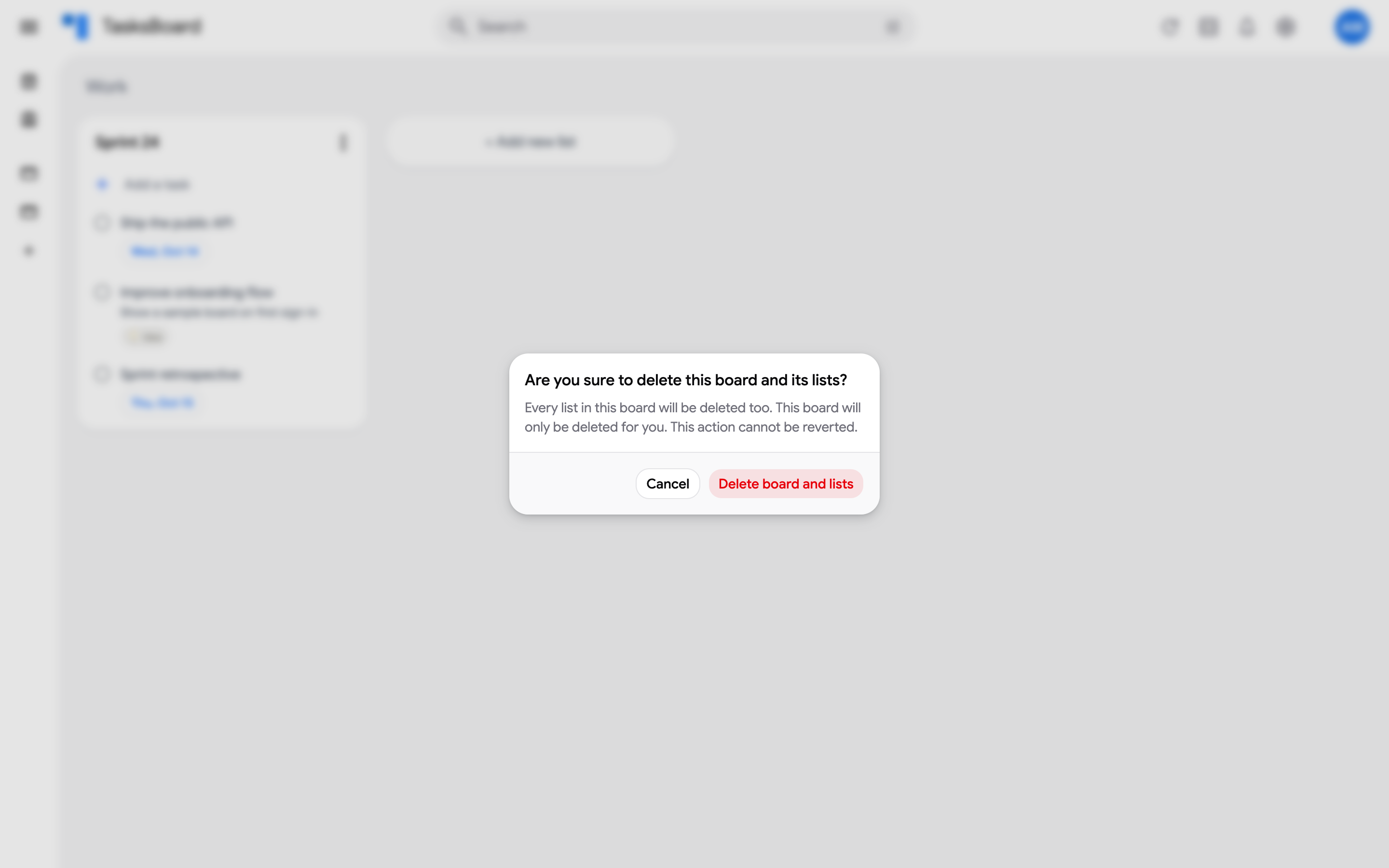
The Main Board cannot be deleted: its “Delete board” item is greyed out.
Smart boards: Due today and Assigned to me
Section titled “Smart boards: Due today and Assigned to me”The top of the sidebar holds two boards built automatically from all your lists:
- “Due today” shows every task due today, grouped by list.
- “Assigned to me” shows the tasks assigned to you in shared lists, and the tasks assigned to you from Google Docs, Chat or Spaces.
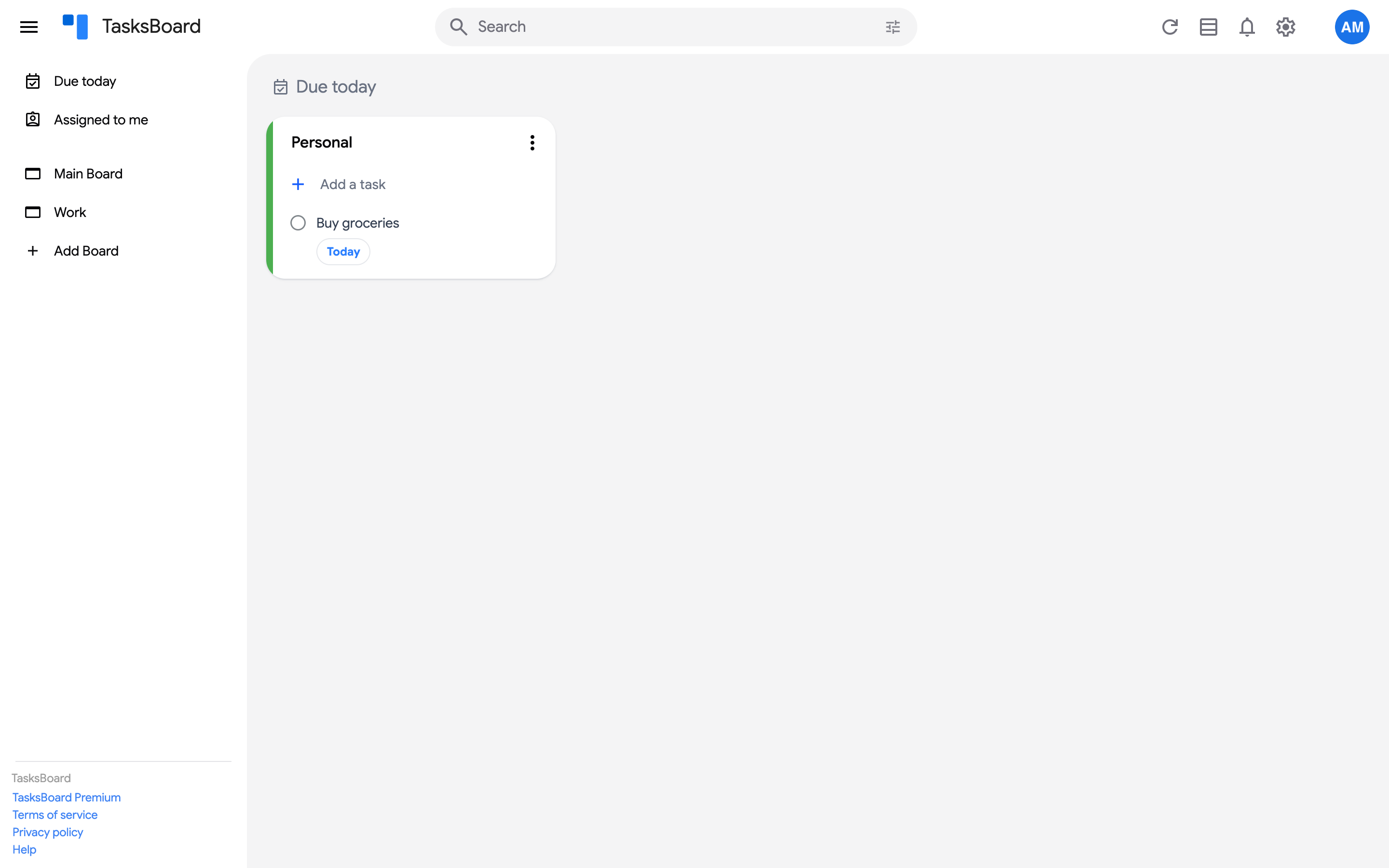
Tasks on a smart board are the real tasks: completing or editing one updates it in its original list. Smart boards cannot be renamed, shared or deleted.