
Drag and drop tasks and lists
Ce contenu n’est pas encore disponible dans votre langue.
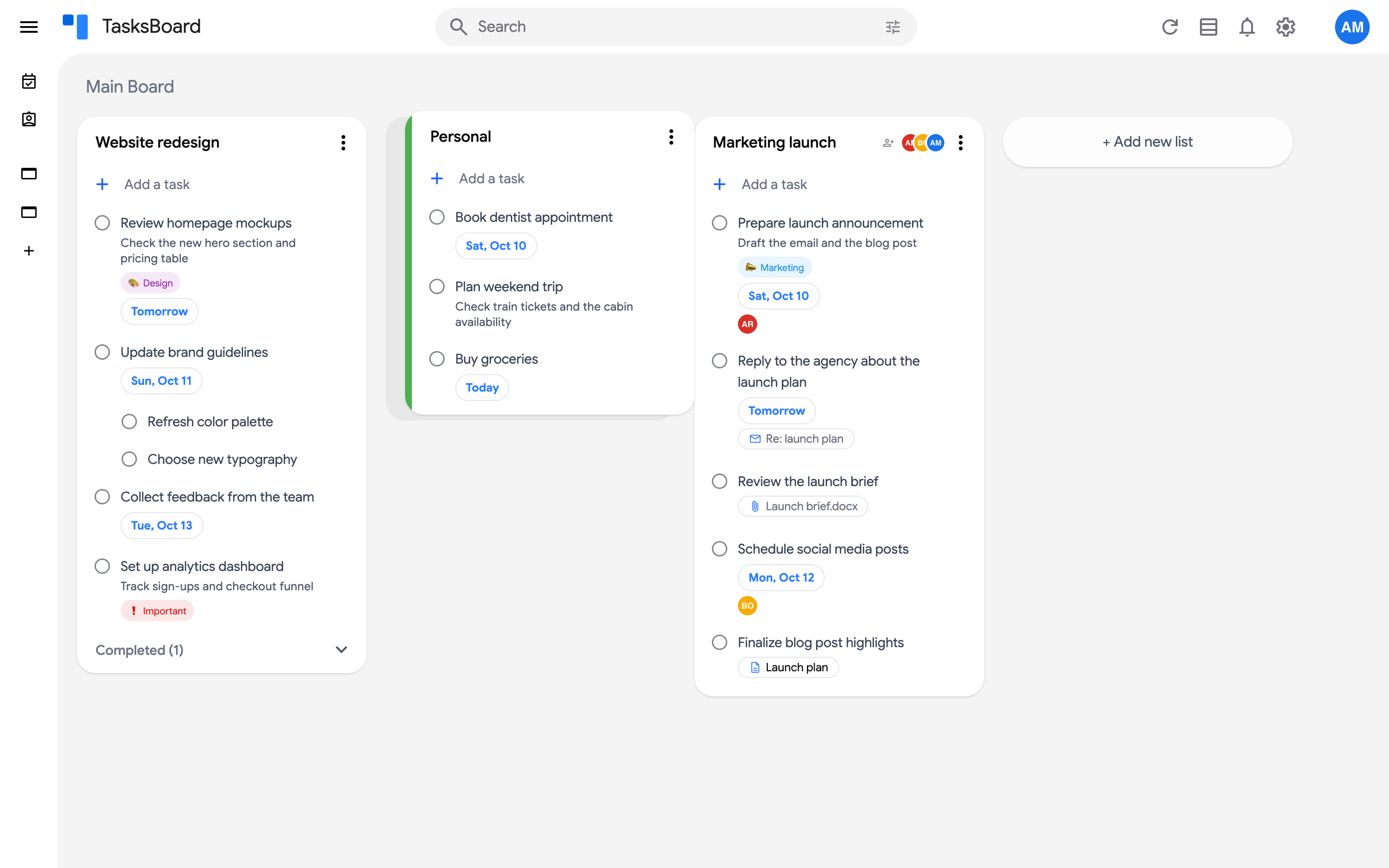
Everything on a board can be rearranged by drag and drop: tasks inside a list, tasks between lists, and the lists themselves.
Move a task
Section titled “Move a task”- Press and hold on a task, then drag it.
- Drop it at the wanted position in the same list, or in another list of the board.
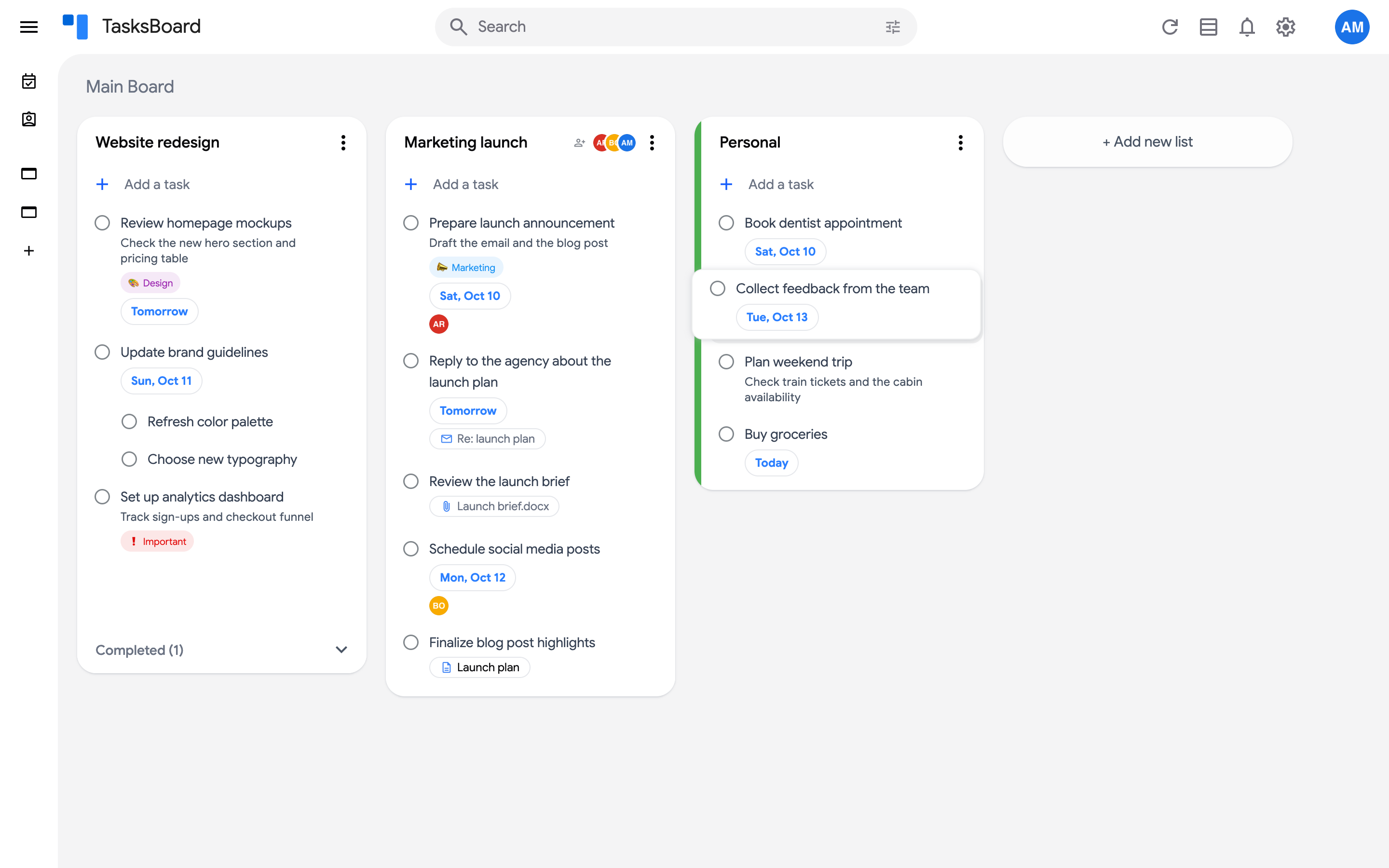
The new order is saved to Google Tasks, so it is the same in the Google Tasks app. Dropping a task in another list moves it there with its details, date and labels.
Move a list
Section titled “Move a list”Drag a list by its header (the title area) and drop it between two other lists. Lists can also be sent to another board with “Move to board” in the list menu, see move a list to another board.
Drag with the keyboard
Section titled “Drag with the keyboard”- Press Tab until the task (or list) you want to move is focused.
- Press Space to lift it.
- Move it with the arrow keys: up and down inside the list, left and right to another list.
- Press Space again to drop it, or Esc to cancel.
When drag and drop is off
Section titled “When drag and drop is off”- In search results and in the smart boards (“Due today”, “Assigned to me”) lists come from several boards, so neither lists nor tasks can be reordered there. Clear the search or open the board to rearrange.
- While a task is open in the editor it cannot be dragged; press Esc first.
- In a list sorted by due date, the order is the date order: switch back to “My order” to arrange tasks by hand.