
Getting started with TasksBoard
Tento obsah zatím není dostupný ve vašem jazyce.
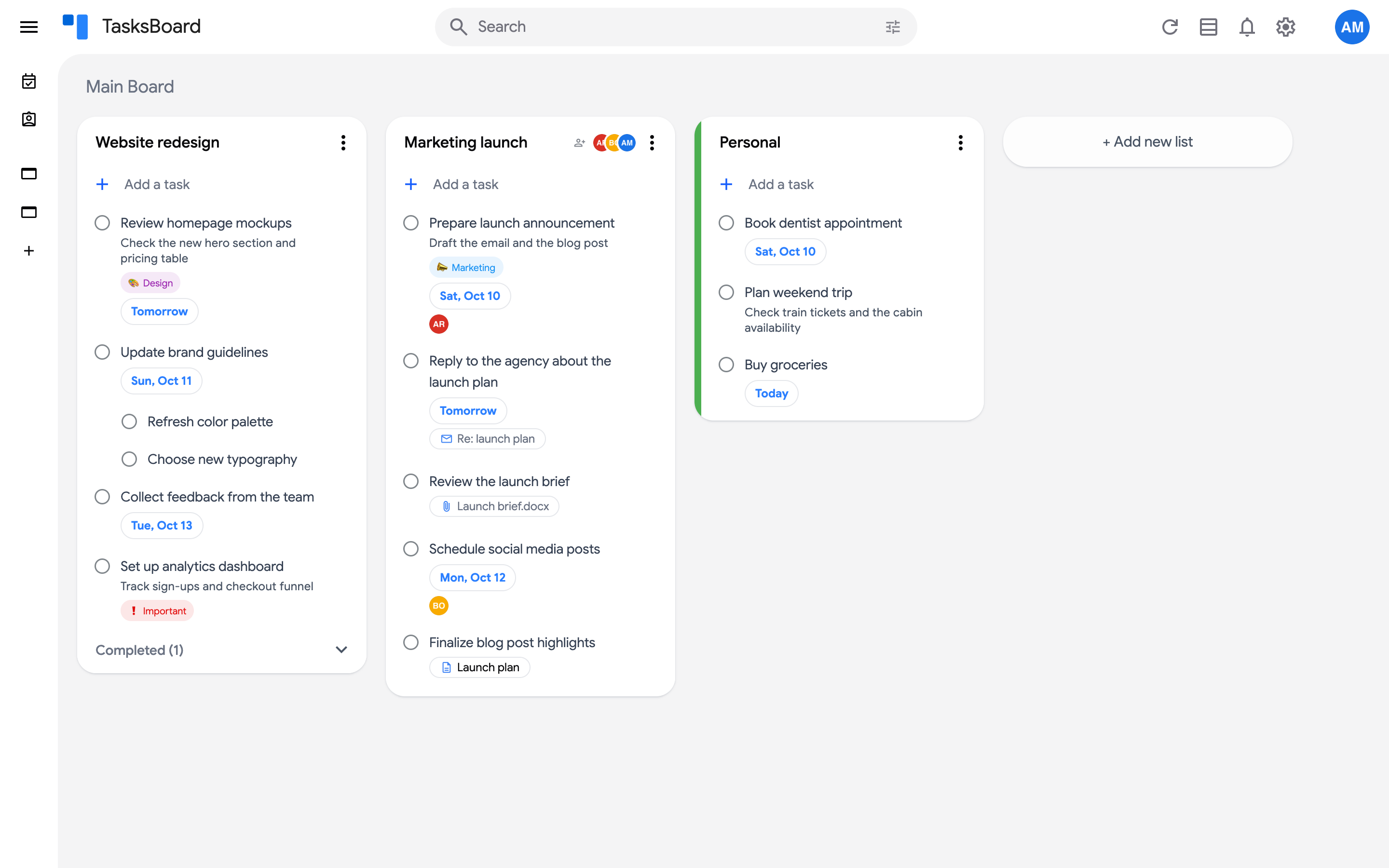
TasksBoard is a kanban board for Google Tasks. Your lists appear side by side as columns on a board, and everything you do in TasksBoard syncs with Google Tasks, so your tasks stay available in Gmail, Google Calendar and the Google Tasks mobile apps.
Sign in with Google
Section titled “Sign in with Google”Go to tasksboard.com and click “Sign in with Google”. TasksBoard asks for permission to read and edit your Google Tasks: it needs it to display your lists and save your changes. No account is created on TasksBoard’s side, your Google account is your TasksBoard account.
Boards, lists and tasks
Section titled “Boards, lists and tasks”- A task is a Google task: a title, optional notes, a due date and subtasks. TasksBoard adds labels, file attachments and assignees on top of it.
- A list is a Google Tasks list, shown as a column. Each list has its own three dots menu (⋮) to rename, sort, color, share, duplicate or delete it. See create and manage lists.
- A board groups lists. Every account starts with the Main Board. With Premium you can create more boards and move lists between them. See multiple boards.
The header
Section titled “The header”From left to right, the top bar contains:
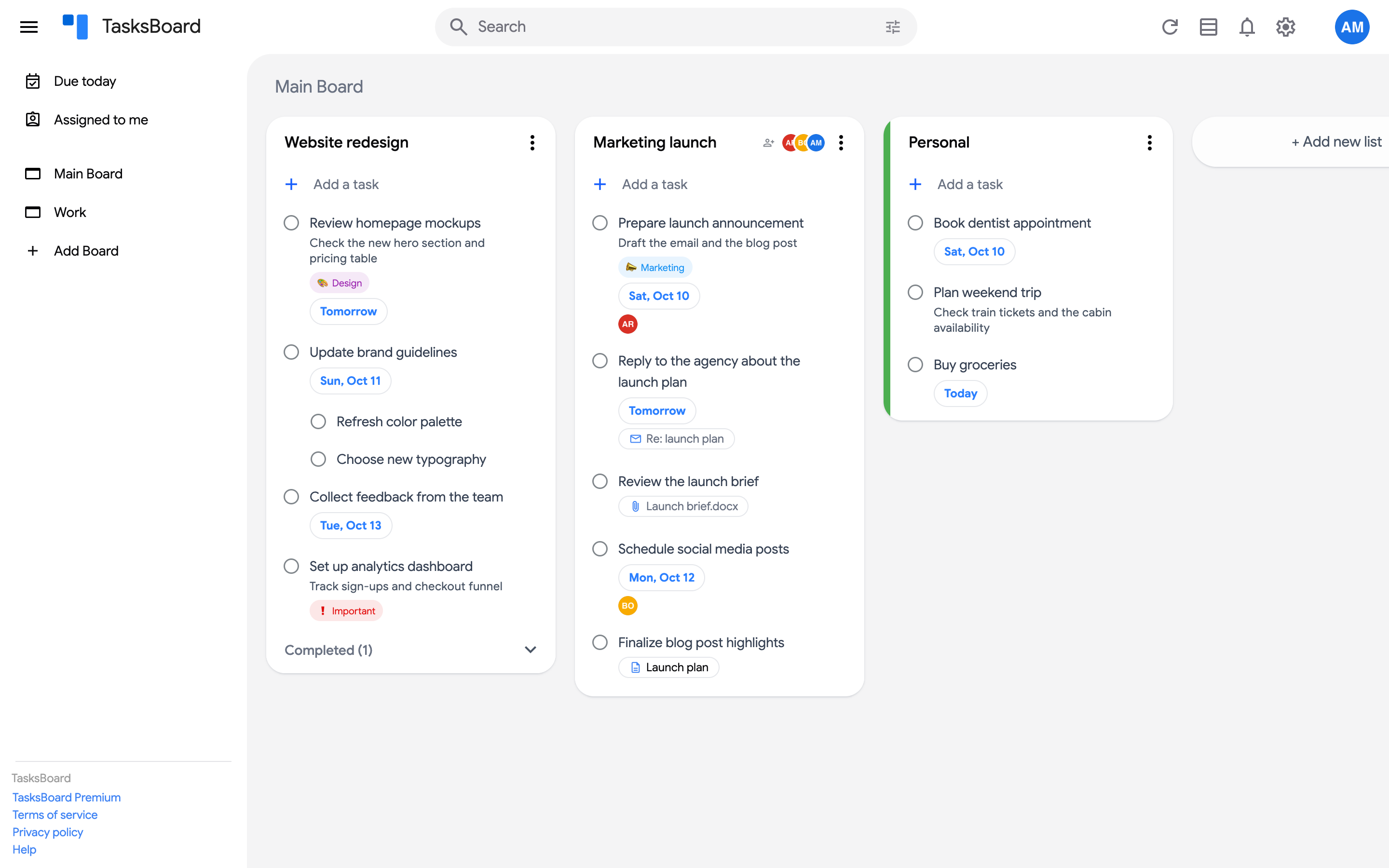
- The menu icon (☰) that opens the sidebar.
- The search field, with a filters icon to search your tasks by board, label, assignee or date.
- The refresh icon to force a sync with Google Tasks.
- The notifications bell for the shared lists you follow.
- The settings gear that opens the settings menu (theme, language, start of the week, sound effects, task count).
- Your avatar, which opens the account menu (subscription, account settings, add another account, sign out).
The sidebar
Section titled “The sidebar”Click the menu icon (☰) to expand the sidebar. It lists the two smart boards (“Due today” and “Assigned to me”), and your boards under “Boards”, with a + to add a board.
Next steps
Section titled “Next steps”- Create and edit tasks
- Share lists with your team
- Change the theme and install TasksBoard on your desktop
- Discover TasksBoard Premium