
Use several Google accounts
Ta treść nie jest jeszcze dostępna w Twoim języku.
You can keep several Google accounts signed in to TasksBoard on the same device, for example a personal Gmail account and a work account, and switch between them without signing in again.
Add another account
Section titled “Add another account”- Click on your profile picture at the top right of the screen.
- Click on “Add another account”.
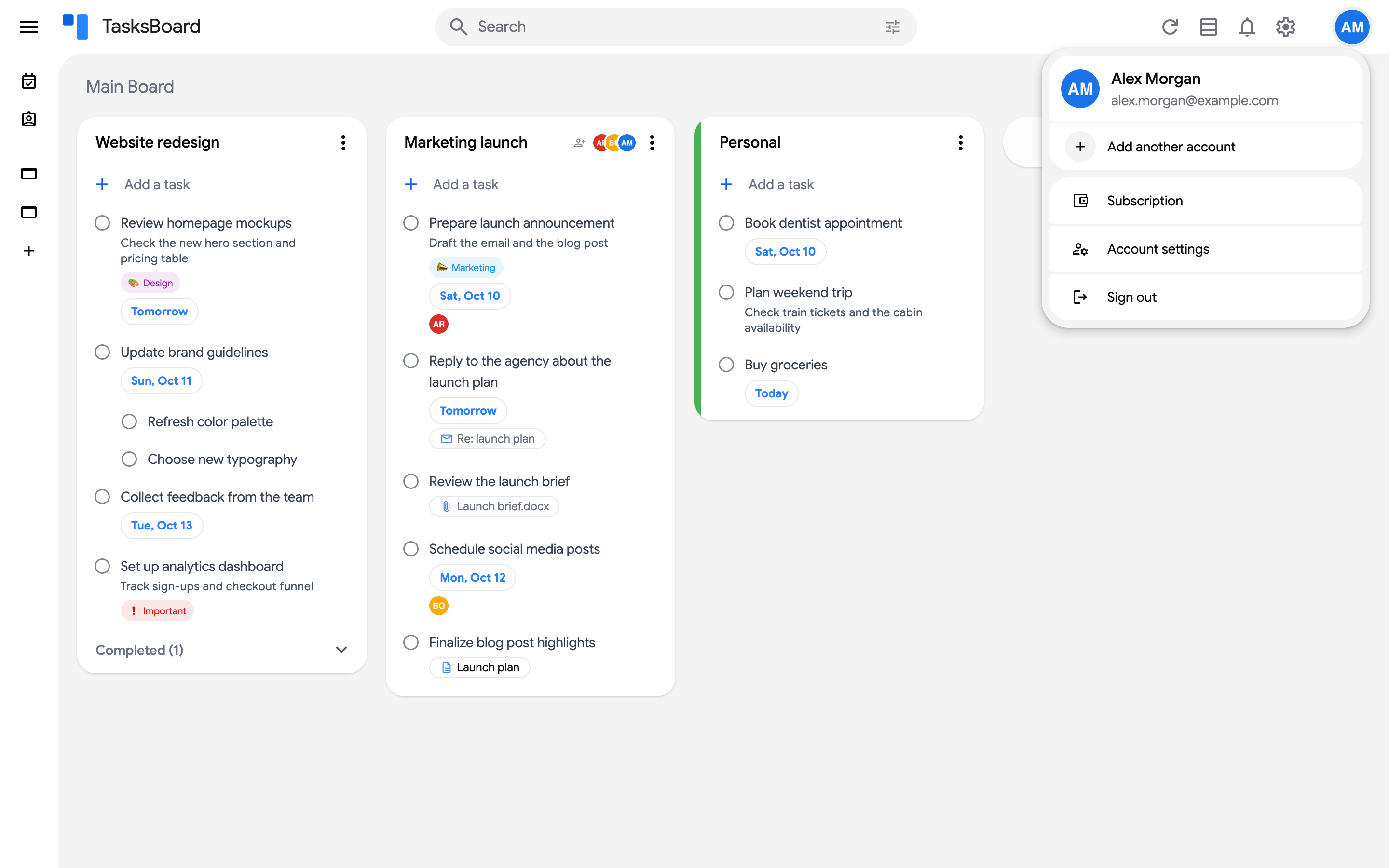
- Google asks you to choose an account. Pick the account to add and allow TasksBoard to access its Google Tasks.
TasksBoard opens on the account you just added. The previous account stays signed in on this device, one click away.
Switch between accounts
Section titled “Switch between accounts”- Click on your profile picture.
- Click on the account you want to open.
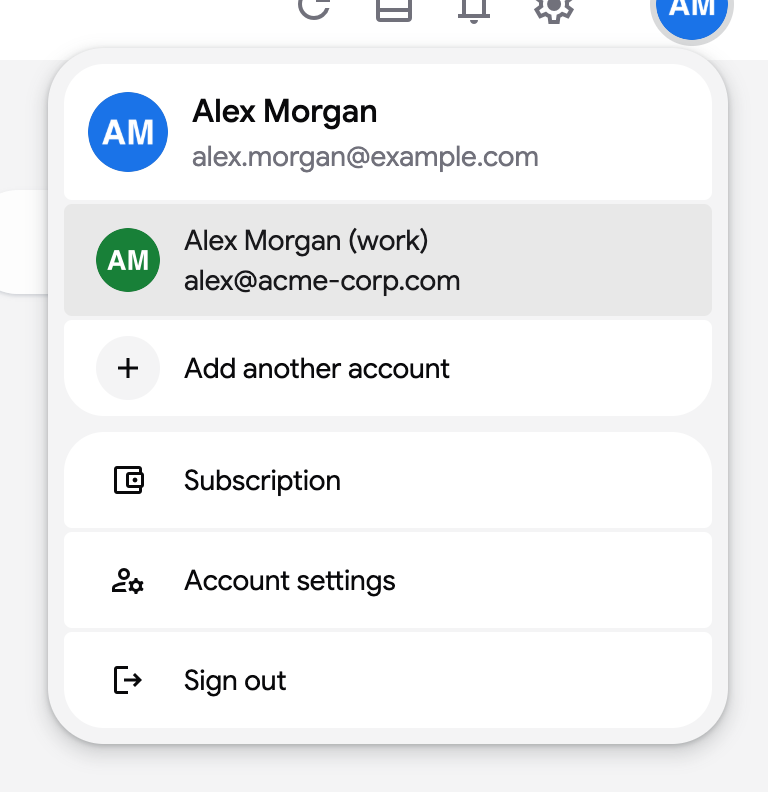
The page reloads on that account right away, without going through Google again. Every account keeps its own local copy of its boards and lists, so switching back shows the board immediately and nothing is mixed between accounts.
Sign one account out
Section titled “Sign one account out”- Switch to the account you want to remove.
- Click on your profile picture, then “Sign out”.
Only that account leaves the device. If other accounts are still signed in, TasksBoard opens on the next one; otherwise it takes you back to the sign-in page.
Boards and lists are per account
Section titled “Boards and lists are per account”Boards, list colors, labels and shared lists belong to the Google account they were created in. To copy all the lists of one account into another, use Transfer tasks to another account. To work on the same list from two accounts, share the list with the other account.