
Cancel your subscription
Ta treść nie jest jeszcze dostępna w Twoim języku.
You can cancel at any time. Premium stays active until the end of the period you already paid for, and nothing more is charged.
Cancel
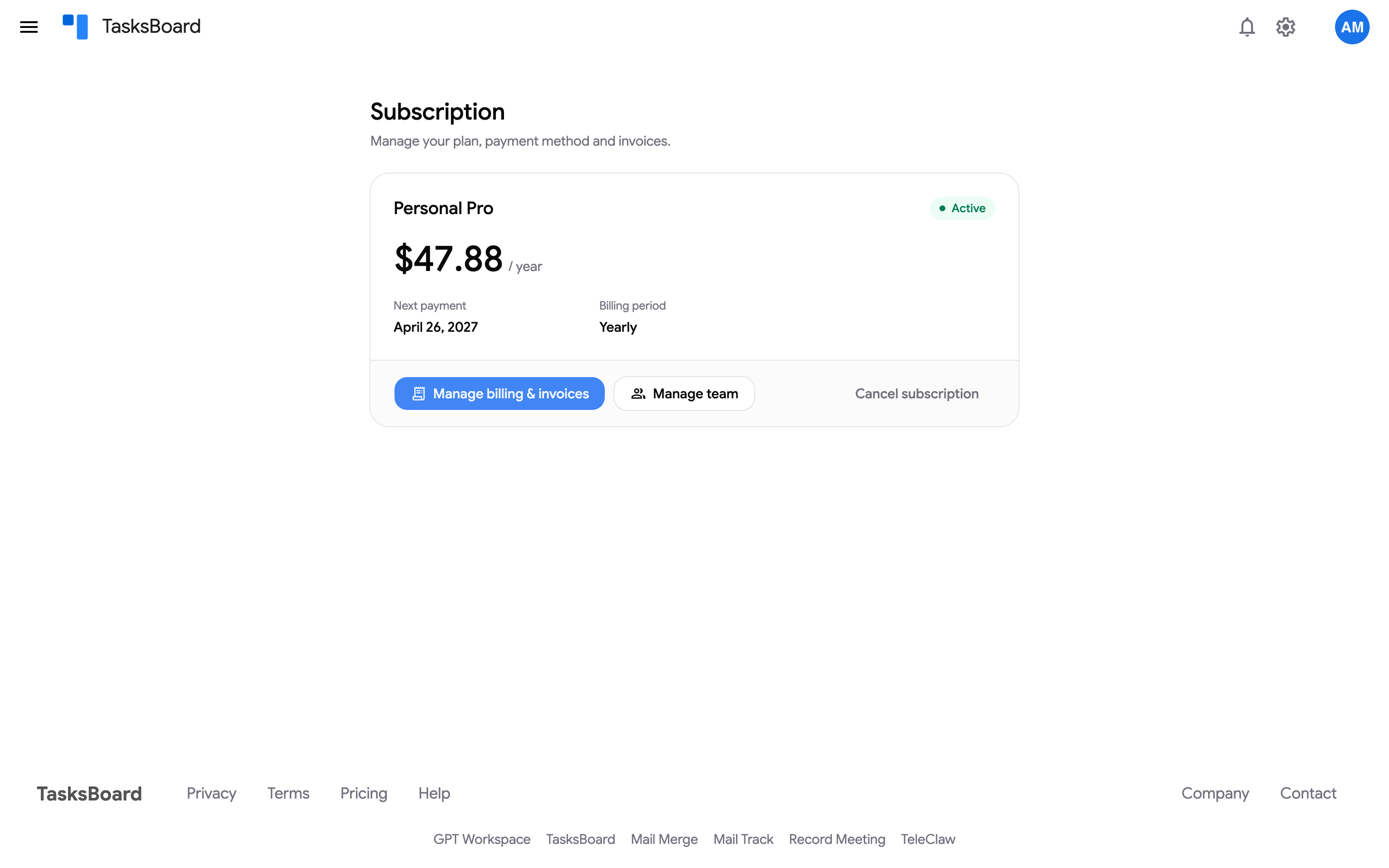
Section titled “Cancel”- Click your avatar at the top right and choose “Subscription”.
- On the Subscription page, click “Cancel subscription”.
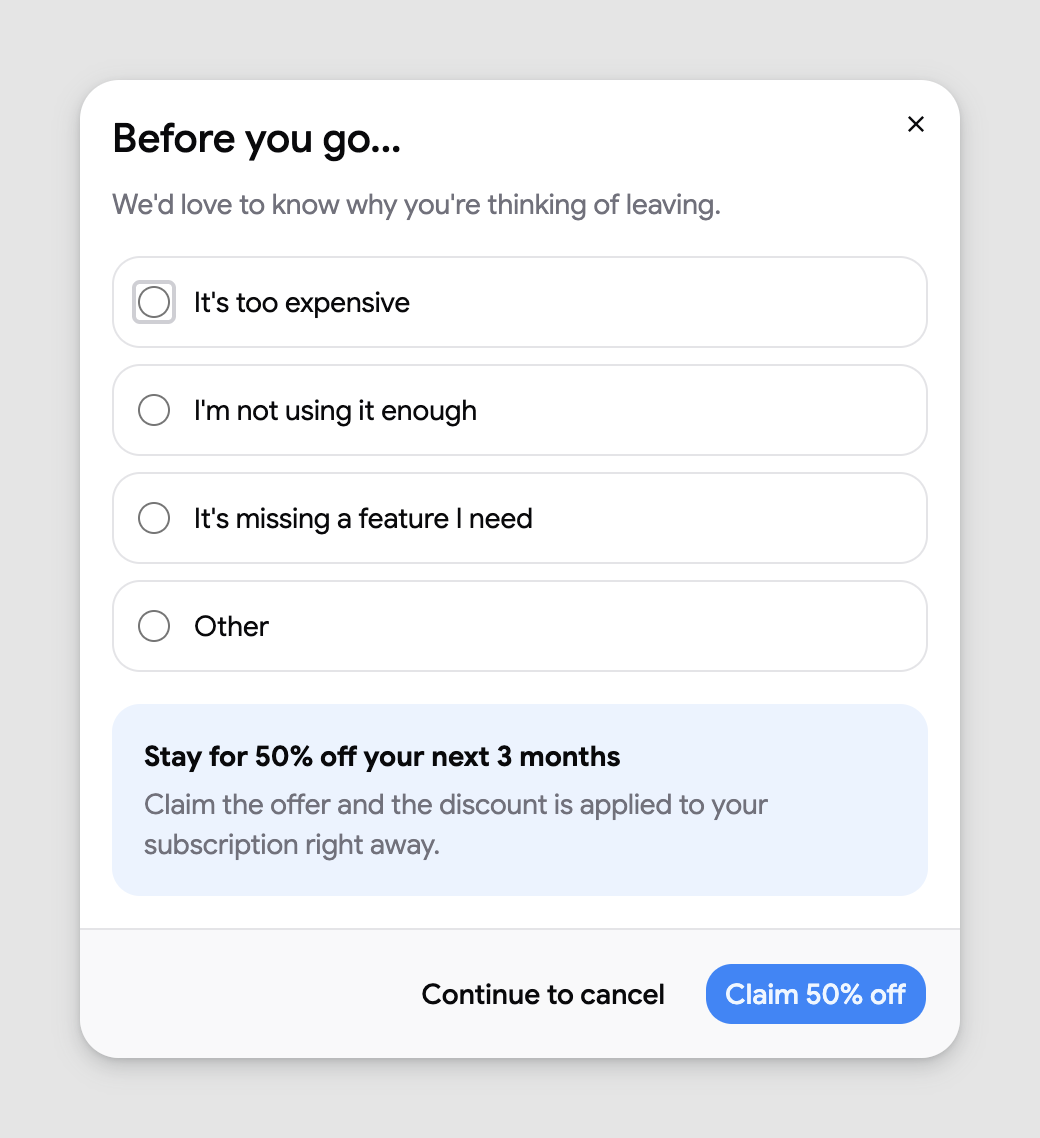
- The Before you go… step asks why you are leaving: “It’s too expensive”, “It’s missing a feature I need”, “I’m not using it enough”, “I’m switching to another tool”, “Bugs or sync problems” or “Other”, with an optional line to tell us more. Pick a reason, then either click “Claim 50% off” to stay with 50% off your next 3 months (applied right away), or “Continue to cancel”.
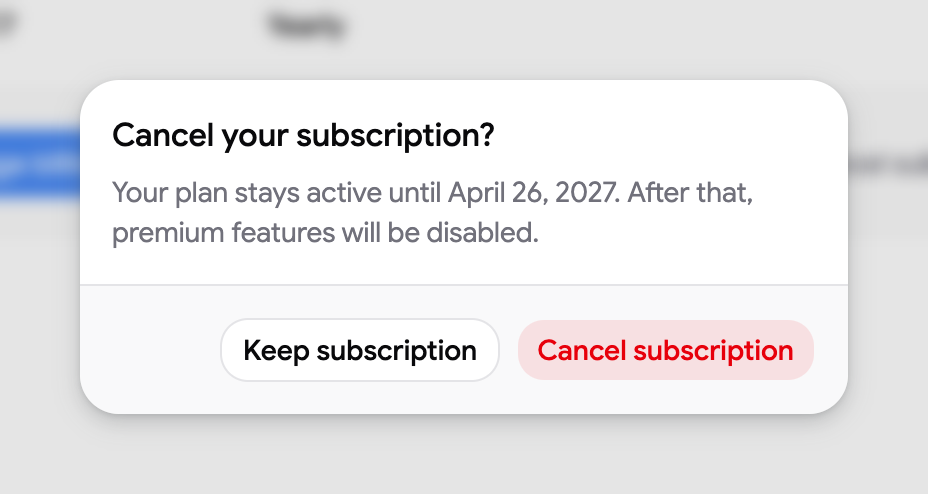
- Confirm with “Cancel subscription” in the Cancel your subscription? dialog, or click “Keep subscription” to change your mind.
What happens next
Section titled “What happens next”- The status on the Subscription page changes to “Not renewing” and “Premium until” shows the last day of access.
- You keep every Premium feature until that date. After it, shared lists beyond the free limit, extra boards, labels and the other Premium features are disabled, but nothing is deleted: your tasks stay in Google Tasks.
- Members of a Team plan lose Premium on the same date.
Resubscribe
Section titled “Resubscribe”Before the end date, open the pricing page and click “Change plan” under any plan: confirming removes the scheduled cancellation. After the end date, subscribe again from the pricing page as a new purchase (the free trial is not offered a second time).
Refunds
Section titled “Refunds”Cancelling never triggers an automatic refund. A charge from the last 30 days can be refunded on request: see refunds and unexpected charges. If you cannot sign in to the account that holds the subscription, see cancel a subscription you cannot sign in to.