
Chrome extension
Esta página aún no está disponible en tu idioma.
The TasksBoard Chrome extension puts one of your Google Tasks lists in Chrome’s side panel, so you can check and add tasks next to any website without leaving the tab.
Install the extension
Section titled “Install the extension”- Open the settings menu (gear icon) in the header of TasksBoard and click Install Chrome Extension, or go to the Chrome Web Store page directly.
- Click Add to Chrome and confirm.
- Click the TasksBoard icon in the Chrome toolbar (pin it from the puzzle-piece menu if you do not see it). The side panel opens on the right of the window.
The extension also works in Microsoft Edge and other Chromium browsers that support side panels.
Sign in
Section titled “Sign in”The first time, the panel asks you to sign in on TasksBoard. Click Sign in with Google: a regular tab opens for Google’s sign-in, and the panel reloads with your lists as soon as it is done. The panel uses the same account as tasksboard.com, so there is nothing else to set up.
What the side panel shows
Section titled “What the side panel shows”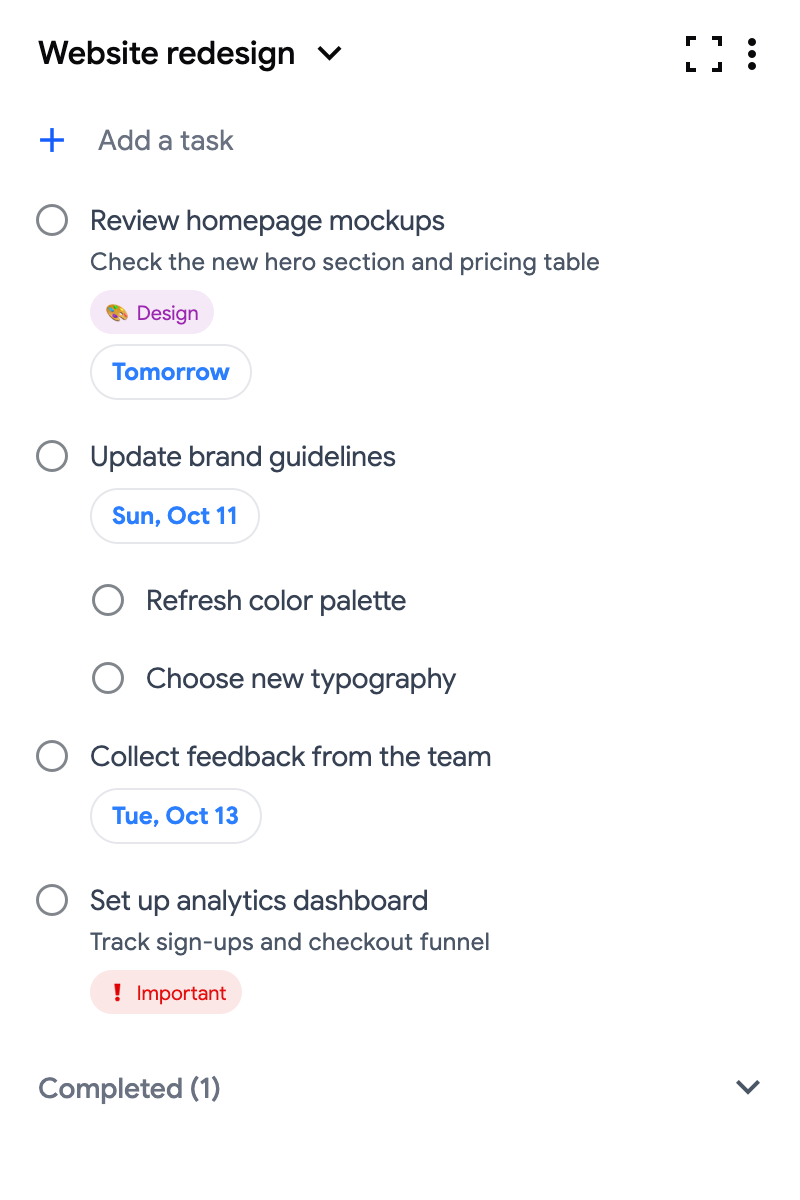
- One list with its tasks, notes, due dates, labels and subtasks. You can add tasks, complete them, open the editor and drag tasks to reorder them, exactly like on the board.
- The list switcher (arrow next to the list name): pick any list of your account. The panel remembers your choice.
- The full-screen button: opens tasksboard.com in a new tab to see all your boards.
- The list menu (⋮) with the usual list actions.