
Search filters
Bu içerik henüz dilinizde mevcut değil.
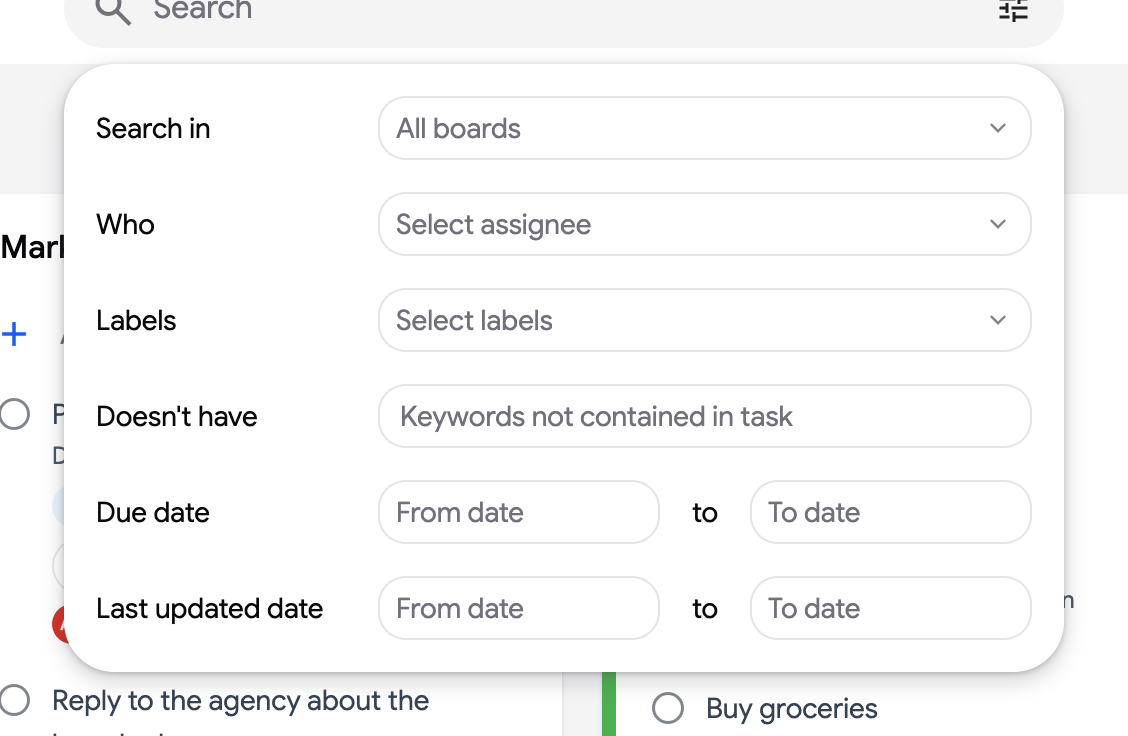
Next to the search bar sits a filter icon. It opens filters that apply on top of your search words, or on their own without any search text.
Open the filters
Section titled “Open the filters”- Click the filter icon at the right end of the search bar.
- Set one or more filters. Results update as soon as a filter changes.
The filters
Section titled “The filters”- “Search in”: the boards to look through. The default is “All boards”; pick one or more boards to restrict the search.
- “Who”: tasks assigned to a given collaborator of your shared lists (or “Assigned to you”). See assign a task.
- “Labels”: tasks that carry one of the chosen labels.
- “Priority”: tasks with one of the chosen priorities (“P1 · Urgent”, “P2 · High”, “P3 · Medium” or “No priority”).
- “Doesn’t have”: words that must not appear in the task.
- “Due date”: a “From date” and “To date” range for the due date.
- “Last updated date”: a range for the last time the task was modified, handy to find what changed this week.
The filter count badge
Section titled “The filter count badge”While filters are active, the filter icon shows a badge with the number of active filters, so you never forget that the board is filtered. Clicking a label on a task, or an assignee avatar, adds that filter directly:
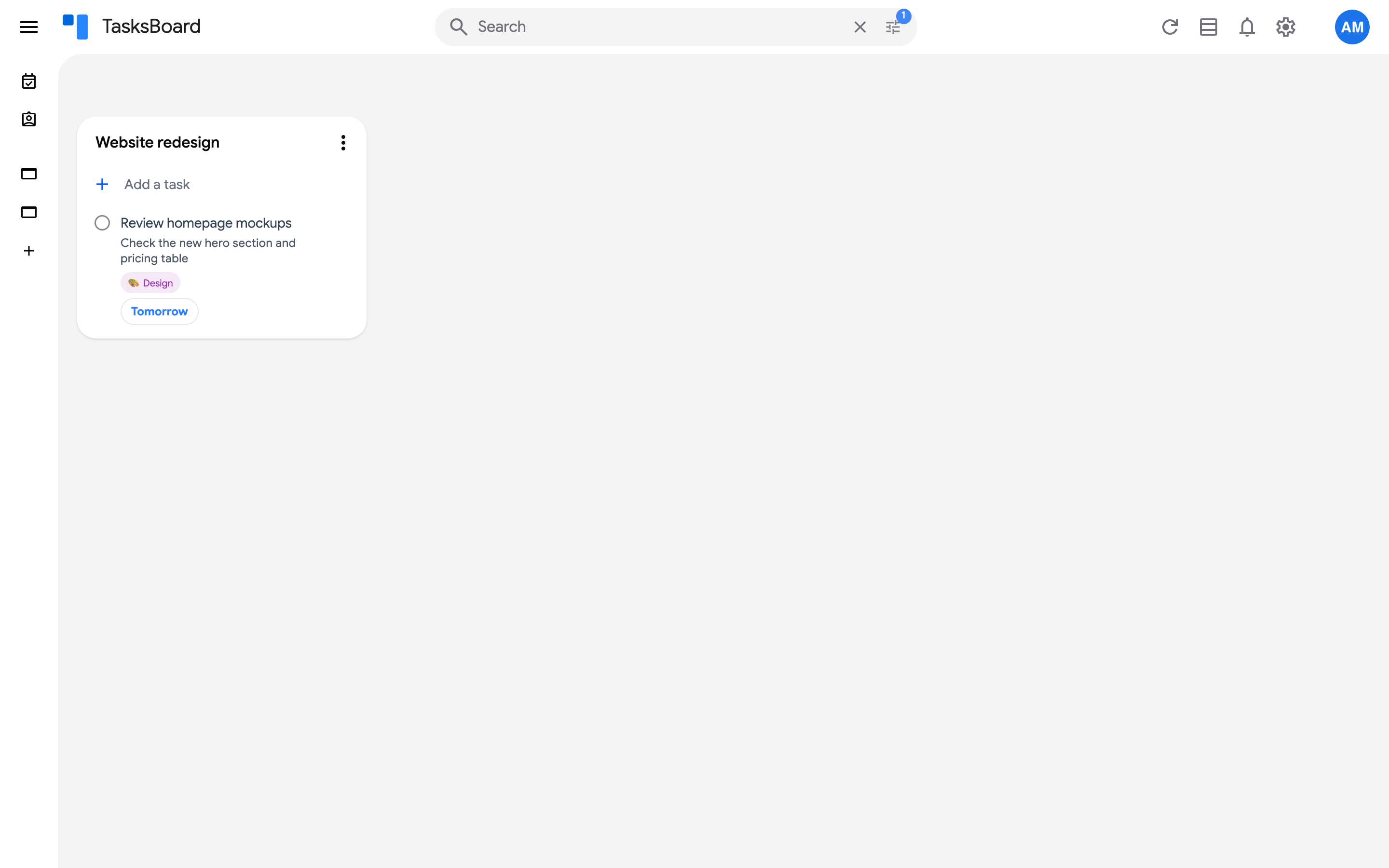
Clear each filter with its x, or click the x in the search bar to clear the search text and go back to the board.