
Import tasks from a spreadsheet or a file
Bu içerik henüz dilinizde mevcut değil.
Instead of adding tasks one by one, you can import a whole file: every row becomes a task, and every tab or “List” column becomes a list on your board. Imported tasks sync to Google Tasks in the background.
Supported files
Section titled “Supported files”- Spreadsheets: CSV, TSV, Excel, Apple Numbers and OpenDocument (.ods), up to 20 MB.
- Google Sheets, picked from your Google Drive.
- Text and Markdown:
#headings open lists, each line or bullet is a task,- [x]marks a completed one, indented bullets become subtasks and indented plain lines become notes. - Google Takeout: the
Tasks.jsonof a Google Tasks export, with lists, subtasks, notes, due dates and completion.
Up to 2,000 tasks and 100 lists can be imported at once.
Open the import dialog
Section titled “Open the import dialog”- Open the three dots menu (⋮) next to the board name.
- Click Import tasks.
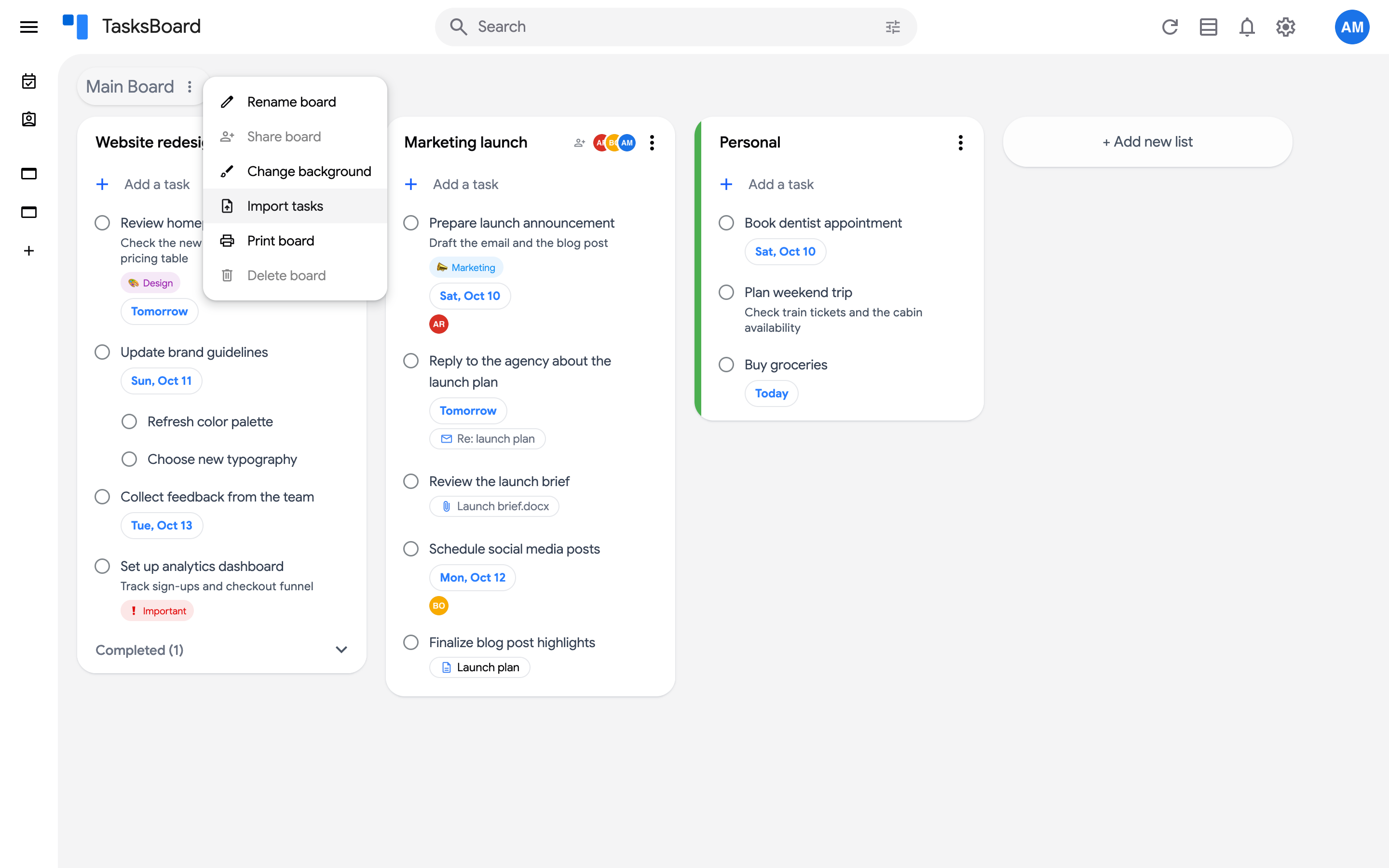
- Drop your file on the dialog, or click Drop a file here or click to browse to pick it.
Import from Google Sheets
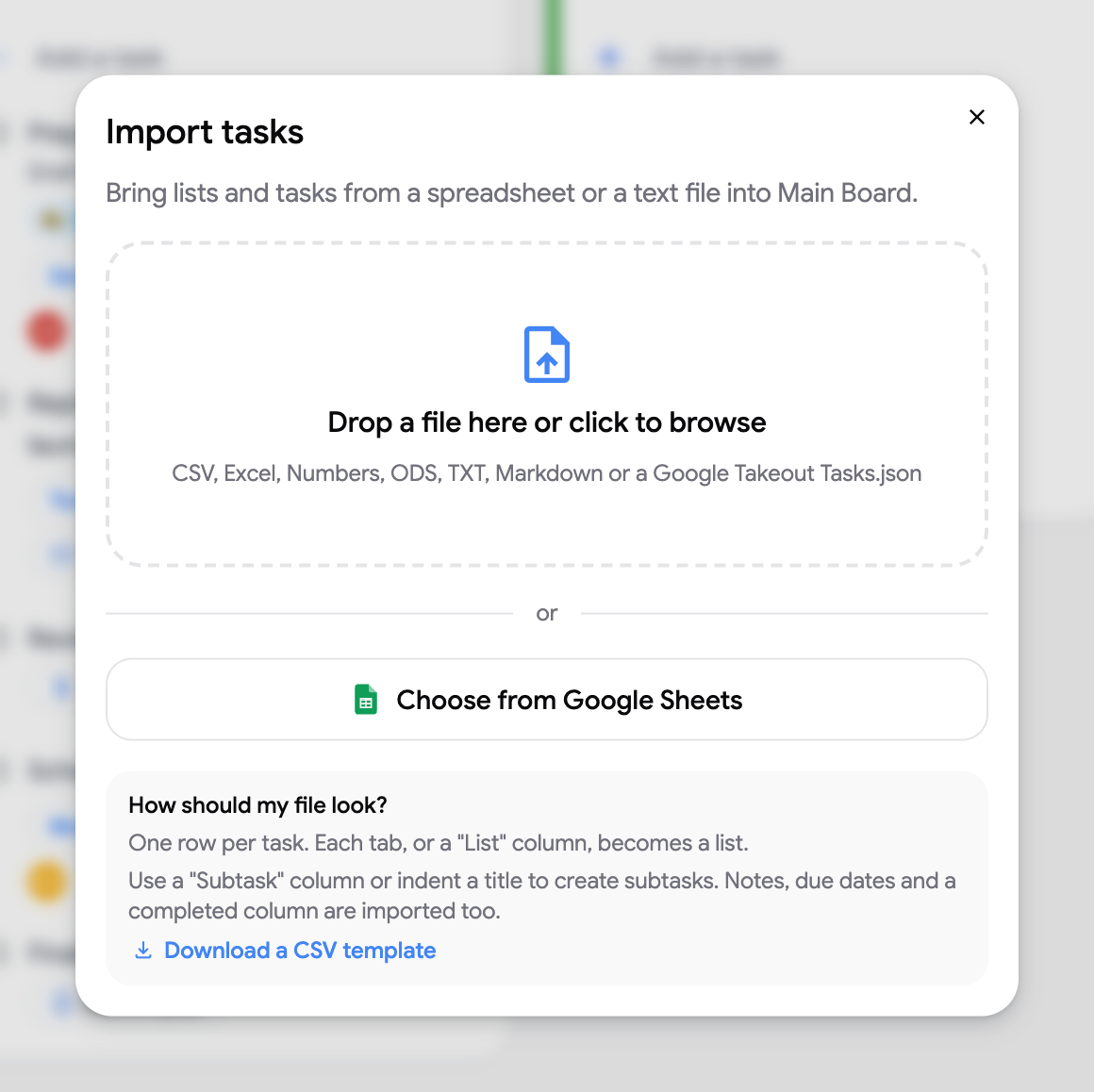
Section titled “Import from Google Sheets”Click Choose from Google Sheets to pick a spreadsheet from Drive. The first time, TasksBoard asks you to Connect Google Drive: this only gives access to the files you pick. Allow it with the account you are signed in with.
Check the preview
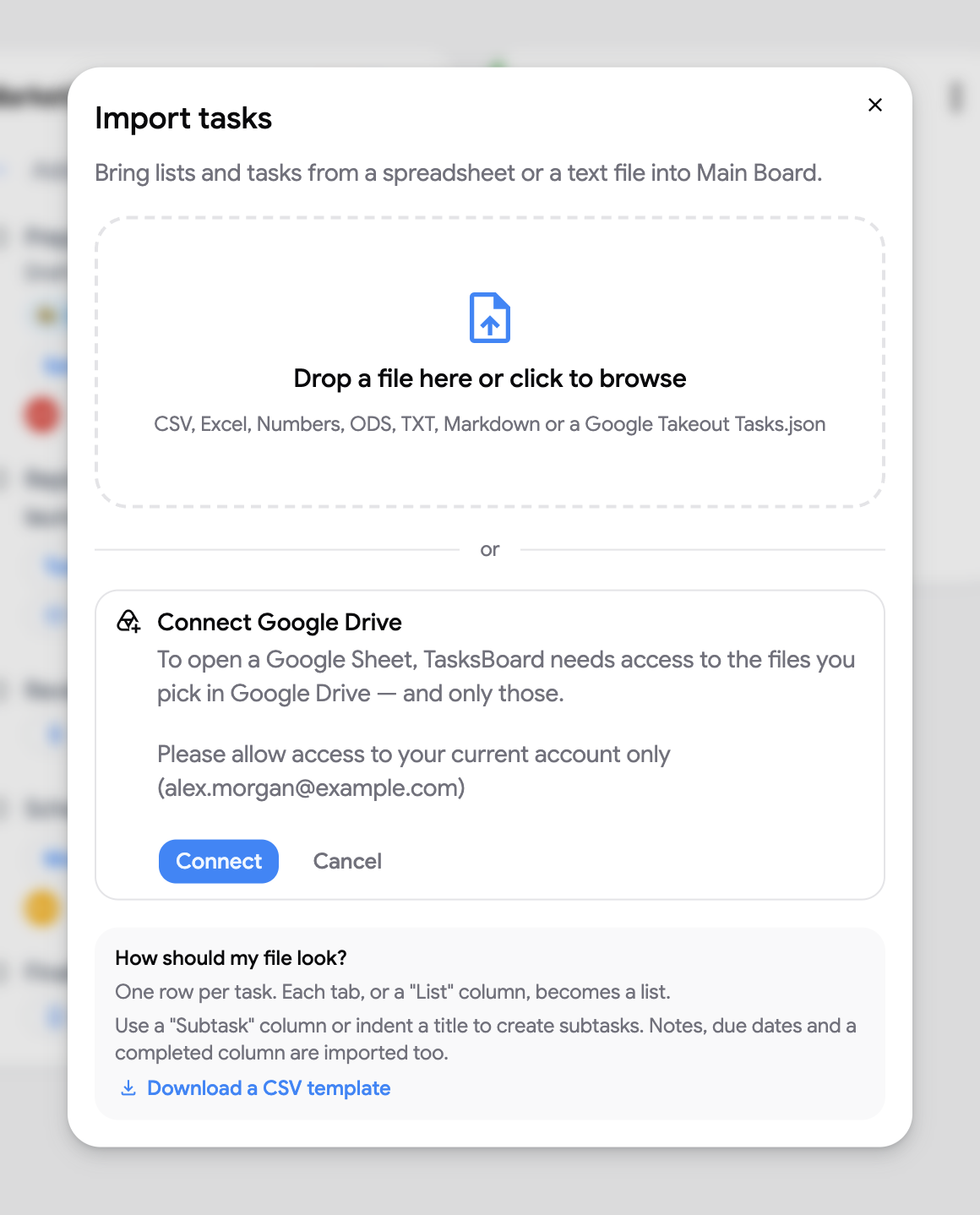
Section titled “Check the preview”The dialog shows how many lists, tasks, subtasks and completed tasks it found, and the lists about to be created. Click a list title to rename it.
- Import into: New lists on the board, or the top of an Existing list.
- Create lists: One list per sheet, One list per “List” value, or Put everything in one list.
- Skip completed tasks: leave out the rows marked as completed.
Columns
Section titled “Columns”TasksBoard recognizes common headers (Task, Notes, Due date, Completed, List, and those of Todoist, Trello or Asana exports). Open the Columns panel to fix the mapping when a column was not detected:
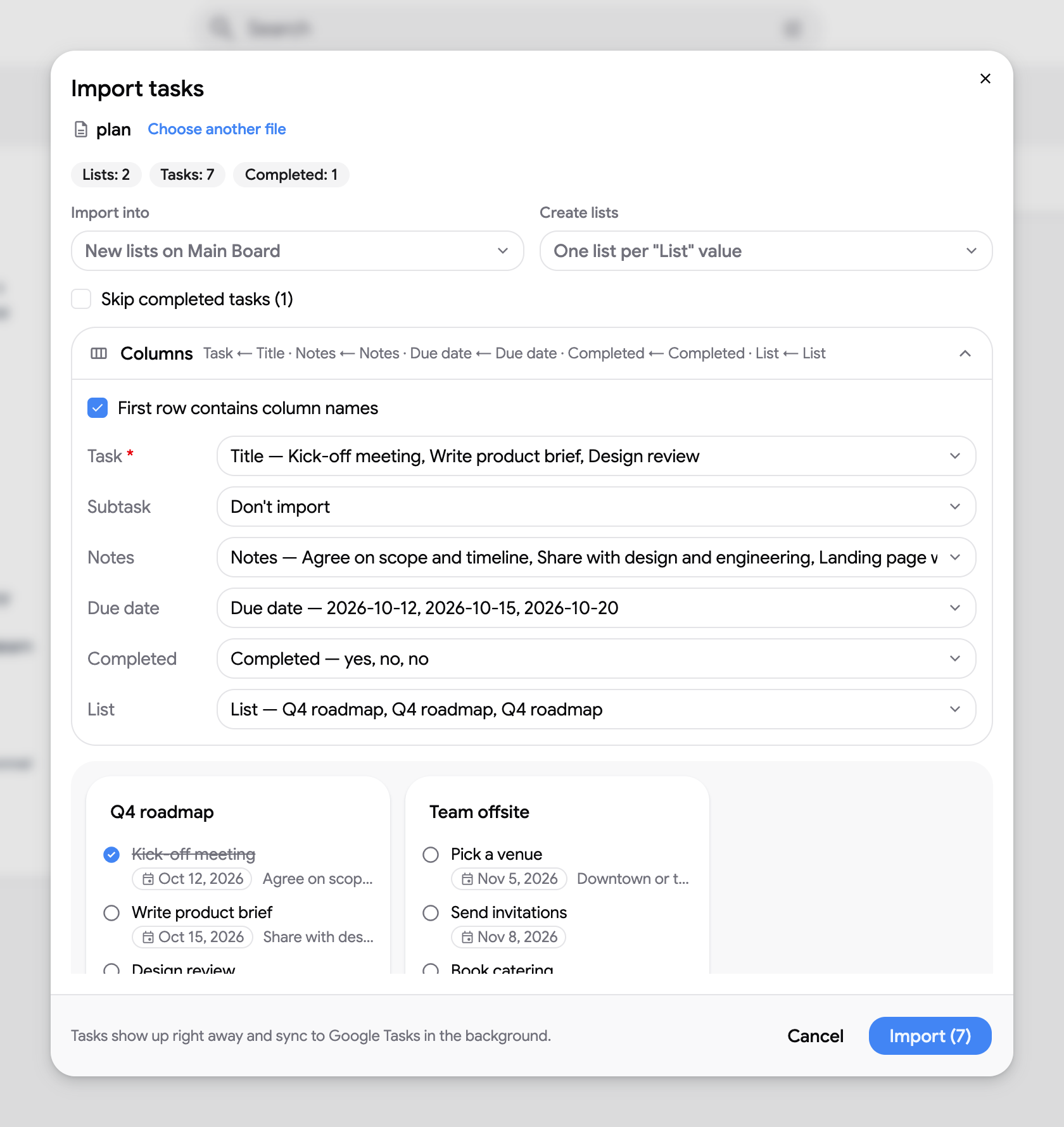
- First row contains column names: untick it when the file starts directly with a task.
- Pick the column for Task (required), Subtask, Notes, Due date, Completed and List, or choose Don’t import.
- With several sheets, click a sheet name under Sheets to import to edit its columns, or untick it to leave it out.
Rows without a title are skipped. Dates like 2026-10-12, 12.10.2026 or Oct 12, 2026 are understood; an unreadable date is dropped and the task still imported.
Run the import
Section titled “Run the import”Click Import. The new lists appear at the end of the board right away and sync to Google Tasks in the background. With a free account, Import shows the Premium offer; your file and settings stay loaded for after the upgrade.