
Subtasks
Konten ini belum tersedia dalam bahasa Anda.
A task can have subtasks, the same subtasks you see in the Google Tasks app. They are indented under their parent task.
Add a subtask
Section titled “Add a subtask”There are three ways to add a subtask to a task:
- Open the task and click the “Add subtask” button in the row of buttons under the details.
- Or open the three dots menu (⋮) of the task and click “Add a subtask”.
- Or, while editing the task on a Mac, press Cmd+Alt+Enter.
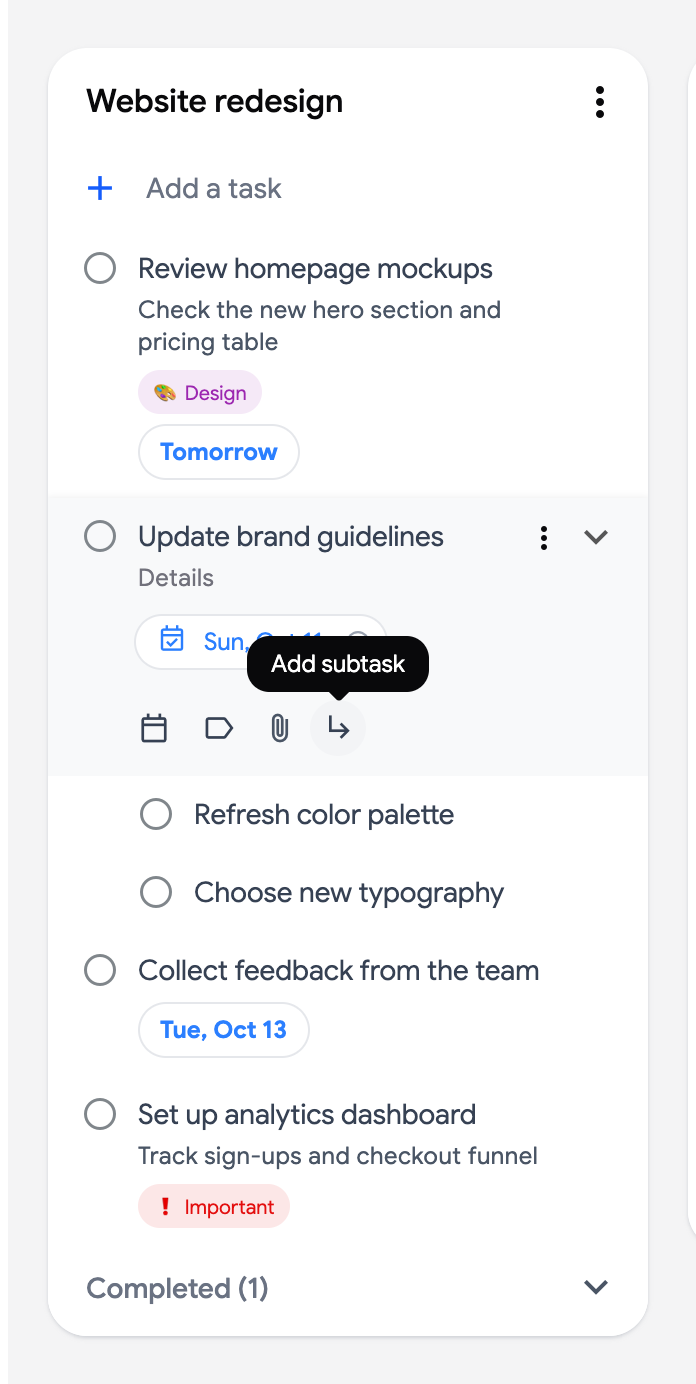
A new subtask opens right under the parent, ready for its title. Pressing Enter in the title of a task that already has subtasks also adds a new first subtask.
Turn an existing task into a subtask
Section titled “Turn an existing task into a subtask”- Place the task right below the task that should become its parent.
- Open its three dots menu (⋮) and click “Set as subtask of …” (the name of the task above is shown). The item is only offered for a task that has no subtasks of its own; press Tab in its title instead.
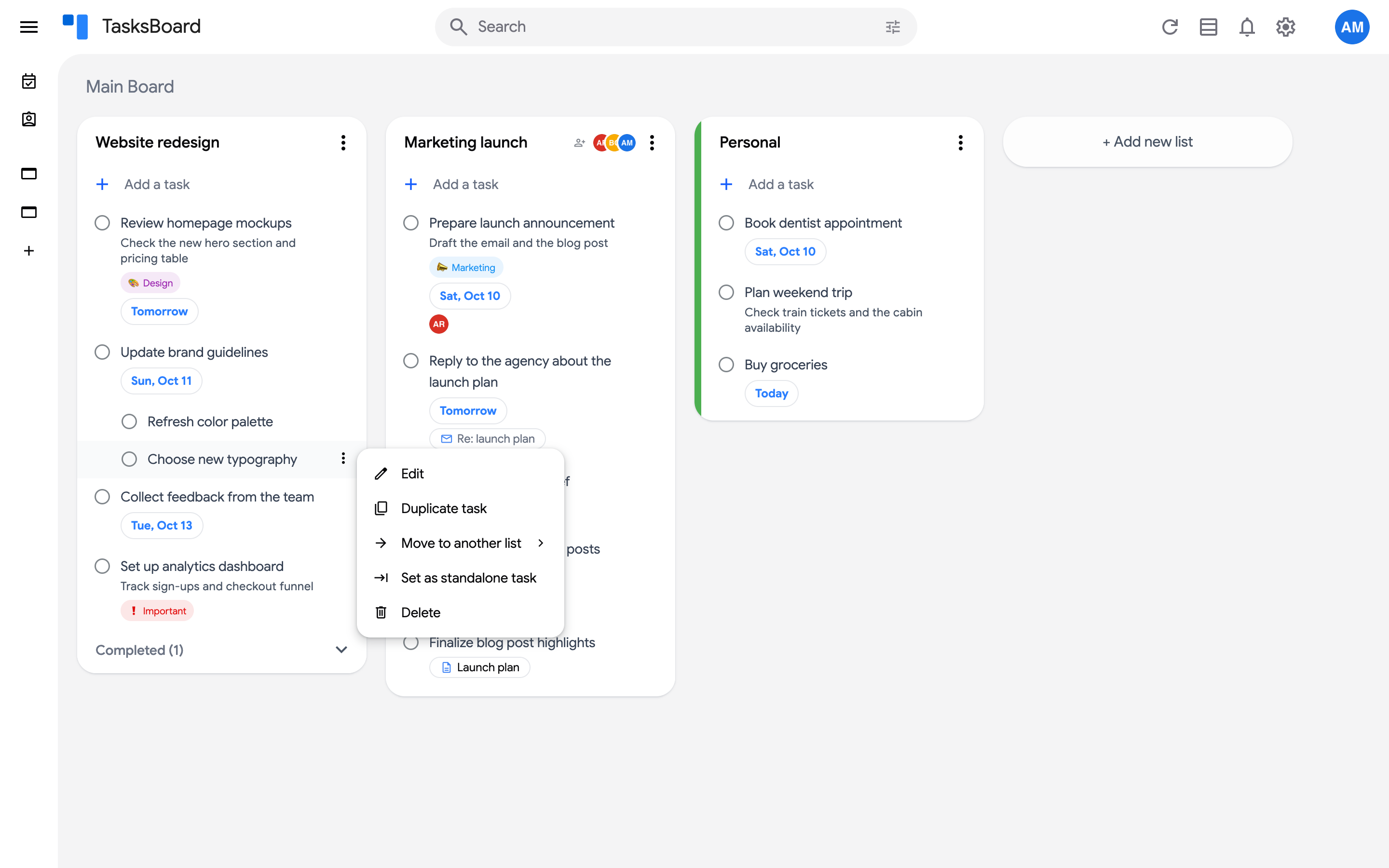
To do the opposite, open the menu of a subtask and click “Set as standalone task”:
Nest subtasks deeper
Section titled “Nest subtasks deeper”Google Tasks allows one level of subtasks; TasksBoard lets you nest them three levels deep, on every plan.
- While editing a task, press Tab in its title to nest it under the task right above it at the same level, and Shift+Tab to move it one level up (a first-level subtask becomes a standalone task).
- Or open the three dots menu (⋮) of a subtask: “Set as subtask of …” nests it under the subtask above, “Move one level up” brings a nested subtask back (a first-level subtask has “Set as standalone task” instead).
- “Add a subtask” on a subtask creates a nested subtask under it (not at the third level).
Nested subtasks are indented further under their parent, follow it when it moves, and are completed with it.
Collapse and expand
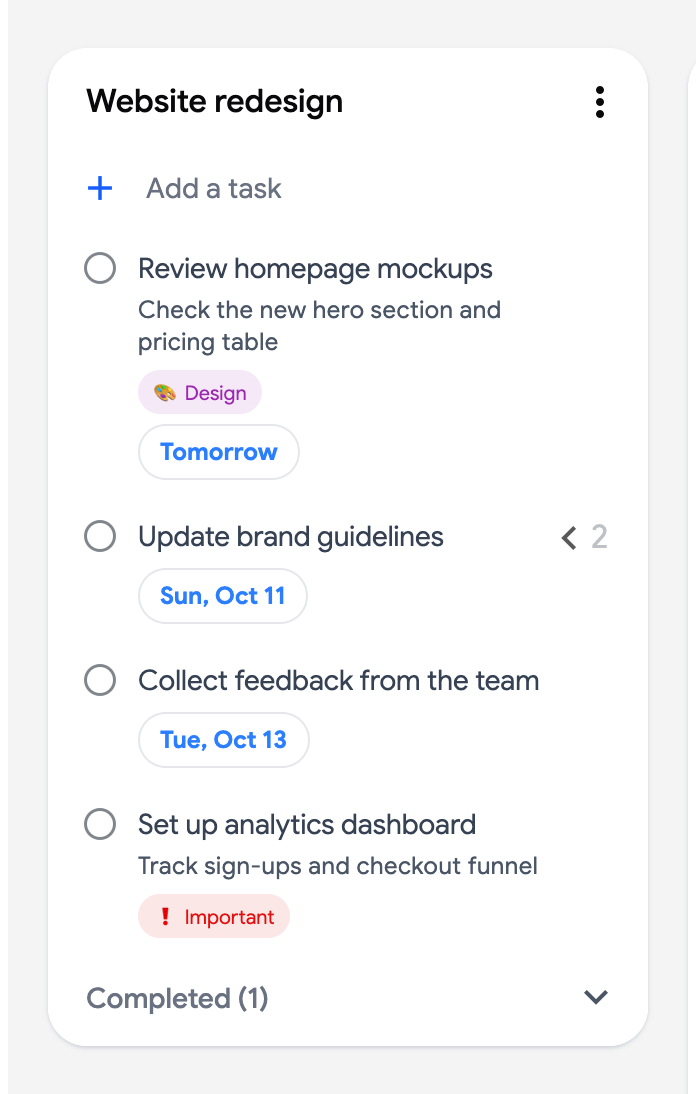
Section titled “Collapse and expand”Click the arrow of a parent task to hide its subtasks. The number of hidden subtasks is shown next to the arrow; click it again to expand. A nested subtask that has subtasks of its own gets the same arrow, so you can fold any level of the tree.
Good to know
Section titled “Good to know”- Subtasks move with their parent: when you drag a parent task or move it to another list, its subtasks follow.
- Completing the parent task completes its subtasks.
- Google Tasks itself allows one level of subtasks. Deeper nesting is stored by TasksBoard as a
↳ parent:line in the subtask’s details: the Google Tasks app shows every subtask flat under the top-level task, with that line in its details. Leave the line alone and TasksBoard keeps the nesting. - A nested subtask dragged under another task becomes a plain subtask of that task.
- When a list is sorted by due date, tasks are grouped by date and the subtask items of the menu are not available; switch back to “Custom order” to manage subtasks (Tab and Shift+Tab in the editor keep working).